
Kafka integration
TBMQ Kafka Integration enables communication with Apache Kafka, allowing TBMQ to publish messages to external Kafka clusters. This is useful for the following scenarios:
- Streaming IoT Data — forwarding device telemetry, logs, or events to Kafka for processing and storage.
- Event-Driven Architectures — publishing messages to Kafka topics for real-time analytics and monitoring.
- Decoupled System Communication — using Kafka as a buffer between TBMQ and downstream applications.
The two technologies complement rather than replace each other — see MQTT vs Kafka for how they compare and why they are so often paired.
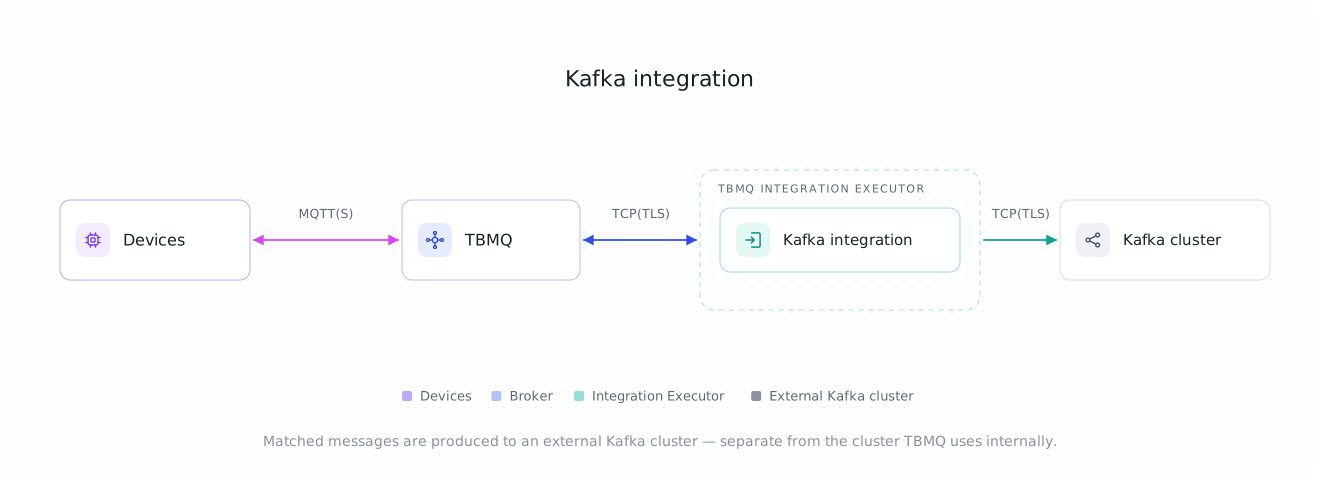
Data flow
Section titled “Data flow”- Device (client) publishes an MQTT message to a topic matching the integration’s topic filters.
- TBMQ broker receives the message and forwards it to the TBMQ Integration Executor.
- Integration Executor processes the message and sends it to a configured Kafka topic.
- Kafka consumers process the message in downstream systems.
Prerequisites
Section titled “Prerequisites”- A running TBMQ instance, version 2.1 or later, with the TBMQ Integration Executor service running. Without a reachable executor, saving an integration fails with a validation timeout.
- An external Kafka cluster ready to receive messages (e.g., Confluent Cloud).
- A client capable of publishing MQTT messages (e.g., TBMQ WebSocket Client).
Create TBMQ Kafka Integration
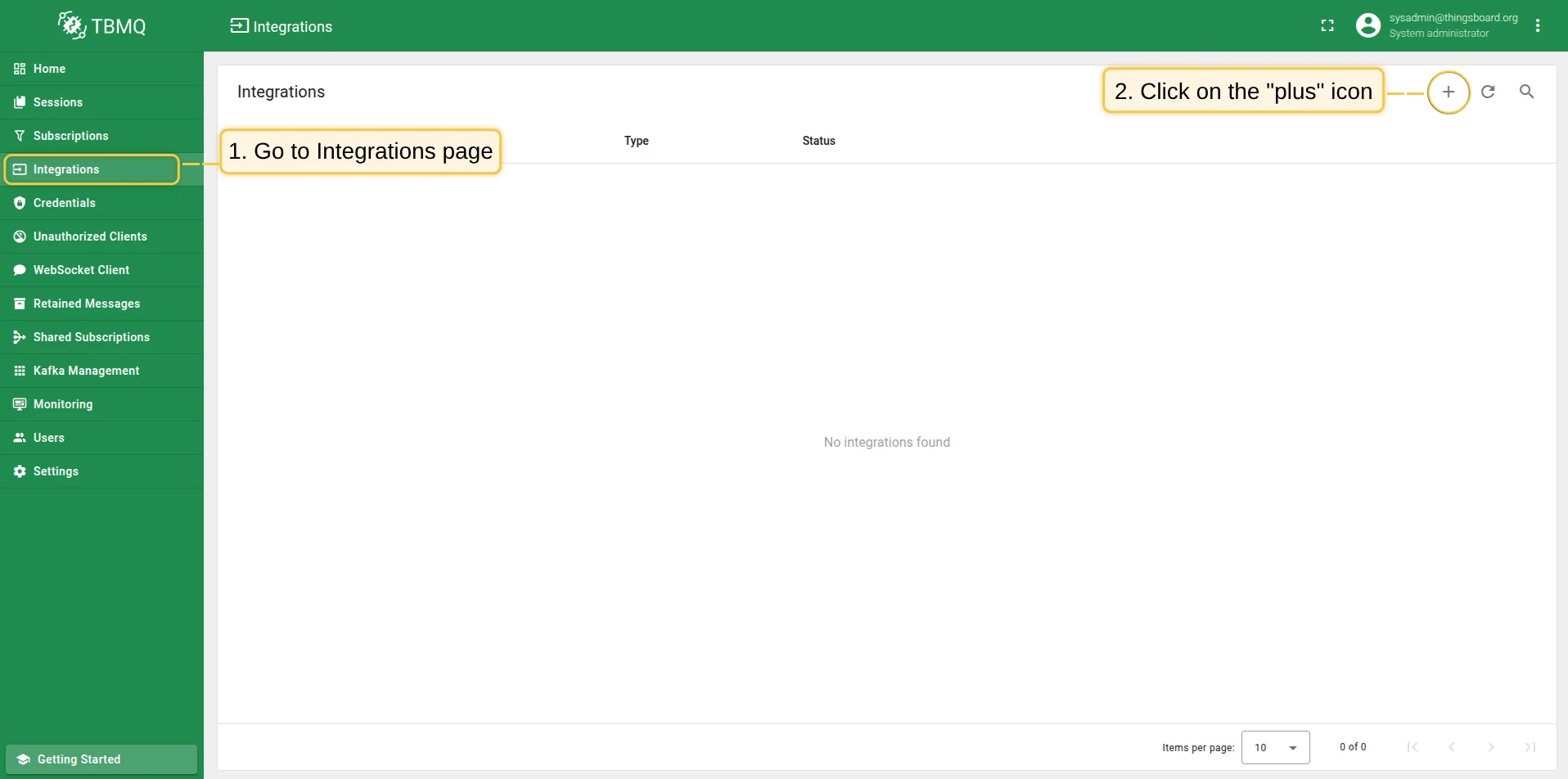
Section titled “Create TBMQ Kafka Integration”- Go to the Integrations page and click the “+” button.
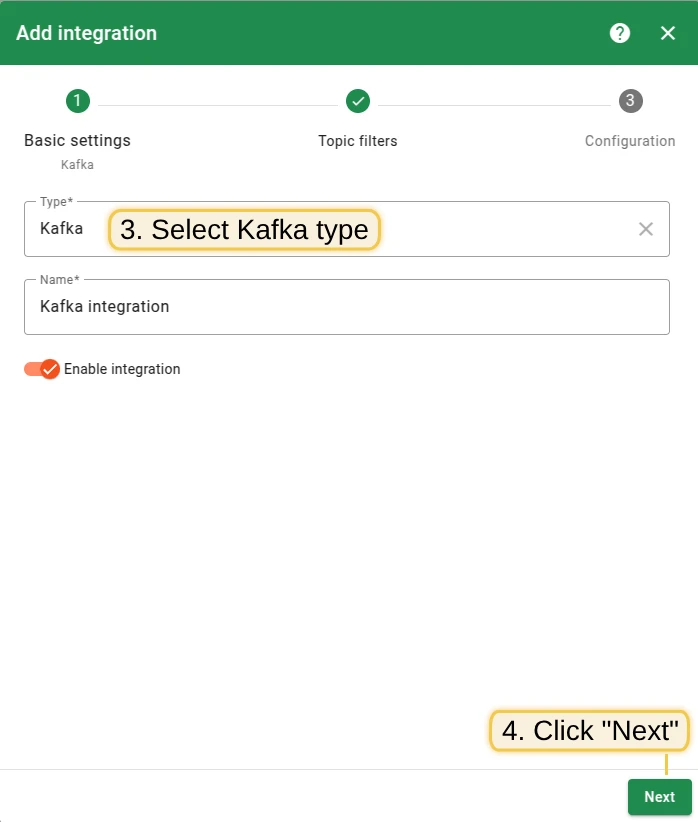
- Select Kafka as the integration type and click Next.
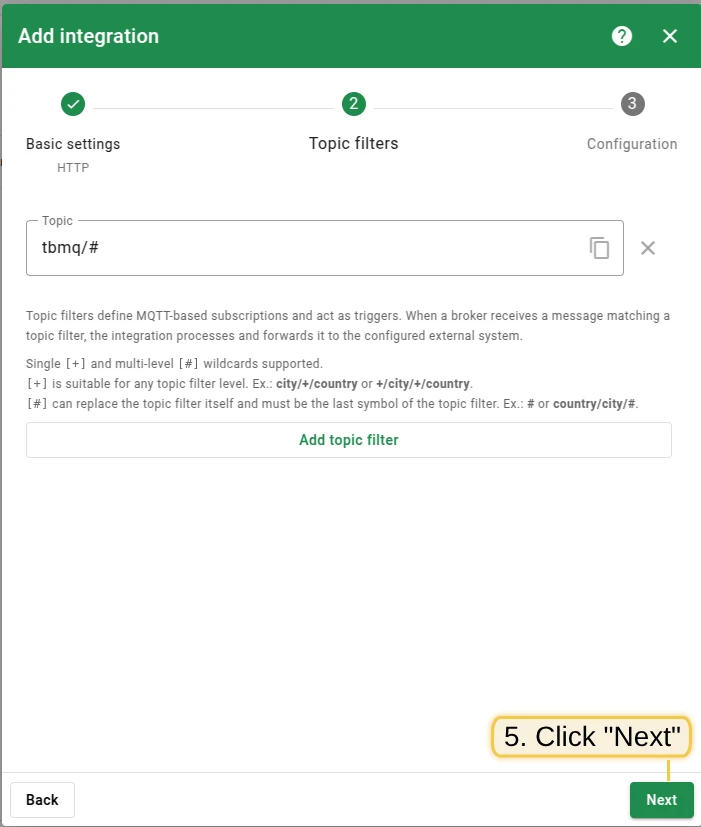
- On the Filters and events step, keep the default Topic filters entry
tbmq/#, leave Lifecycle events empty, and click Next. - In the Configuration step, enter the Bootstrap servers (Kafka broker addresses). See below for common and Confluent Cloud configurations. Leave Topic at its default
tbmq.messages— that is the topic this tutorial reads from at the end. - Click Add to save the integration.
Kafka bootstrap servers configuration
Section titled “Kafka bootstrap servers configuration”Specify the bootstrap server address of your own Kafka cluster (e.g., localhost:9092 for a broker you run locally — not TBMQ’s internal Kafka, which uses the same address in the default deployments). The screenshot below shows the basic configuration for establishing a connection between TBMQ and a Kafka broker.
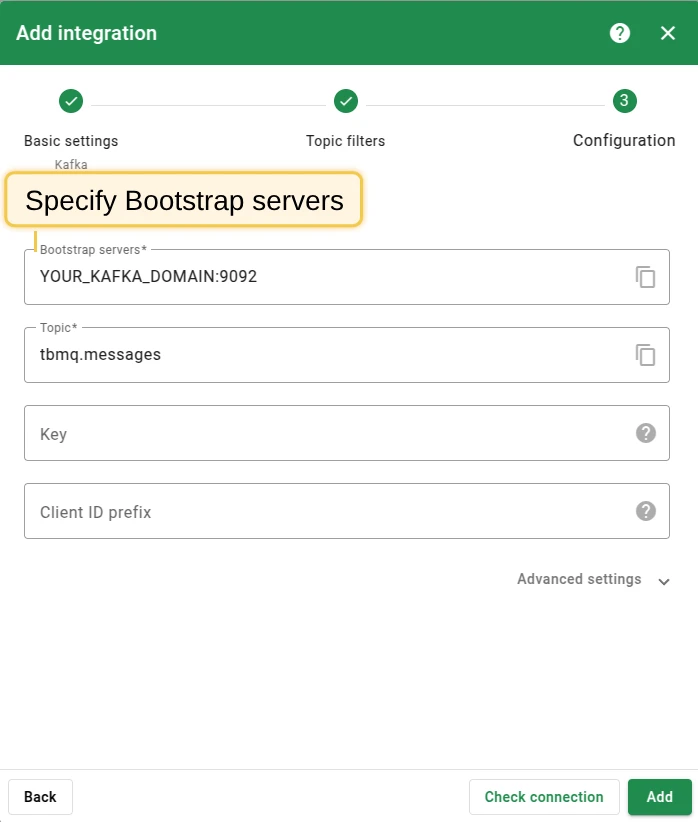
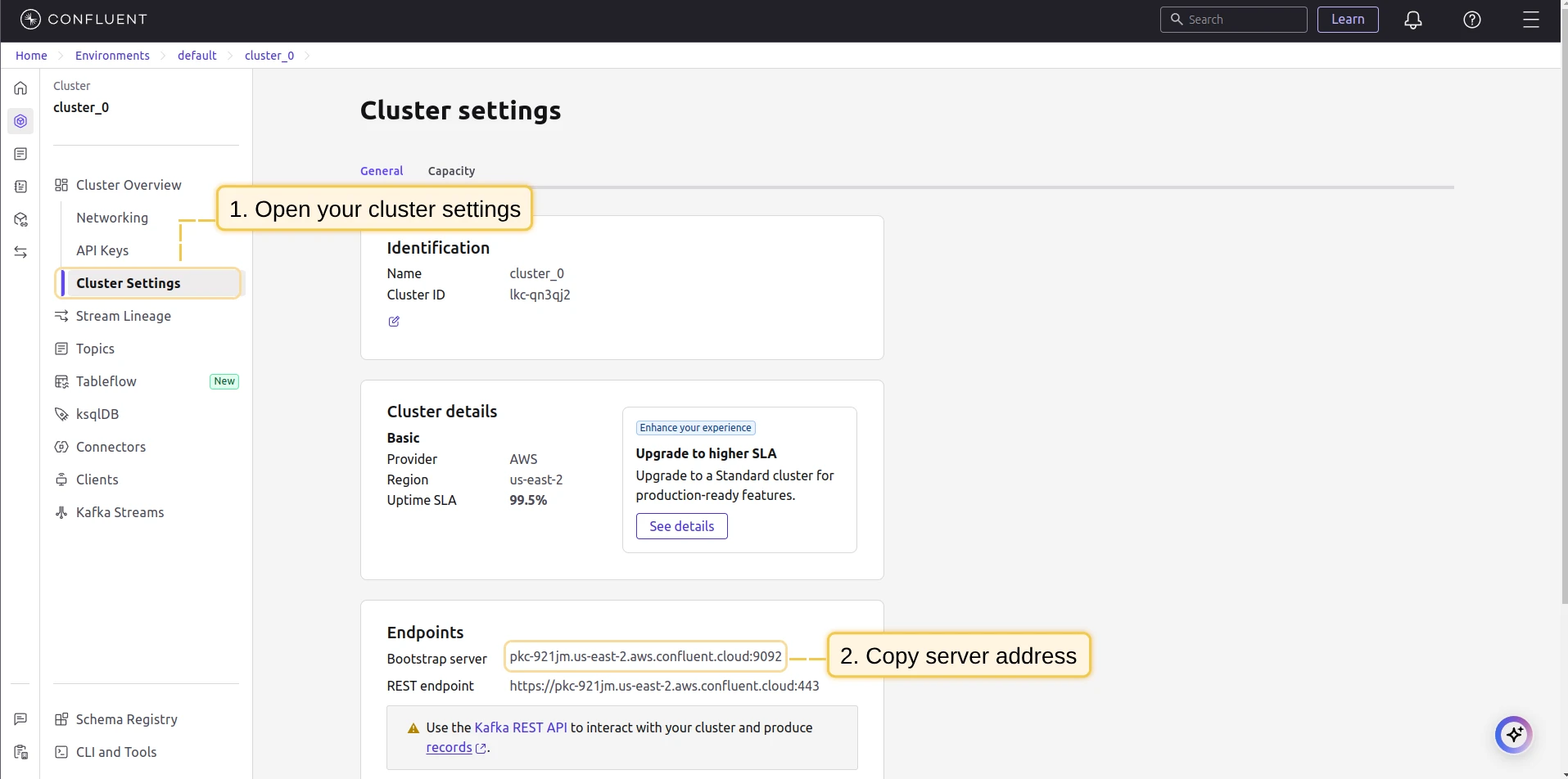
Step 1: In Confluent, open your environment → Cluster → Cluster settings. Find the Bootstrap server URL (format: URL_OF_YOUR_BOOTSTRAP_SERVER:9092) and copy it to the integration.
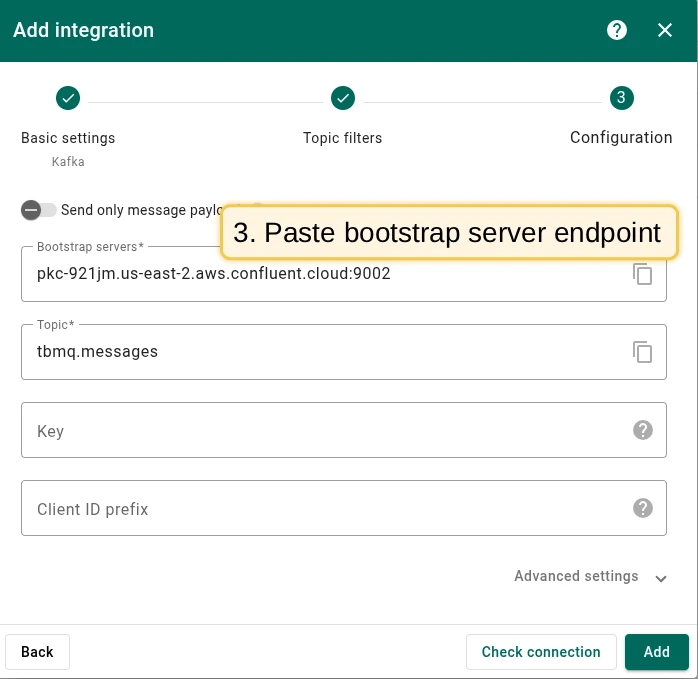
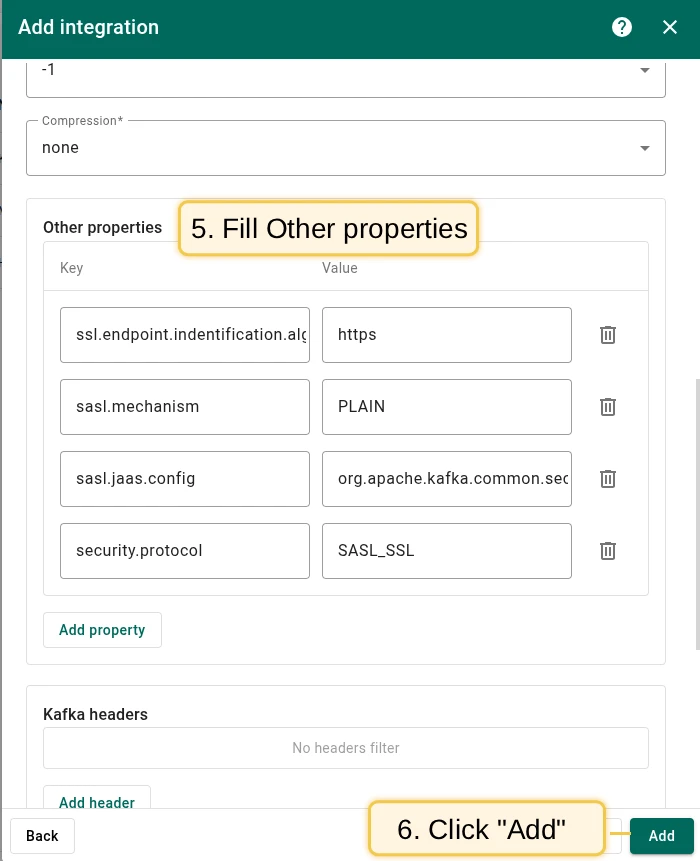
Step 2: Add the following Other properties key-value pairs for SASL/SSL authentication:
| Key | Value |
|---|---|
ssl.endpoint.identification.algorithm |
https |
sasl.mechanism |
PLAIN |
sasl.jaas.config |
org.apache.kafka.common.security.plain.PlainLoginModule required username="CLUSTER_API_KEY" password="CLUSTER_API_SECRET"; |
security.protocol |
SASL_SSL |
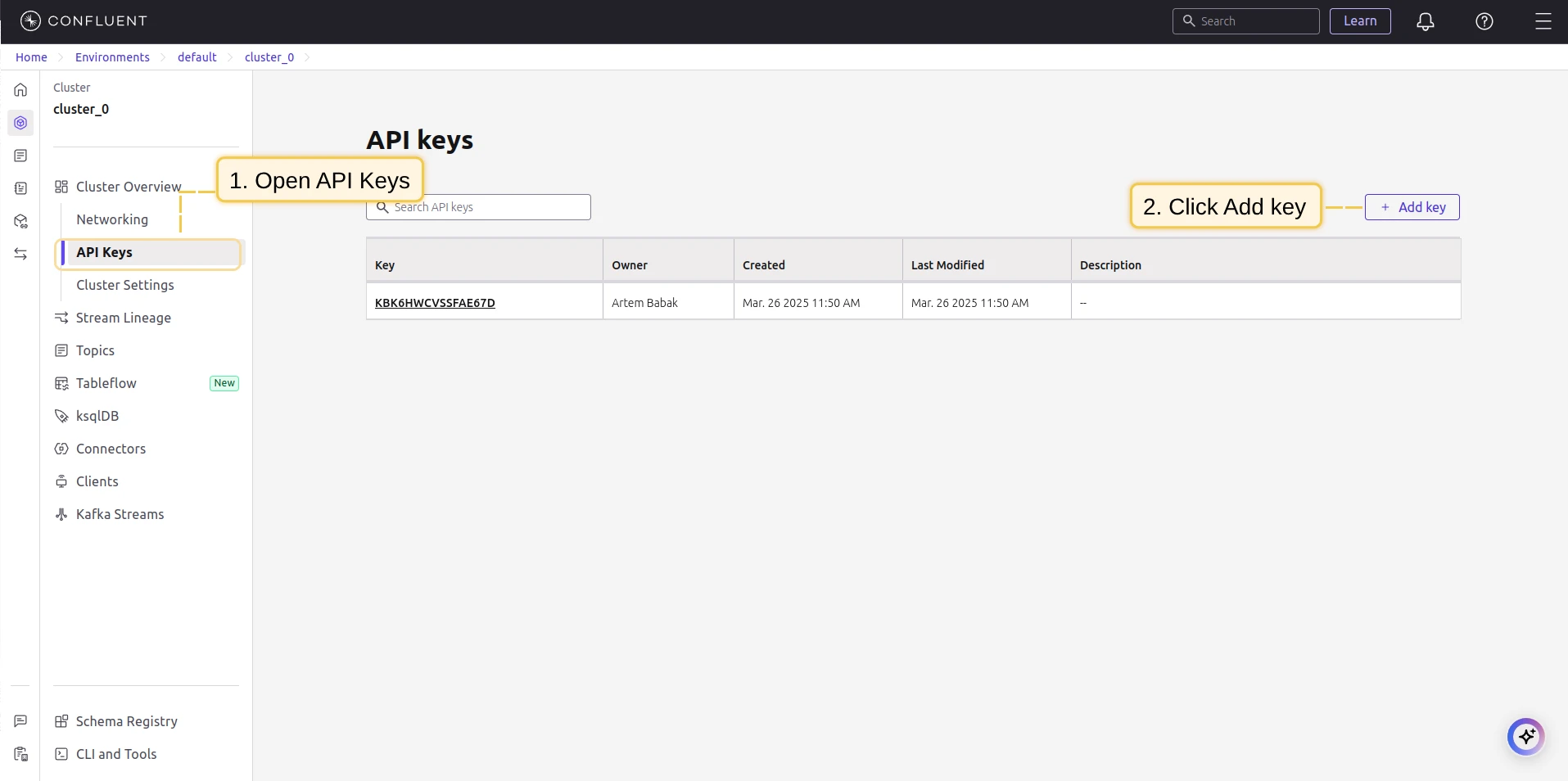
Replace CLUSTER_API_KEY and CLUSTER_API_SECRET with your cluster’s API key and secret. On Confluent Cloud, generate
one under Data Integration → API Keys → Create key.
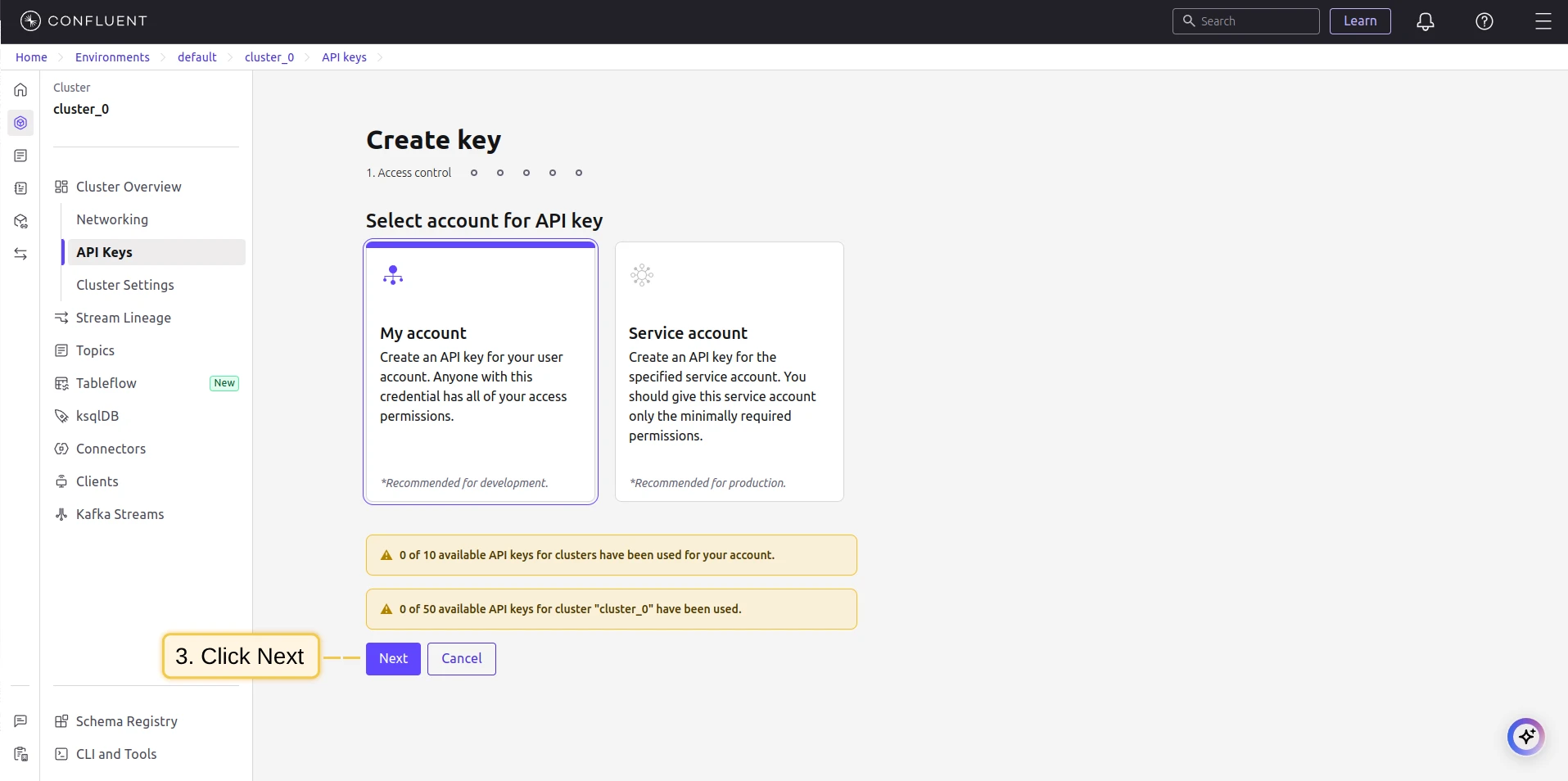
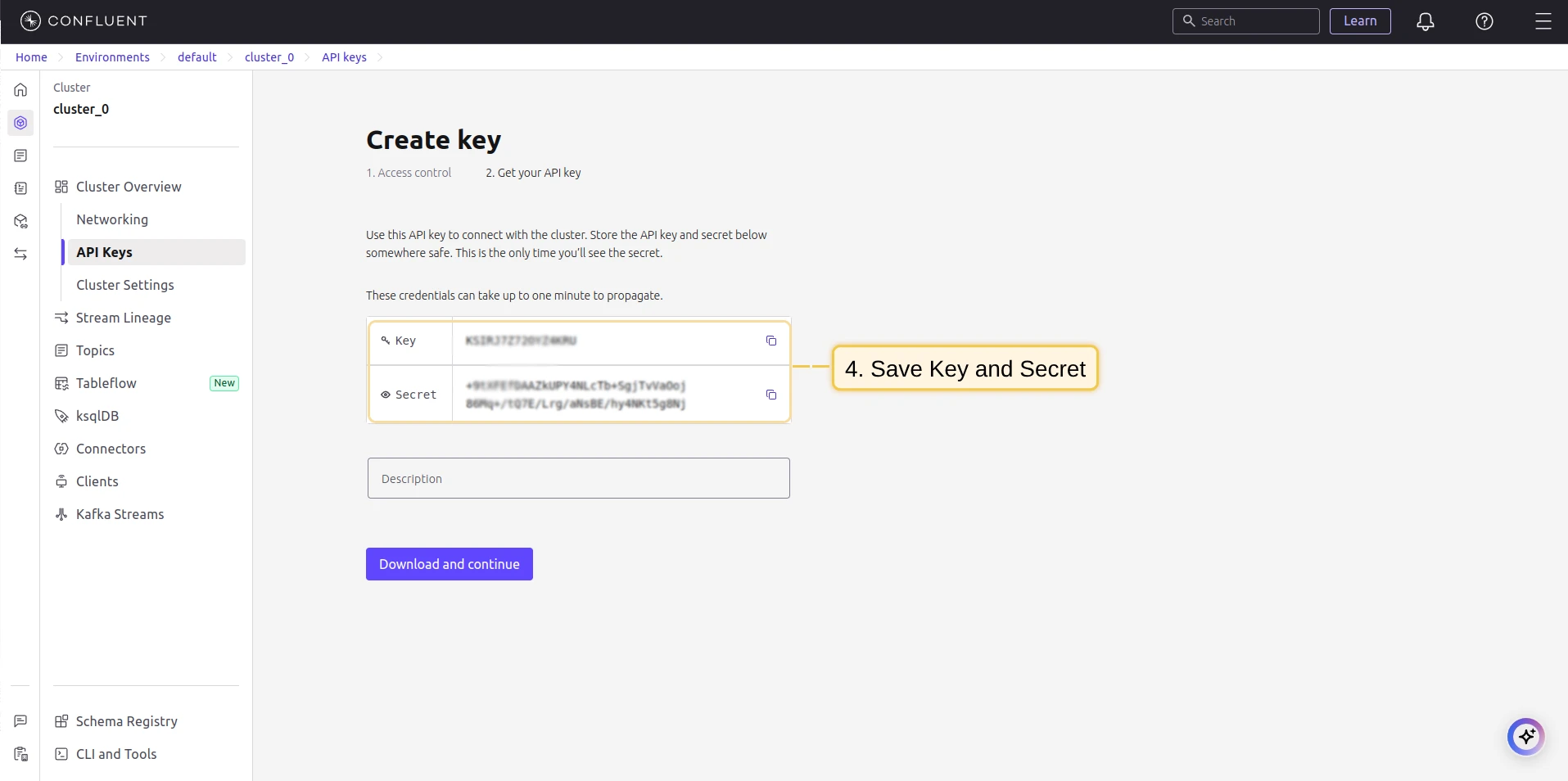
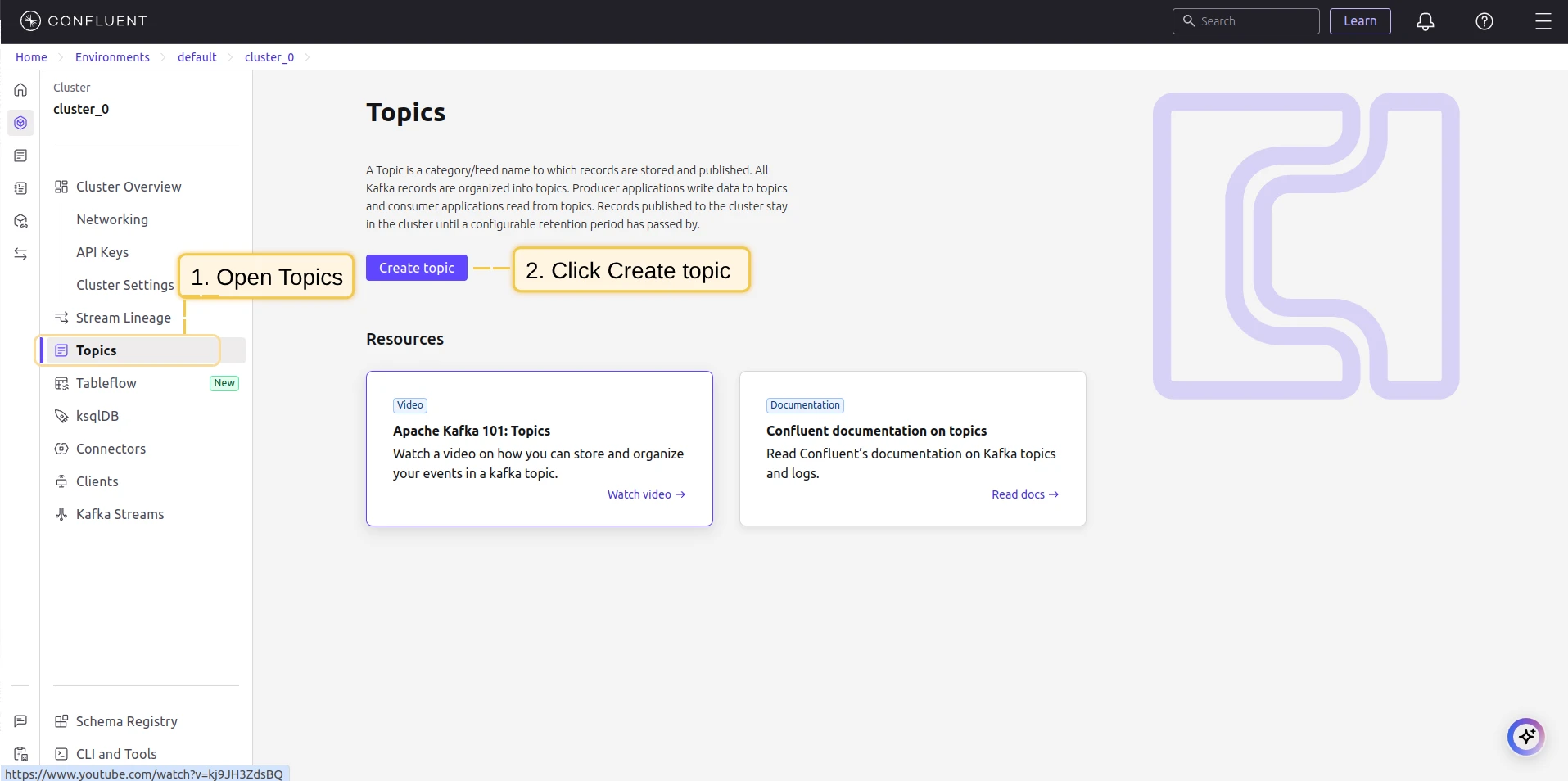
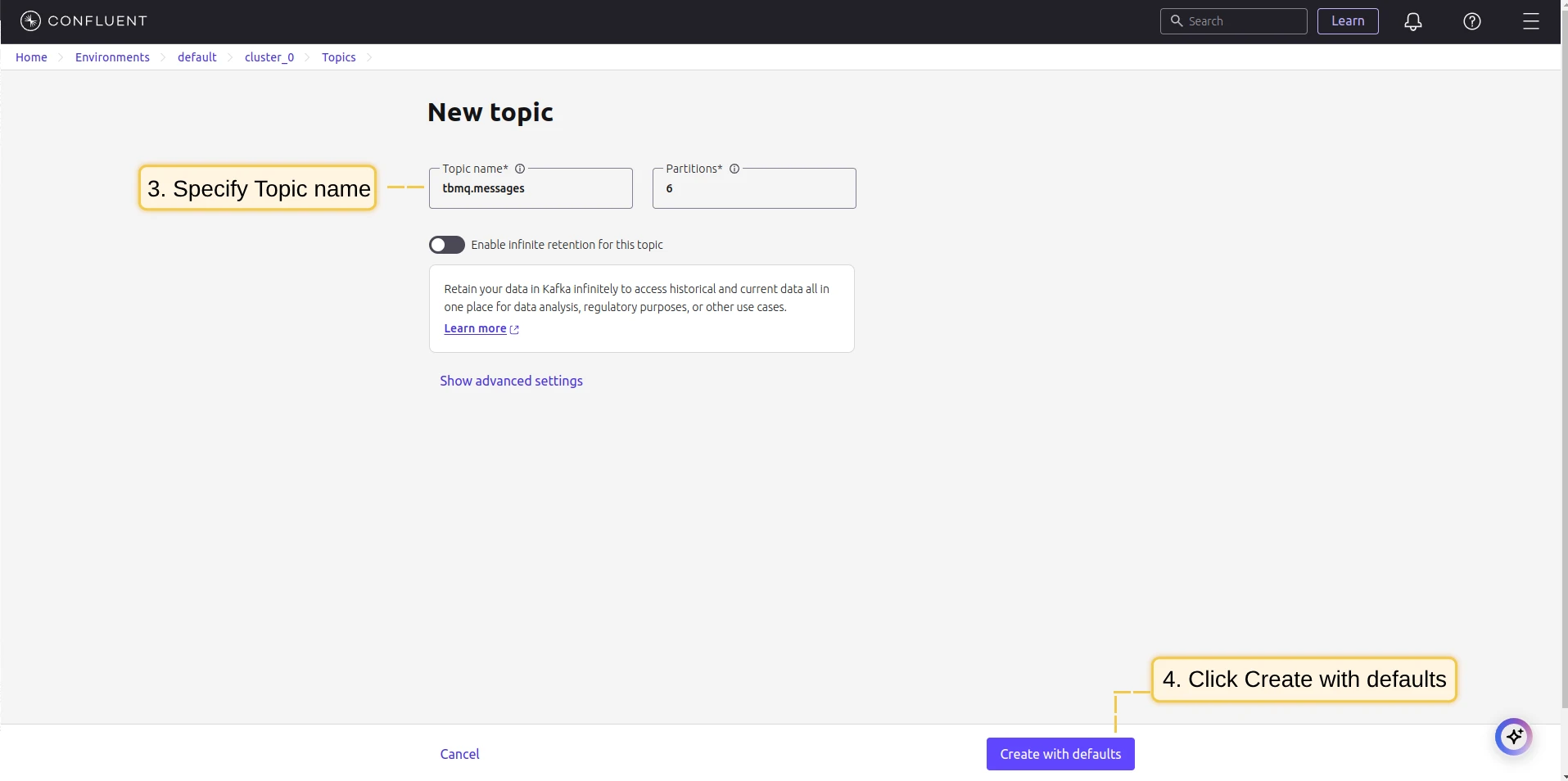
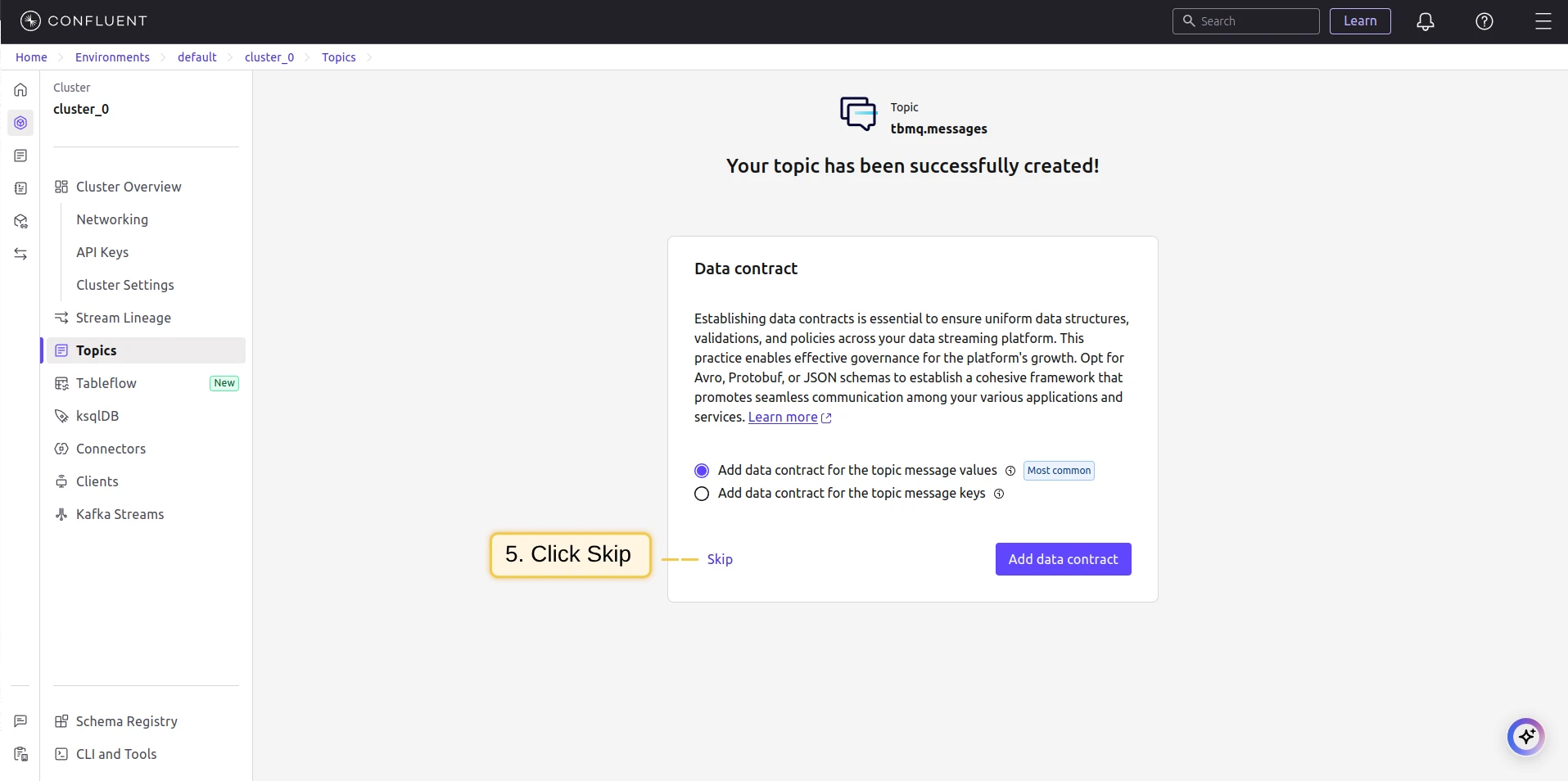
Step 3: Create a Kafka topic on Confluent. Go to Topics → Create Topics and set the name to tbmq.messages.
Topic filters
Section titled “Topic filters”Topic filters define MQTT-based subscriptions that trigger the integration. When TBMQ receives a message matching a configured topic filter, the integration processes it and forwards the data to the Kafka cluster.
Topic filters are optional if you select at least one lifecycle event type instead — an integration only has to have one of the two.
For example, with the topic filter tbmq/devices/+/status, any of the following messages will trigger the integration:
tbmq/devices/device-01/statustbmq/devices/gateway-01/statusConfiguration
Section titled “Configuration”| Field | Default | Description |
|---|---|---|
| Send only message payload | off | If enabled, only the raw message payload is forwarded. If disabled, TBMQ wraps the payload in a JSON object with additional metadata. |
| Bootstrap servers | localhost:9092 |
Kafka broker addresses (comma-separated list of hostnames/IPs and ports). Required. |
| Topic | tbmq.messages |
The Kafka topic where messages will be published. Required. |
| Key | — | Optional record key. If set, Kafka hashes it so records with the same key land on the same partition. Accepts placeholders, e.g. ${clientId}. If left empty, or if a placeholder in it has no value, the record is sent without a key, and Kafka’s sticky partitioner picks a partition and switches only when the batch is full. The integration never sets a partition explicitly. |
| Client ID prefix | tbmq-ie-kafka-producer |
Prefix for the Kafka client ID. The full ID is prefix-integrationId-executorServiceId, so each executor’s producer is distinguishable in the Kafka cluster. |
| Automatically retry times if fails | 0 |
Producer-level retries for a record whose send fails with a transient error (retries). |
| Produces batch size in bytes | 16384 |
Maximum batch size before records are sent (batch.size). |
| Time to buffer locally (ms) | 0 |
How long to wait for more records before sending a batch (linger.ms). |
| Client buffer max size in bytes | 33554432 |
Total memory for buffering records waiting to be sent (buffer.memory). |
| Number of acknowledgments | -1 |
acks — 0 (no acknowledgment), 1 (leader only), or all / -1 (all in-sync replicas, the default and safest). |
| Compression | none |
Compression algorithm: none, gzip, snappy, lz4, zstd. |
| Other properties | — | Additional Kafka producer configuration as key-value pairs — this is where SASL/SSL settings go. |
| Kafka headers | — | Custom headers added to every record. Values accept placeholders; a header whose placeholder has no value is left out of that record. |
| Charset encoding | UTF-8 |
Charset used to encode the Kafka headers values and forwarded user properties: US-ASCII, ISO-8859-1, UTF-8, UTF-16BE, UTF-16LE, or UTF-16. |
| Forward user properties as headers | off | Adds each MQTT 5 user property of a message as a header with the same name. See Forwarding user properties. |
| Metadata | — | Custom key-value pairs attached to forwarded messages, exposed as metadata in the JSON body. |
With Send only message payload enabled, the record value is the payload alone — as UTF-8 text if it is valid UTF-8, Base64-encoded otherwise.
Record key and headers
Section titled “Record key and headers”The Key and the Kafka headers values can contain ${…} placeholders, filled in for each record from the message, or from the event payload for a client lifecycle event. They work with Send only message payload on, too: the record value stays the raw payload, and the key and headers still carry the message’s metadata.
For example, with Key ${clientId}, the headers mqtt-topic = ${topicName} and username = ${username}, and Send only message payload on, each record carries:
- the raw payload as its value;
- the publishing client’s ID as its key, so one client’s records stay on one partition and in order;
mqtt-topicandusernameheaders.
A key or header value without placeholders is sent as is, the same for every record.
Placeholders
Section titled “Placeholders”| Placeholder | Value | Available for |
|---|---|---|
${clientId} |
ID of the MQTT client. | Messages and events |
${username} |
Username the client connected with. | Messages and events |
${clientCertCn} |
Common Name of the client’s X.509 certificate. Present only for a client that authenticated with mTLS. | Messages and events |
${eventType} |
PUBLISH_MSG for a message, the event type for an event. |
Messages and events |
${ts} |
Timestamp in milliseconds. | Messages and events |
${tbmqNode} |
Node ID of the TBMQ broker. | Messages and events |
${tbmqIeNode} |
Node ID of the Integration Executor. | Messages and events |
${metadata.<key>} |
Value of the Metadata entry <key>. |
Messages and events |
${topicName} |
MQTT topic the message was published to. | Messages |
${qos} |
QoS level of the message: 0, 1, or 2. |
Messages |
${retain} |
Retain flag of the message: true or false. |
Messages |
${props.<name>} |
Value of the MQTT 5 user property <name>. If the message repeats the property, the last value. |
Messages |
${sessionId} |
ID of the client session. | Events |
${ipAddress} |
IP address the client connected from. | Events |
Everything after the first dot is the key, so ${props.app.version} reads the user property app.version. Placeholder names are case-sensitive.
If any placeholder in a value has no value for a record, the whole value counts as empty: the record is sent without a key, or that header is left out. For example, a key dev-${username} from a client that sent no username gives no key at all, not dev-. Expect this for ${username} and ${clientCertCn} when the client did not provide them, for ${props.<name>} when the message lacks that property, and for any placeholder used where it is not available — such as ${topicName} on a lifecycle event.
Forwarding user properties
Section titled “Forwarding user properties”With Forward user properties as headers on, every MQTT 5 user property of a message is added as a Kafka header with the same name and value:
- The properties keep the order the client sent them in, and a name the client repeated becomes several headers with that name.
- They come after the configured Kafka headers.
- A name used by a configured header is reserved. A user property with that name is not forwarded, even when the configured header has no value for that record and is left out. Otherwise a client could forge a configured header such as
username, because consumers usually read the last header of a given name.
Lifecycle events carry no user properties, so the option affects messages only.
Validation
Section titled “Validation”The key and header values are checked when the integration is saved. An unknown, empty (${}), or unclosed placeholder, or ${props} / ${metadata} without a key, rejects the save with an error that names the field:
Key: unknown placeholder '${topic}'. Allowed: ${clientCertCn}, ${clientId}, ${eventType}, ${ipAddress}, ${qos}, ${retain}, ${sessionId}, ${tbmqIeNode}, ${tbmqNode}, ${topicName}, ${ts}, ${username}, ${props.KEY}, ${metadata.KEY}There is no way to escape ${, so a key or header value cannot contain it as literal text. Enabling or disabling an integration from the Integrations table saves it, too, so the same check applies there.
Client lifecycle events
Section titled “Client lifecycle events”Besides the messages matched by topic filters, this integration can deliver client lifecycle events — a client connecting, disconnecting, changing its subscriptions, or failing authentication or authorization.
Pick the event types on the Filters and events step while creating the integration, or add them later:
- Open the integration on the Integrations page and click the Toggle edit mode button (pencil icon).
- Click the Lifecycle events field to list the available event types, then select the ones you need: Client connected, Client disconnected, Client subscribed, Client unsubscribed, Client authentication failed, Client authorization failed, Client connection failed. Each one is added as a chip; remove it with its x.
- Click Apply changes.
Events are published to the same Topic as messages, using the configured Key, Kafka headers, and producer settings. Send only message payload applies to message payloads only — an event is always published as its full JSON body.
Placeholders in the key and headers are filled in from the event payload, so a message-only placeholder such as ${topicName} leaves an event without a key, or drops that header — see Placeholders. Forward user properties as headers does not apply to events.
Integration events
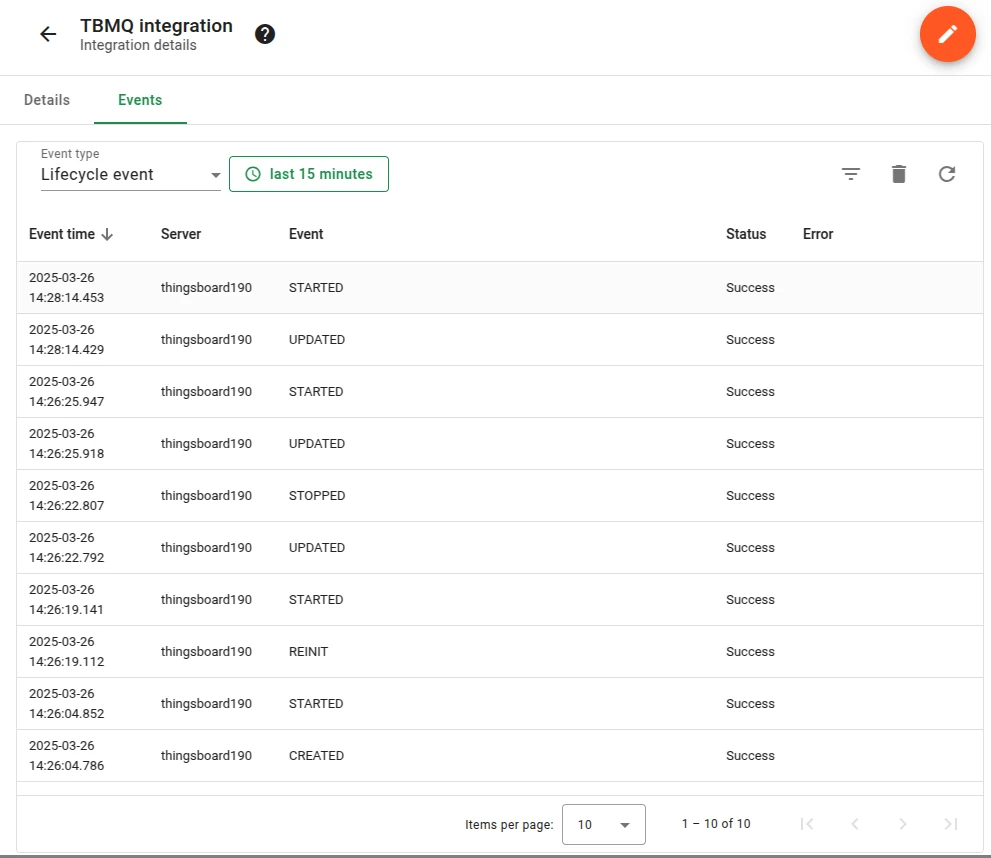
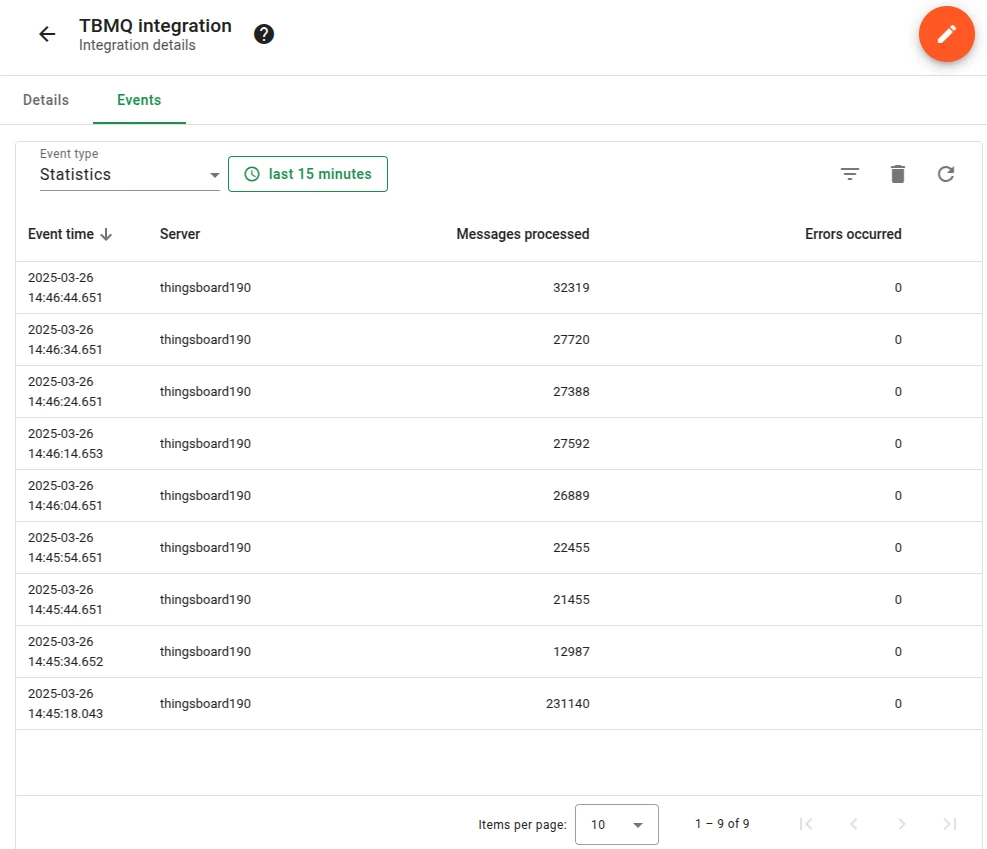
Section titled “Integration events”These are the integration’s own events, recorded inside TBMQ for debugging and troubleshooting. They are not the client lifecycle events described above: those are about MQTT clients and are published to your Kafka topic, while these describe the integration itself and never leave TBMQ.
- Lifecycle Events — logs events such as
Started,Created,Updated,Stopped. - Statistics — insights into integration performance, including processed message counts and error rates.
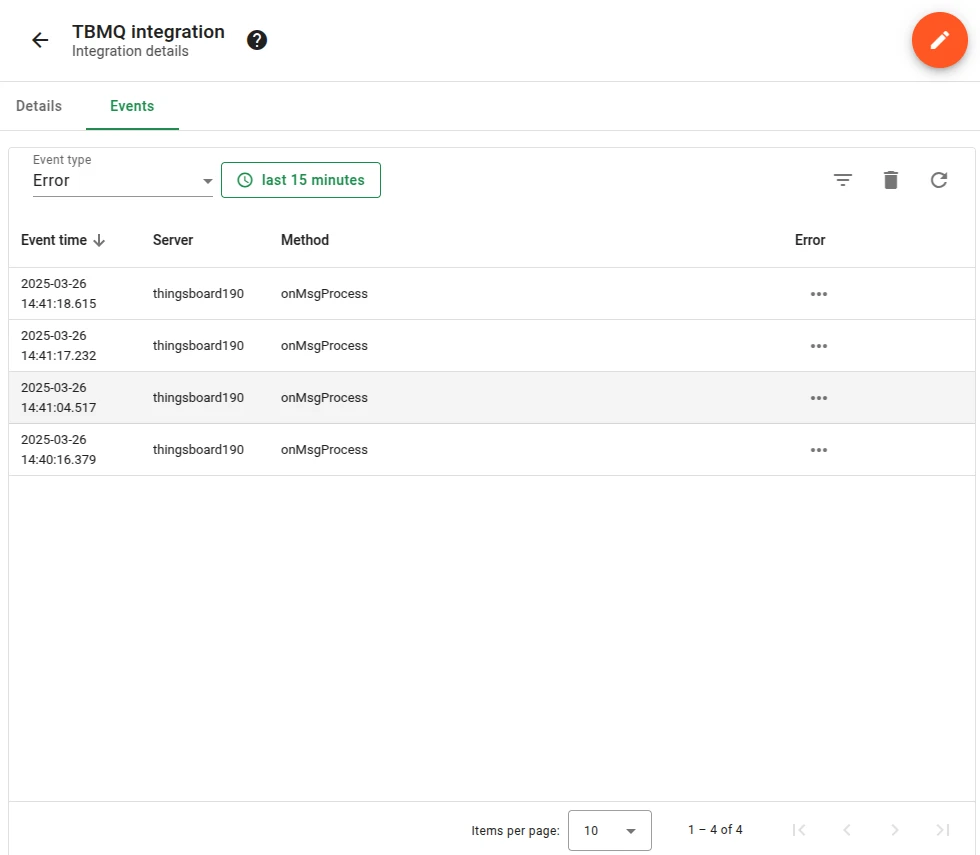
- Errors — captures failures related to authentication, timeouts, payload formatting, or connectivity issues.
Send an uplink message
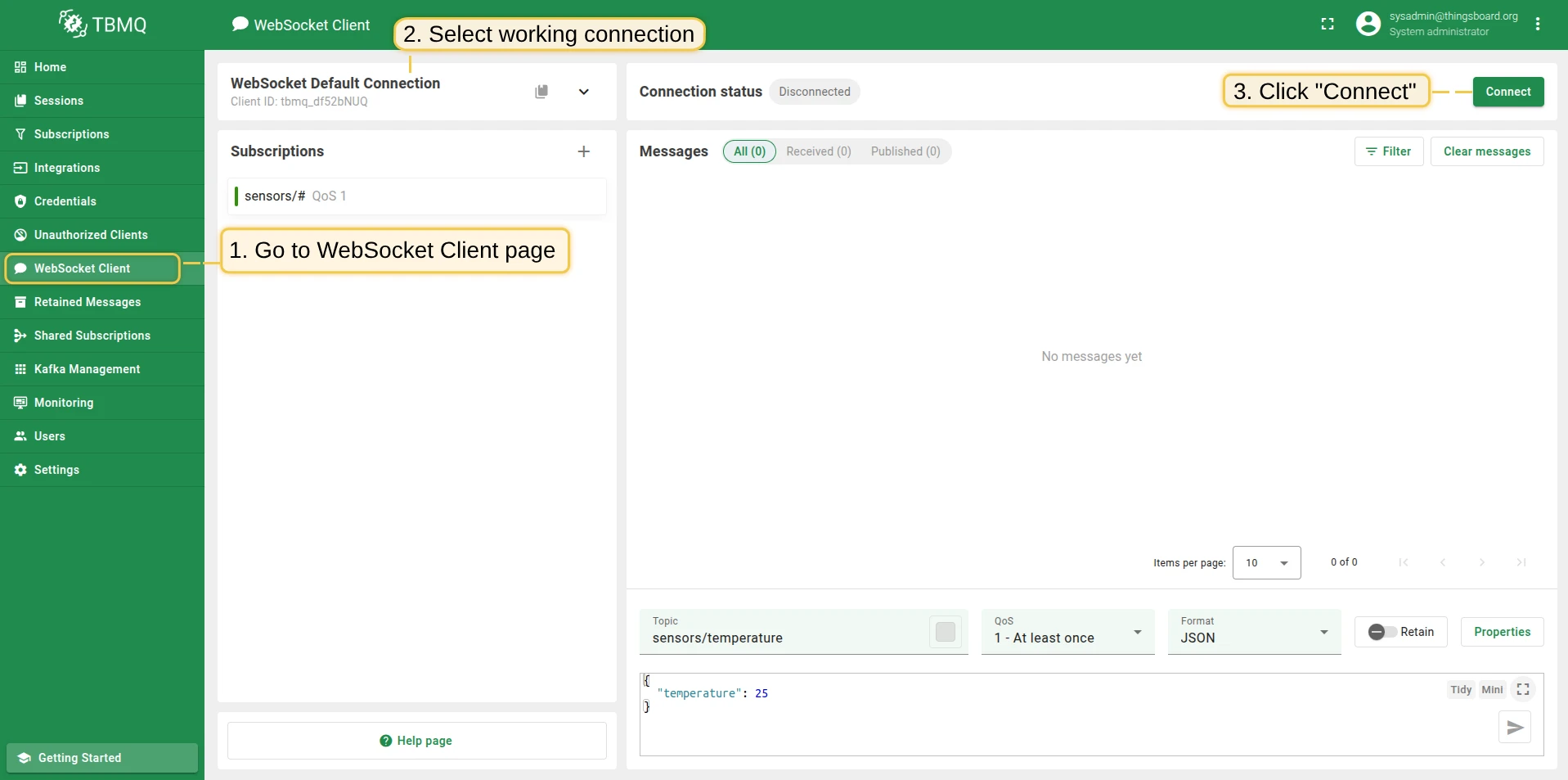
Section titled “Send an uplink message”- Navigate to the WebSocket Client page.
- Select WebSocket Default Connection (or any working connection) and click Connect. Verify the connection status shows
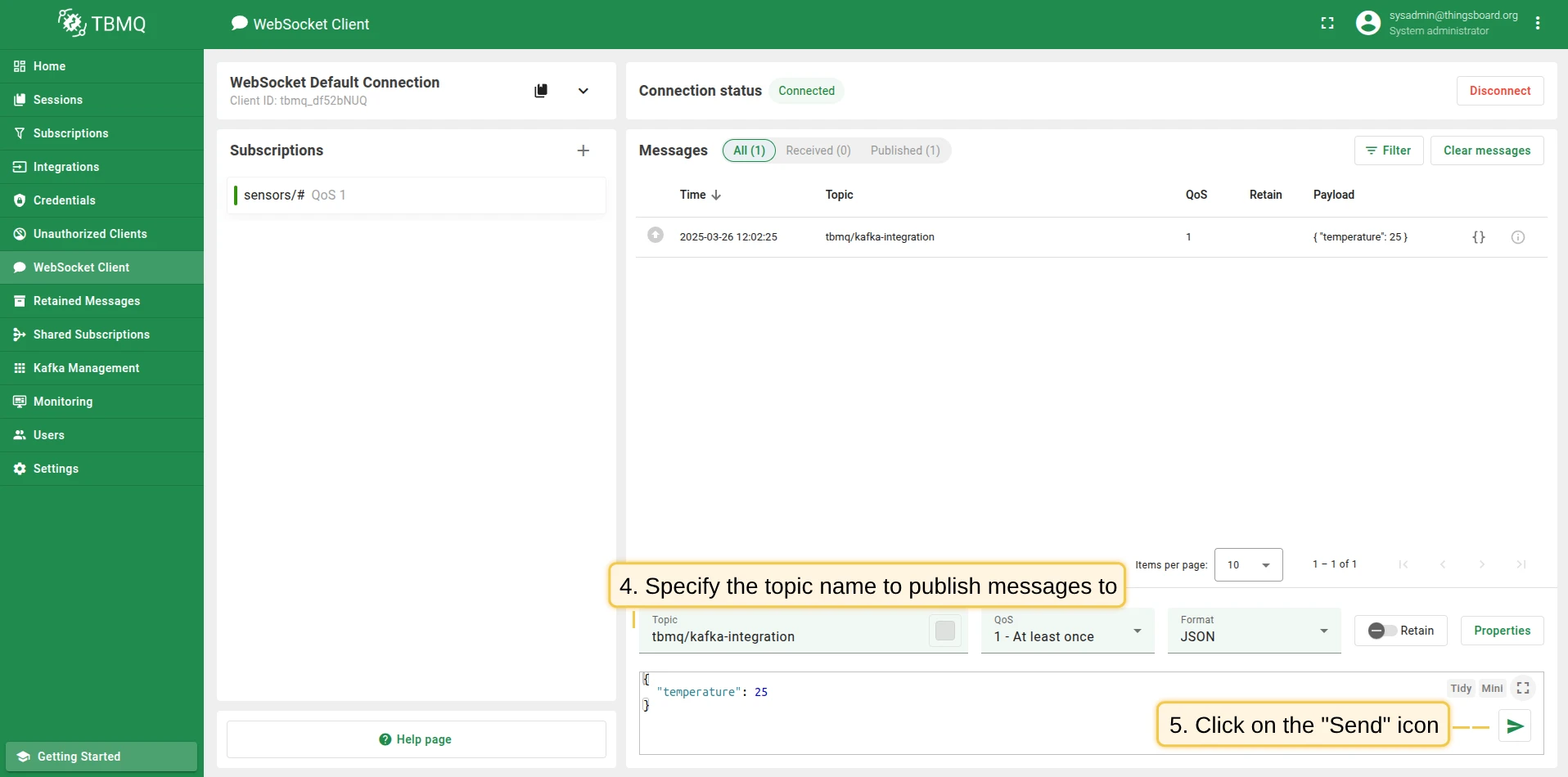
Connected. - Set the Topic field to
tbmq/kafka-integrationto match the integration’s topic filtertbmq/#. - Leave the pre-filled Payload
{"temperature": 25}as is — it is what lands in the Kafka topic below. - Click the Send icon to publish the message.
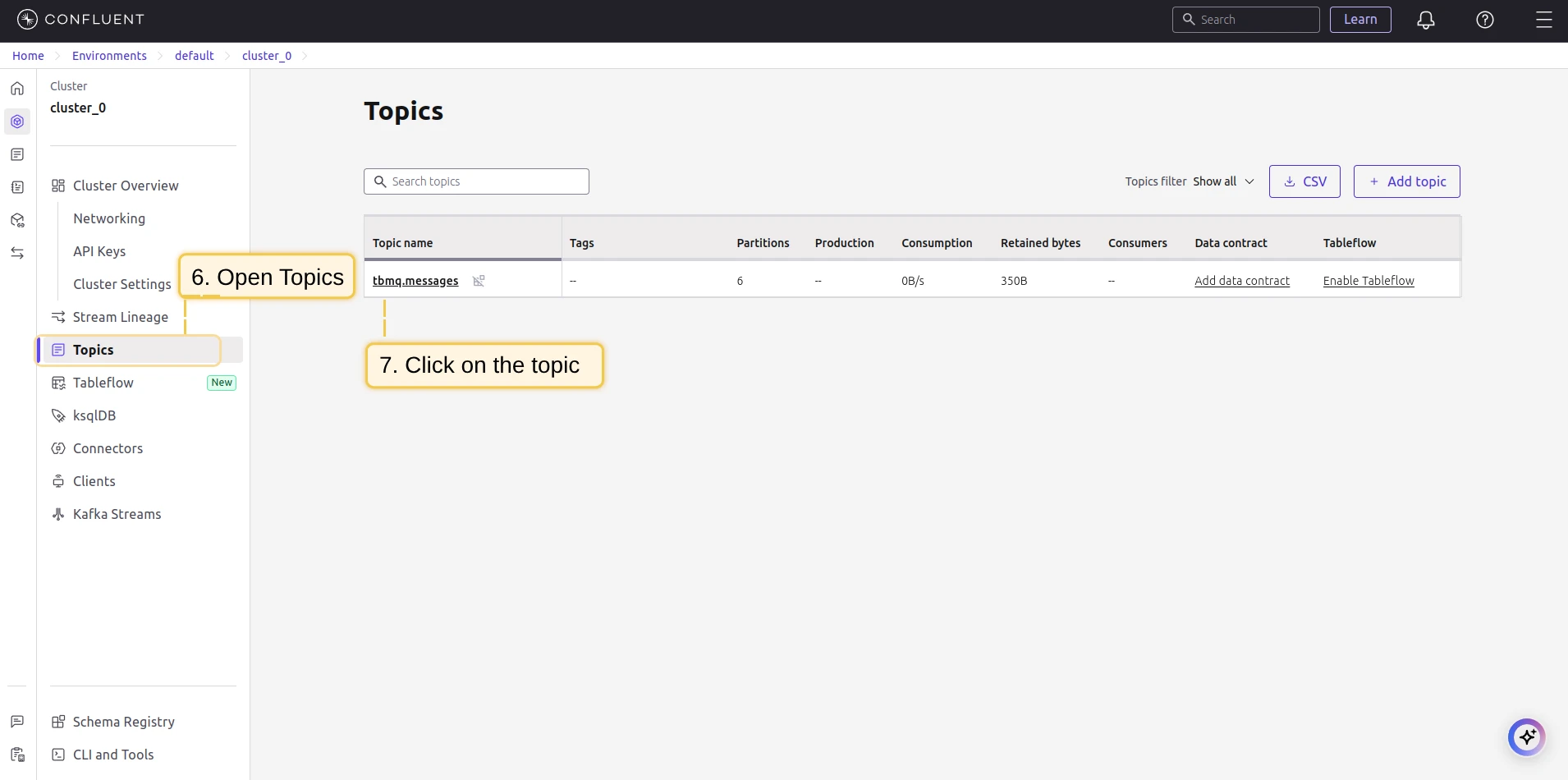
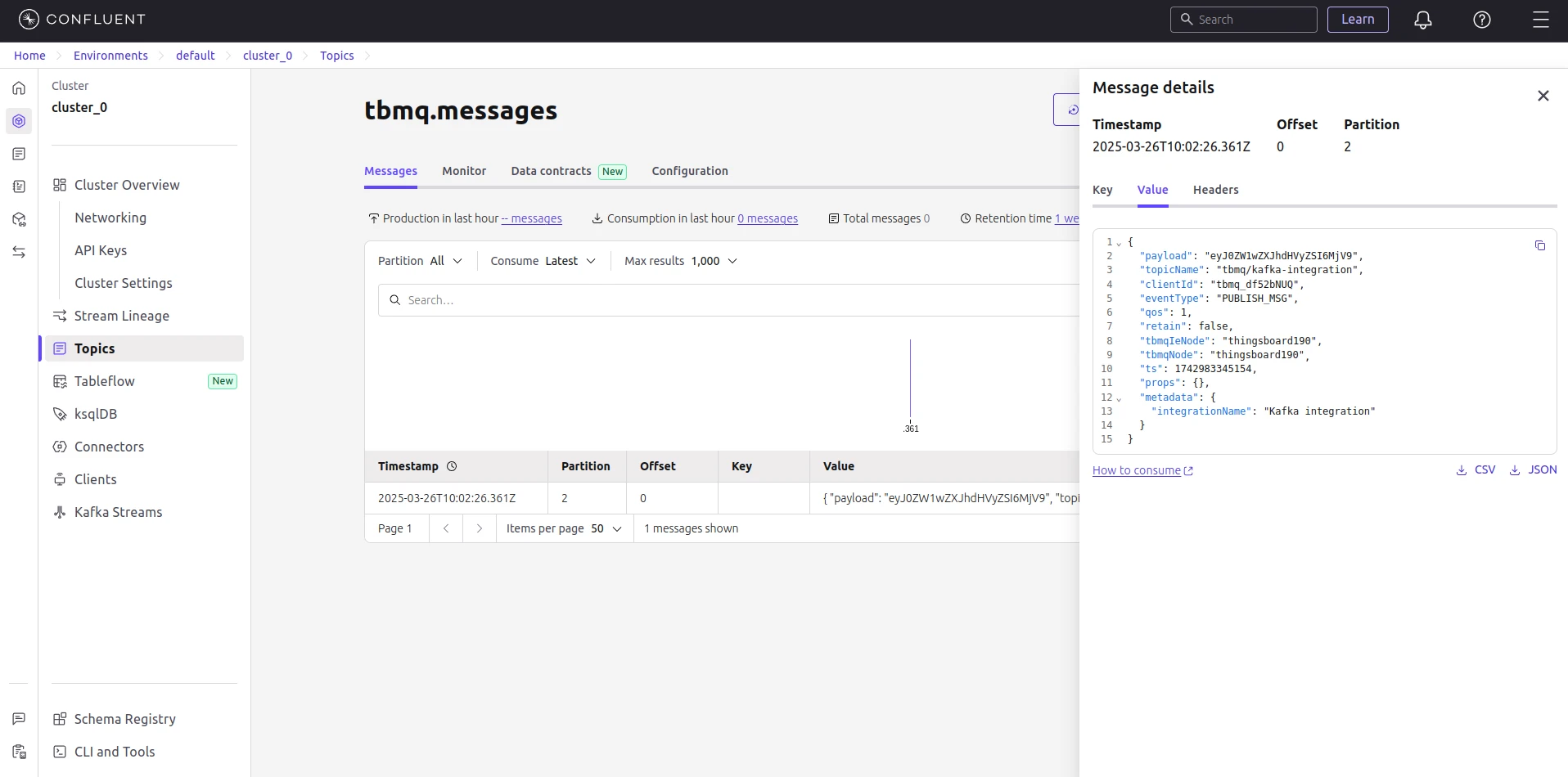
If successful, the message should be available in your Kafka service under the topic tbmq.messages:
{ "payload": "eyJ0ZW1wZXJhdHVyZSI6MjV9", "topicName": "tbmq/kafka-integration", "clientId": "tbmq_df52bNUQ", "eventType": "PUBLISH_MSG", "qos": 1, "retain": false, "tbmqIeNode": "tbmq_ie_node", "tbmqNode": "tbmq_node", "ts": 1742554969254, "username": "tbmq_websockets_username", "props": {}, "metadata": { "integrationName": "Kafka integration" }}Message field descriptions:
| Field | Description |
|---|---|
payload |
Base64-encoded content of the MQTT message (e.g., "eyJ0ZW1wZXJhdHVyZSI6MjV9" decodes to {"temperature": 25}). |
topicName |
MQTT topic to which the message was published. |
clientId |
ID of the MQTT client that published the message. |
eventType |
Type of event. PUBLISH_MSG for a forwarded message; a client lifecycle event carries its own type instead. |
qos |
Quality of Service level of the incoming message. |
retain |
Whether the message has the Retain flag set. |
tbmqIeNode |
Node ID of the Integration Executor that handled the message. |
tbmqNode |
Node ID of the TBMQ broker that received the message. |
ts |
Timestamp (milliseconds) when the message was received. |
username |
Username the publishing client connected with. Omitted when the client sent none. |
props |
MQTT 5.0 user properties or other MQTT properties. |
metadata |
Additional metadata from integration configuration (e.g., integration name). |
Was this helpful?