
MQTT integration
TBMQ MQTT Integration enables forwarding messages to external MQTT brokers, allowing real-time data delivery to third-party platforms. This is useful in scenarios such as:
- Data from TBMQ needs to be forwarded to an external MQTT broker or IoT platform.
- TBMQ is used as an intermediary to route data between internal sources and external MQTT-based systems.
Data flow
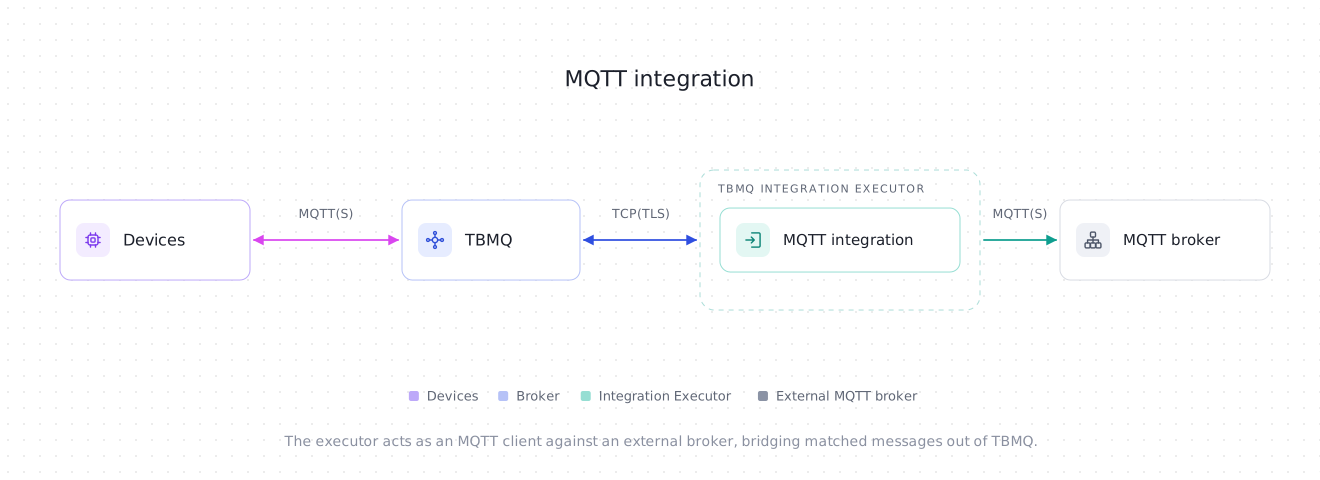
Section titled “Data flow”- Device (client) publishes an MQTT message to a topic matching the integration’s topic filters.
- TBMQ broker receives the message and forwards it to the TBMQ Integration Executor.
- Integration Executor processes the message and forwards it to the external MQTT broker or system.
- External system receives the message and processes the data.
Prerequisites
Section titled “Prerequisites”- A running TBMQ instance, version 2.1 or later, with the TBMQ Integration Executor service running. Without a reachable executor, saving an integration fails with a validation timeout.
- A client capable of publishing MQTT messages (e.g., TBMQ WebSocket Client).
- A client capable of receiving MQTT messages (e.g., TBMQ WebSocket Client).
Create TBMQ MQTT Integration
Section titled “Create TBMQ MQTT Integration”To keep the walkthrough self-contained, this tutorial points the integration back at TBMQ itself, so you can publish and observe the forwarded message in the same WebSocket Client. In a real deployment, the host and port belong to your external broker.
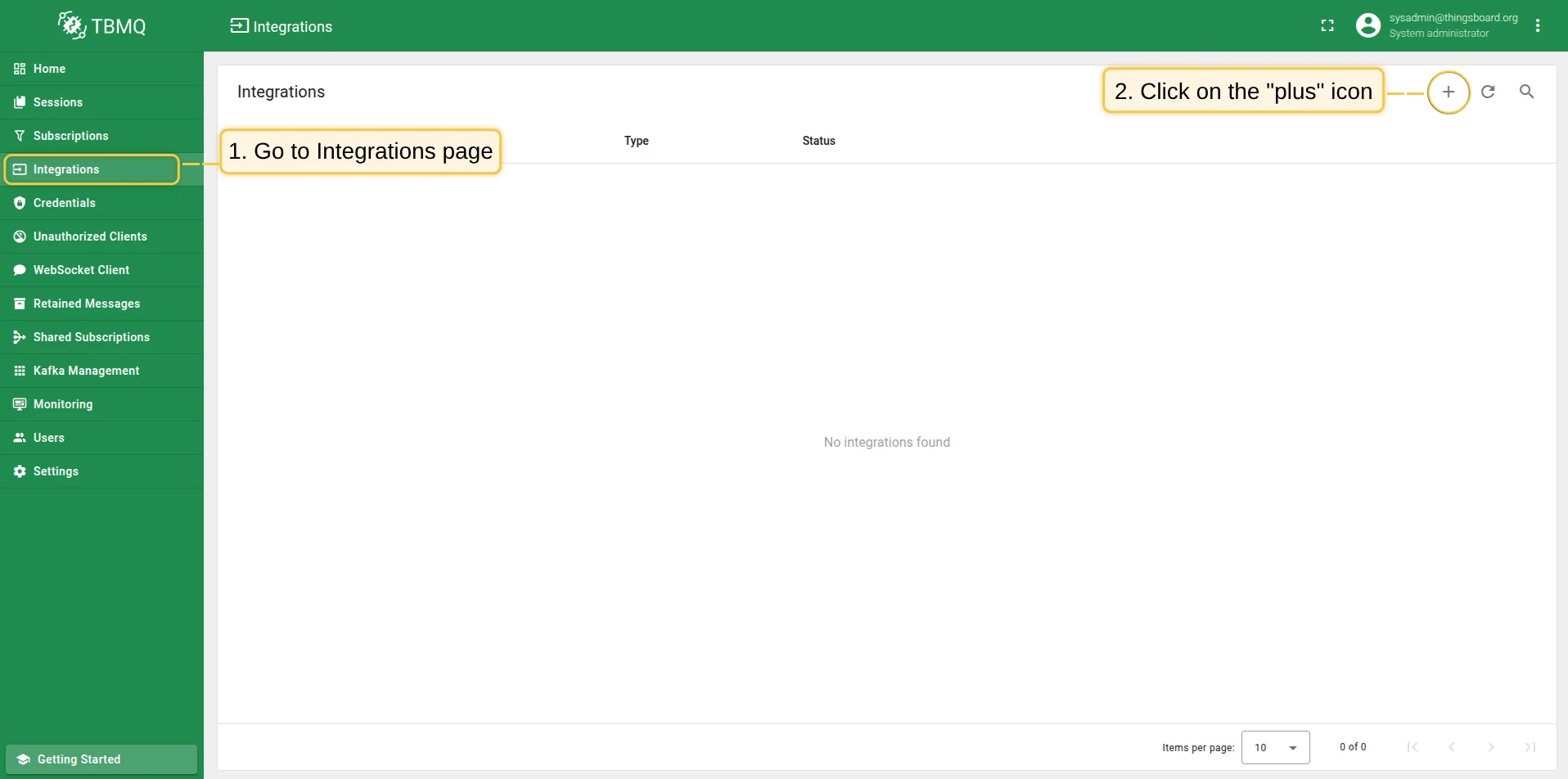
- Go to the Integrations page and click the “+” button.
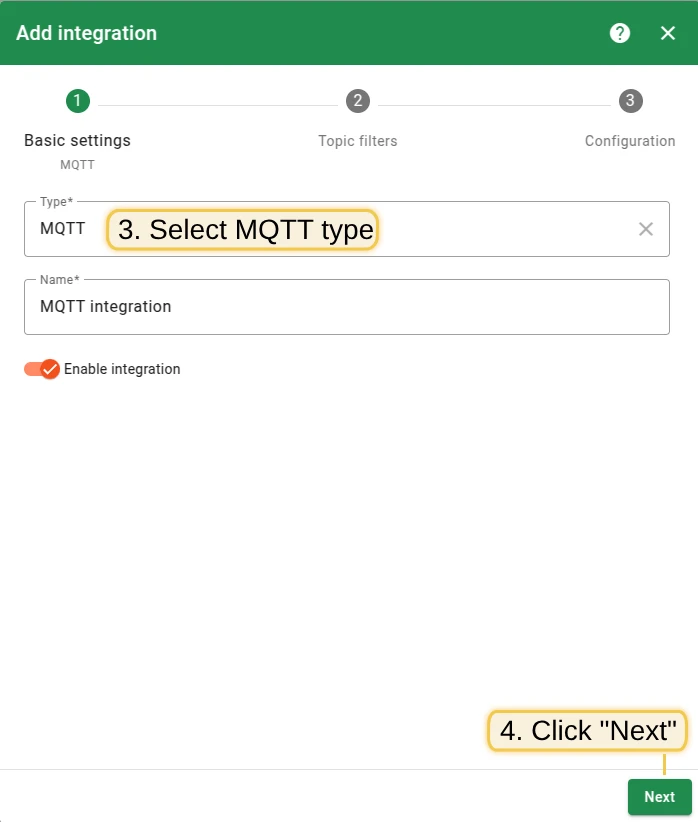
- Select MQTT as the integration type and click Next.
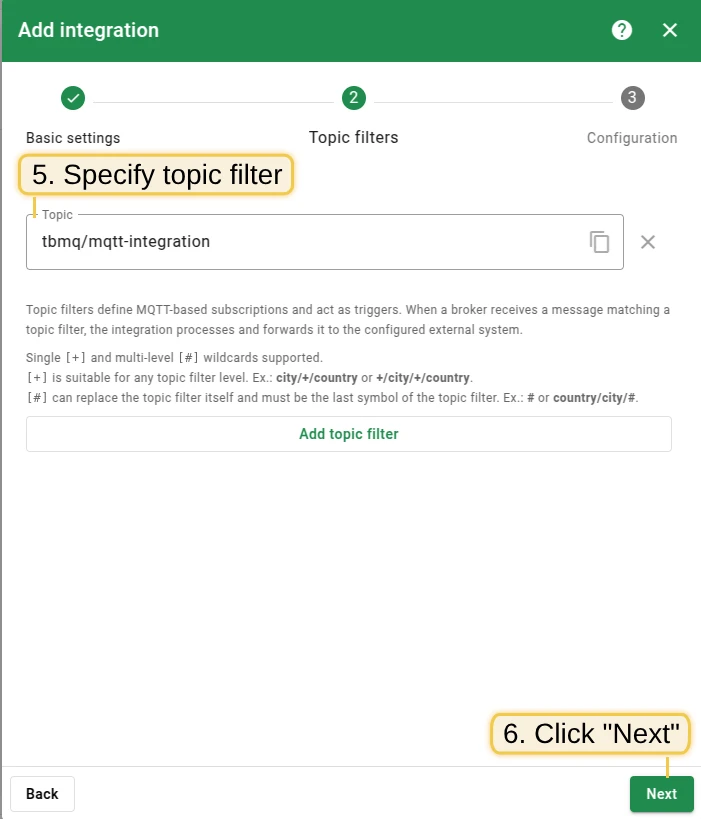
- On the Filters and events step, replace the default Topic filters entry with
tbmq/mqtt-integration. Narrowing the filter to one exact topic — rather than keeping the defaulttbmq/#— keeps this tutorial from forwarding unrelated messages. Leave Lifecycle events empty and click Next. - In the Configuration step:
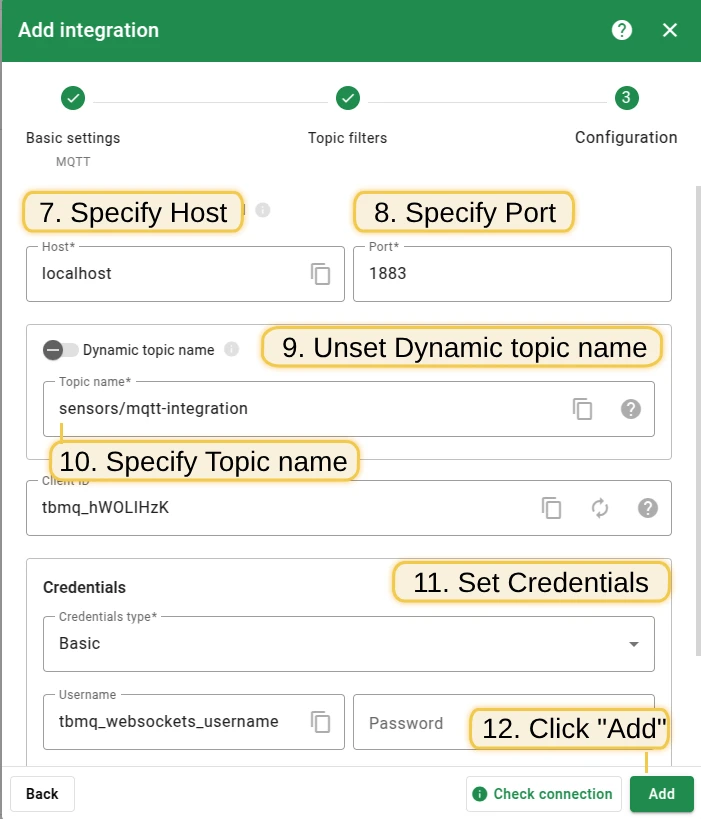
- Enter the Host (e.g.,
localhost). - Enter the Port (e.g.,
1883). - Set Dynamic topic name to
falseand Topic name tosensors/mqtt-integration. With the dynamic option off, every forwarded message goes to this one fixed topic instead of the topic it arrived on. Thesensors/prefix is deliberate: the WebSocket Default Connection subscribes tosensors/#, which is what makes the forwarded message show up in Send an uplink message below. If you choose a different topic name, subscribe to it in the WebSocket Client first, or you will see nothing. - Set Credentials type to
Basicand Username totbmq_websockets_username. Leave Password empty — the WebSocket credentials that ship with TBMQ are username-only.
- Enter the Host (e.g.,
- Click Add to save the integration.
Topic filters
Section titled “Topic filters”Topic filters define MQTT-based subscriptions that trigger the integration. When TBMQ receives a message matching a configured topic filter, the integration processes it and forwards the data to the external system.
Topic filters are optional if you select at least one lifecycle event type instead — an integration only has to have one of the two.
For example, with the topic filter tbmq/devices/+/status, any of the following messages will trigger the integration:
tbmq/devices/device-01/statustbmq/devices/gateway-01/statusConfiguration
Section titled “Configuration”| Field | Default | Description |
|---|---|---|
| Send only message payload | off | If enabled, the incoming message’s payload is forwarded as is. If disabled, a JSON object with the payload and additional properties is sent. |
| Host | — | MQTT broker host. Required. |
| Port | 1883 |
MQTT broker port, 1–65535. |
| Client ID | random | Client identifier used to connect to the external broker. Required — the UI pre-fills a random one. It must be unique on the target broker, since a second connection with the same ID takes the session over and disconnects the first. |
| Dynamic topic name | on | If enabled, each message is published under the topic it arrived on. |
| Topic name | tbmq/messages |
Used when Dynamic topic name is disabled. Cannot contain the + or # wildcards and cannot start with $. |
| Credentials type | Anonymous |
Anonymous, Basic (username + password), or PEM (certificate-based). |
| Enable SSL | off | Enables a secure connection using SSL/TLS. |
| Keep alive (sec) | 60 |
Duration without communication before the session is considered lost. 0 disables the keep-alive mechanism. |
| Connect timeout (sec) | 10 |
Time to wait for a CONNACK before timing out. Must be greater than 0, and is capped by the executor’s INTEGRATIONS_INIT_CONNECTION_TIMEOUT_SEC (default 15) — a larger value is reduced to that limit. |
| Reconnect period (sec) | 5 |
How long to wait between reconnect attempts after the connection is lost. 0 disables reconnecting. |
| MQTT version | MQTT 3.1.1 |
Protocol version used against the external broker: MQTT 3.1, MQTT 3.1.1, or MQTT 5. |
| Dynamic QoS | on | If enabled, messages are forwarded with the QoS from the incoming message. |
| QoS | 1 |
Used when Dynamic QoS is disabled. |
| Dynamic retain | on | If enabled, messages are forwarded with the Retain flag from the incoming message. |
| Retain | off | Used when Dynamic retain is disabled. |
| Events topic name | tbmq/events |
Topic on the external broker that client lifecycle events are published to. Shown once at least one event type is selected, and required in that case. Same shape rules as Topic name — no + or #, no leading $. |
| Metadata | — | Custom key-value pairs attached to forwarded messages, exposed as metadata in the JSON body. |
How the outgoing publish is built
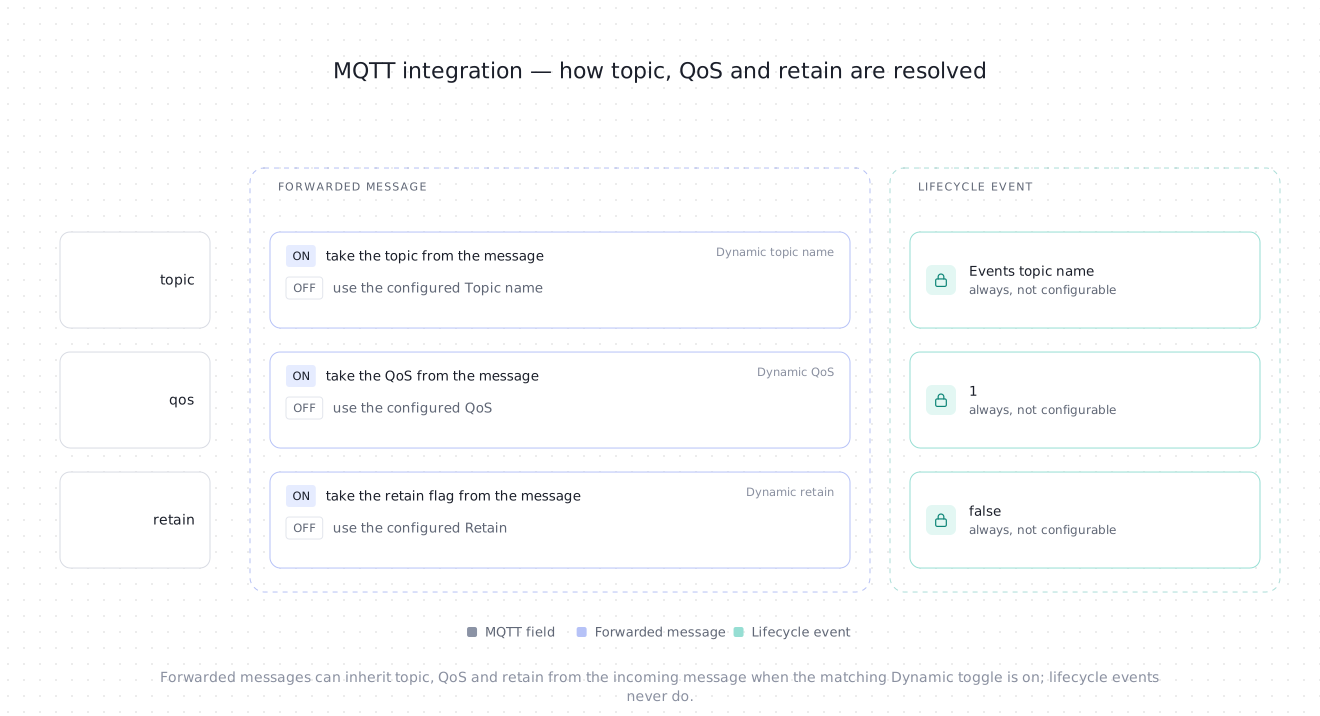
Section titled “How the outgoing publish is built”Topic, QoS, and retain are resolved independently — each one is either copied from the incoming message or taken from its static setting. A lifecycle event has no incoming message, so all three are fixed:
Client lifecycle events
Section titled “Client lifecycle events”Besides the messages matched by topic filters, this integration can deliver client lifecycle events — a client connecting, disconnecting, changing its subscriptions, or failing authentication or authorization.
Pick the event types on the Filters and events step while creating the integration, or add them later:
- Open the integration on the Integrations page and click the Toggle edit mode button (pencil icon).
- Click the Lifecycle events field to list the available event types, then select the ones you need: Client connected, Client disconnected, Client subscribed, Client unsubscribed, Client authentication failed, Client authorization failed, Client connection failed. Each one is added as a chip; remove it with its x.
- Set Events topic name to the topic on the external broker that should receive the events, for example
tbmq/events. The field appears under Lifecycle events as soon as the first event type is selected, and a value is required. - Click Apply changes.
A lifecycle event has no originating MQTT message to take a topic, QoS, or retain flag from, so this integration type handles them separately from messages:
- Events go to the dedicated Events topic name, never to Topic name, and Dynamic topic name does not apply to them.
- Events are always published with QoS 1 and the retain flag off, regardless of the Dynamic QoS, QoS, Dynamic retain, and Retain settings.
Integration events
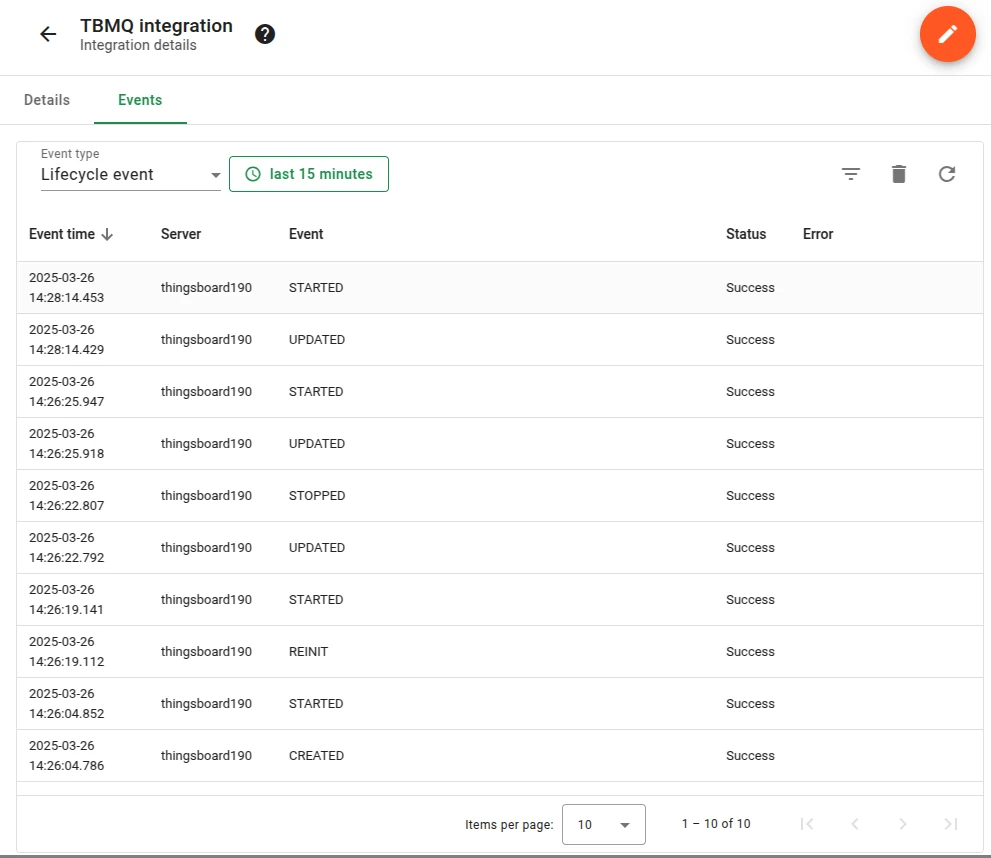
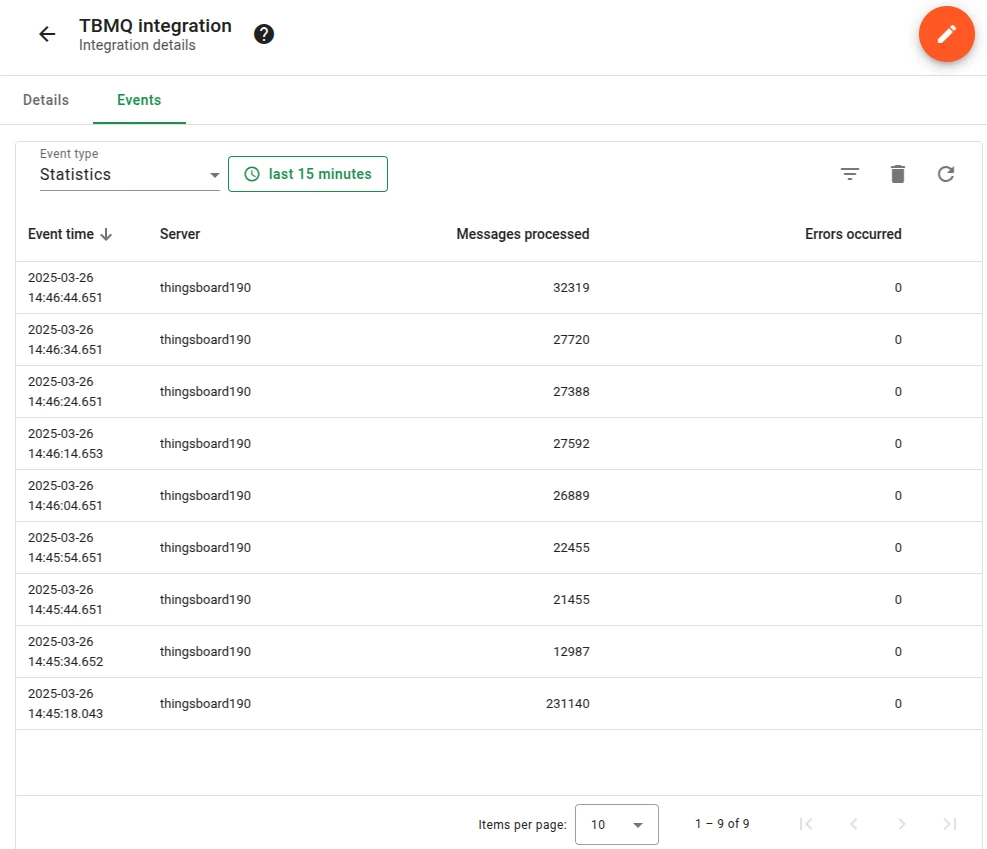
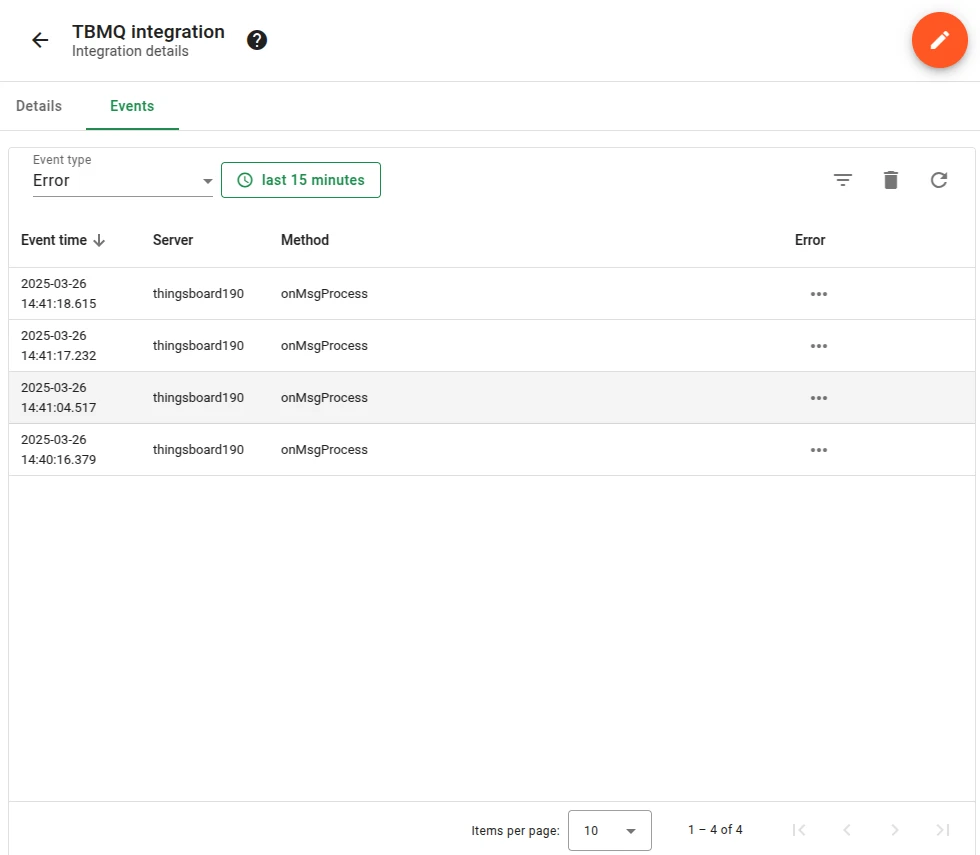
Section titled “Integration events”These are the integration’s own events, recorded inside TBMQ for debugging and troubleshooting. They are not the client lifecycle events described above: those are about MQTT clients and are published to the external broker, while these describe the integration itself and never leave TBMQ.
- Lifecycle Events — logs events such as
Started,Created,Updated,Stopped. - Statistics — insights into integration performance, including processed message counts and error rates.
- Errors — captures failures related to authentication, timeouts, payload formatting, or connectivity issues.
Send an uplink message
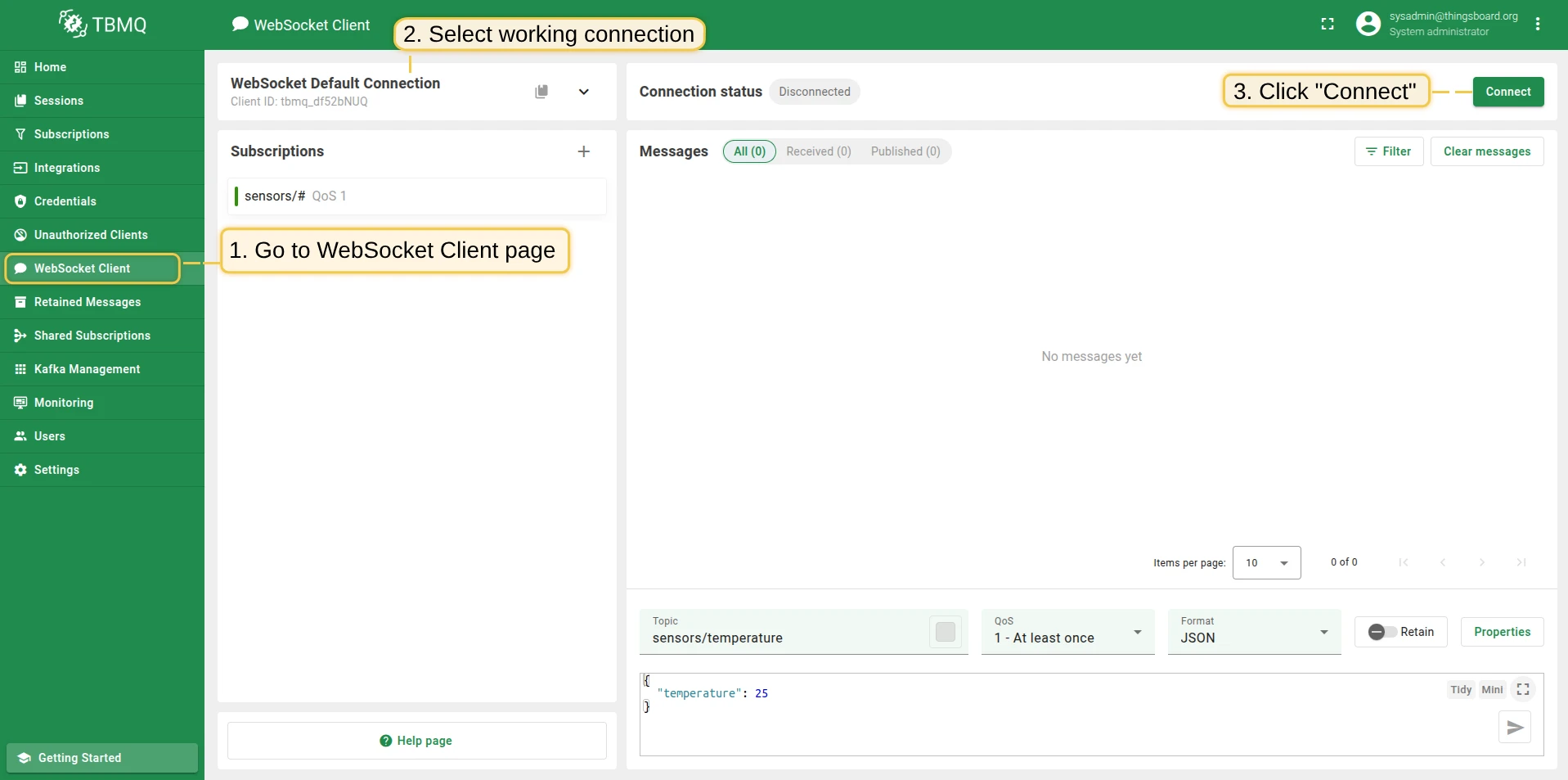
Section titled “Send an uplink message”- Navigate to the WebSocket Client page.
- Select WebSocket Default Connection and click Connect. Verify the connection status shows
Connected. This connection’s default subscription issensors/#, which covers the integration’s Topic namesensors/mqtt-integration— if you use a different connection, make sure it subscribes to that topic. - Set the Topic field to
tbmq/mqtt-integrationto match the integration’s topic filter. - Leave the pre-filled Payload
{"temperature": 25}as is — it is what comes back through the integration. - Click the Send icon to publish the message.
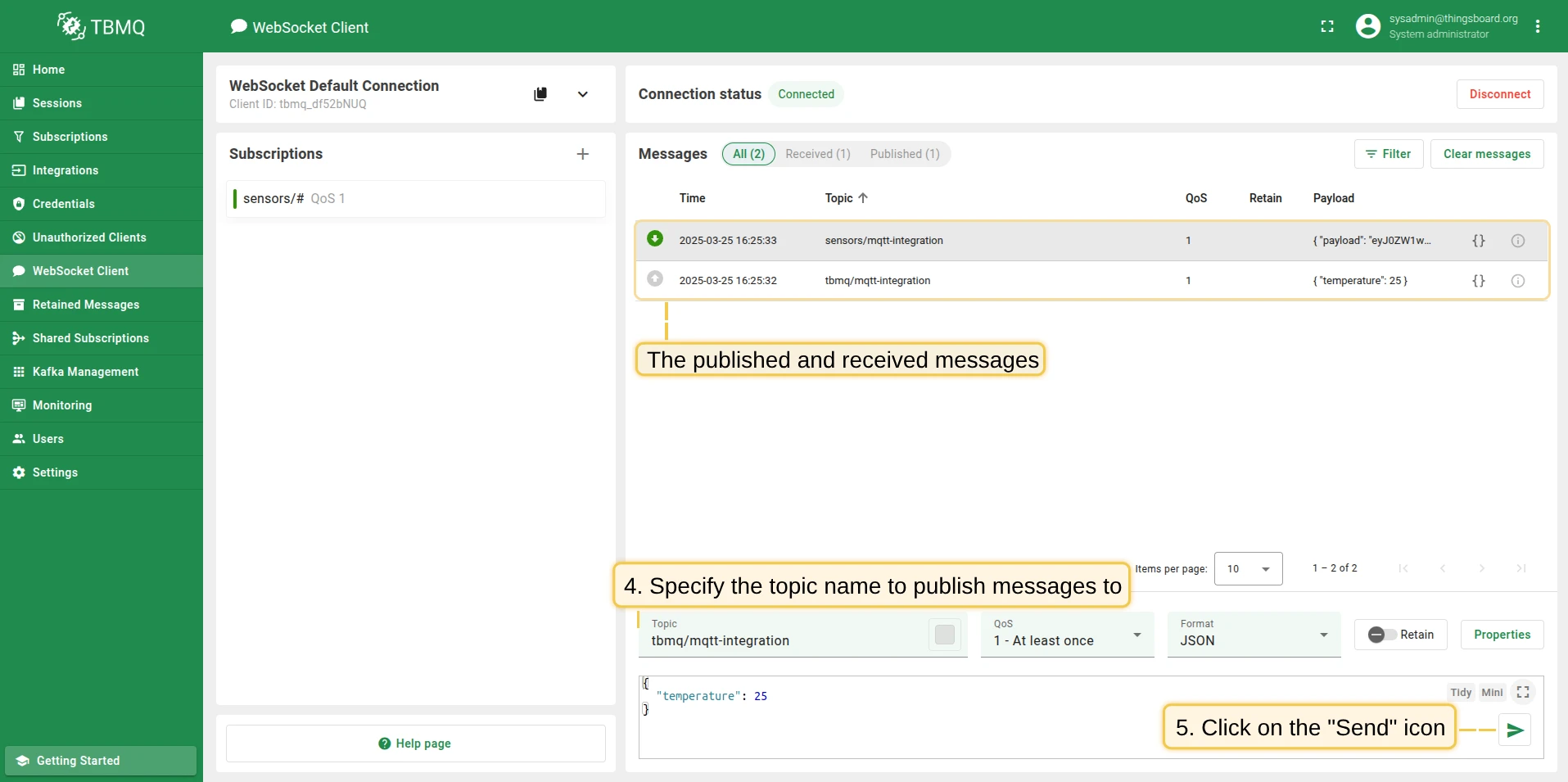
If successful, two new messages should appear in the Messages table:
- One sent by the WebSocket Client.
- One received from the MQTT Integration with a payload similar to:
{ "payload": "eyJ0ZW1wZXJhdHVyZSI6MjV9", "topicName": "tbmq/mqtt-integration", "clientId": "tbmq_7QUvZzow", "eventType": "PUBLISH_MSG", "qos": 1, "retain": false, "tbmqIeNode": "tbmq_ie_node", "tbmqNode": "tbmq_node", "ts": 1742554969254, "username": "tbmq_websockets_username", "props": {}, "metadata": { "integrationName": "MQTT integration" }}Message field descriptions:
| Field | Description |
|---|---|
payload |
Base64-encoded content of the MQTT message (e.g., "eyJ0ZW1wZXJhdHVyZSI6MjV9" decodes to {"temperature": 25}). |
topicName |
MQTT topic to which the message was published. |
clientId |
ID of the MQTT client that published the message. |
eventType |
Type of event. PUBLISH_MSG for a forwarded message; a client lifecycle event carries its own type instead. |
qos |
Quality of Service level of the incoming message. |
retain |
Whether the message has the Retain flag set. |
tbmqIeNode |
Node ID of the Integration Executor that handled the message. |
tbmqNode |
Node ID of the TBMQ broker that received the message. |
ts |
Timestamp (milliseconds) when the message was received. |
username |
Username the publishing client connected with. Omitted when the client sent none. |
props |
MQTT 5.0 user properties or other MQTT properties. |
metadata |
Additional metadata from integration configuration (e.g., integration name). |
Was this helpful?