
HTTP integration
TBMQ HTTP Integration forwards MQTT messages from devices to an external system using the HTTP protocol. It acts as a bridge between TBMQ and external applications, ensuring reliable data exchange. For how the two protocols compare when carrying device traffic, see MQTT vs HTTP.
Data flow
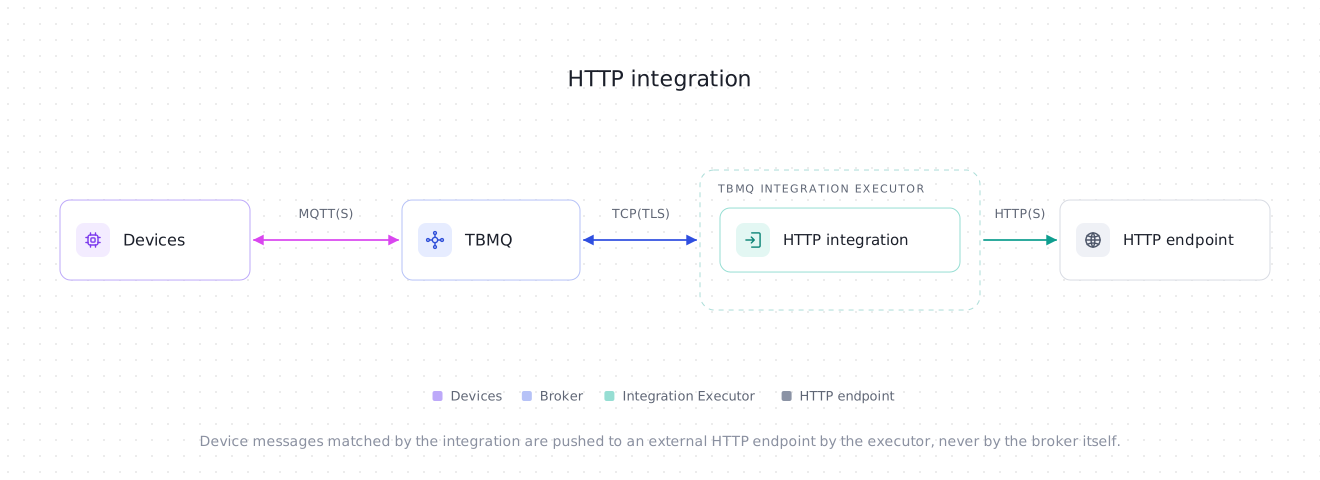
Section titled “Data flow”- Device (client) publishes an MQTT message to a topic matching the integration’s topic filters.
- TBMQ broker receives the message and forwards it to the TBMQ Integration Executor.
- Integration Executor processes the message, formats it as an HTTP request, and forwards it to the external service.
- External service receives the request and processes the data.
Prerequisites
Section titled “Prerequisites”- A running TBMQ instance, version 2.1 or later, with the TBMQ Integration Executor service running. Without a reachable executor, saving an integration fails with a validation timeout.
- An external service ready to receive HTTP requests (e.g., ThingsBoard Cloud).
- A client capable of publishing MQTT messages (e.g., TBMQ WebSocket Client).
Prepare the external HTTP endpoint
Section titled “Prepare the external HTTP endpoint”This step happens on the receiving side, not in TBMQ. This tutorial uses ThingsBoard as the external HTTP service; any other HTTP-compatible service works the same way, and if you already have an endpoint URL you can skip ahead to creating the TBMQ integration.
Follow the ThingsBoard HTTP Integration Guide to create an integration on ThingsBoard Cloud.
Once created:
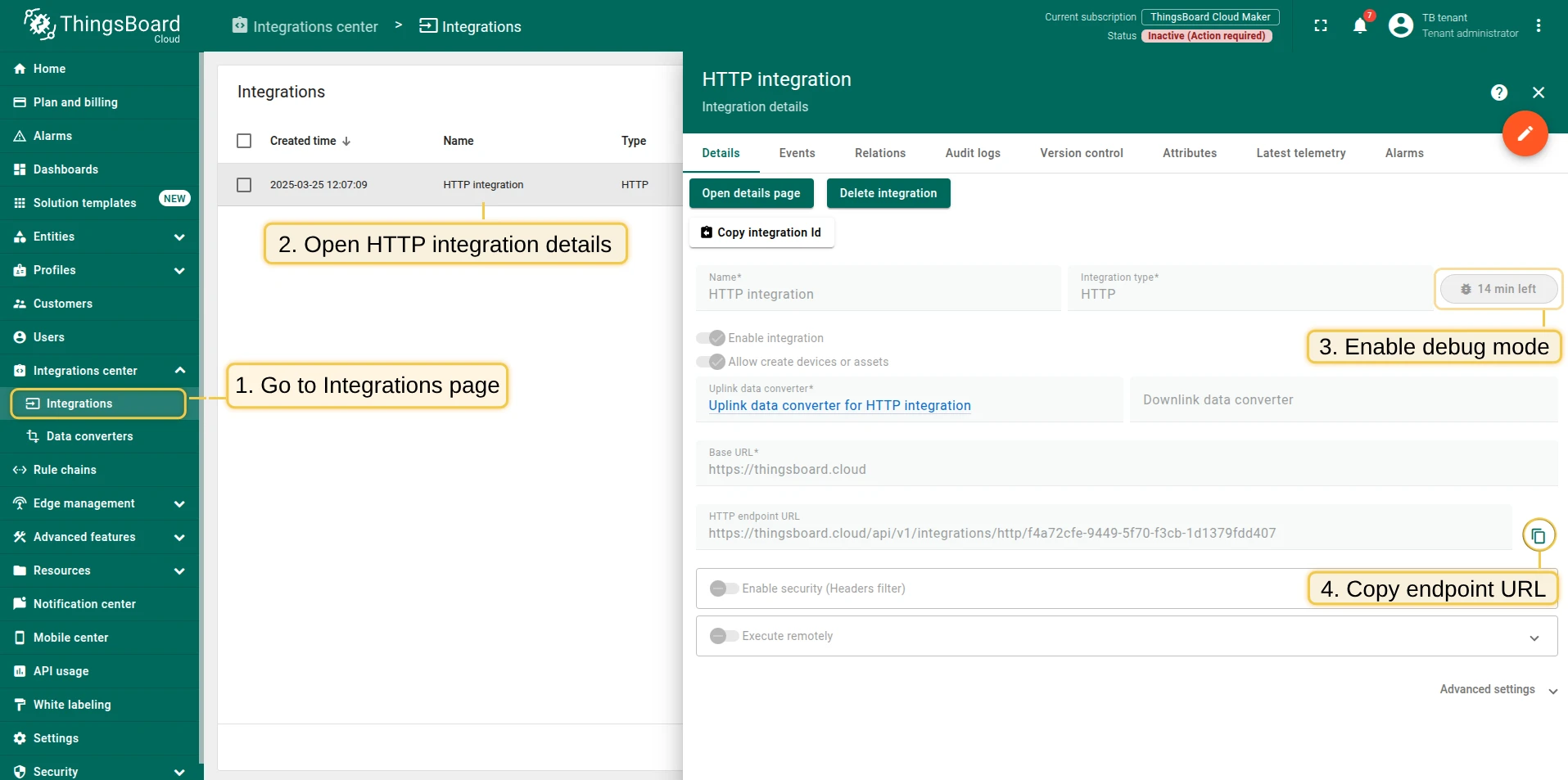
- Open the details page and enable debug mode to verify data reception.
- Copy the HTTP endpoint URL — you will need it in the next step.
Create TBMQ HTTP Integration
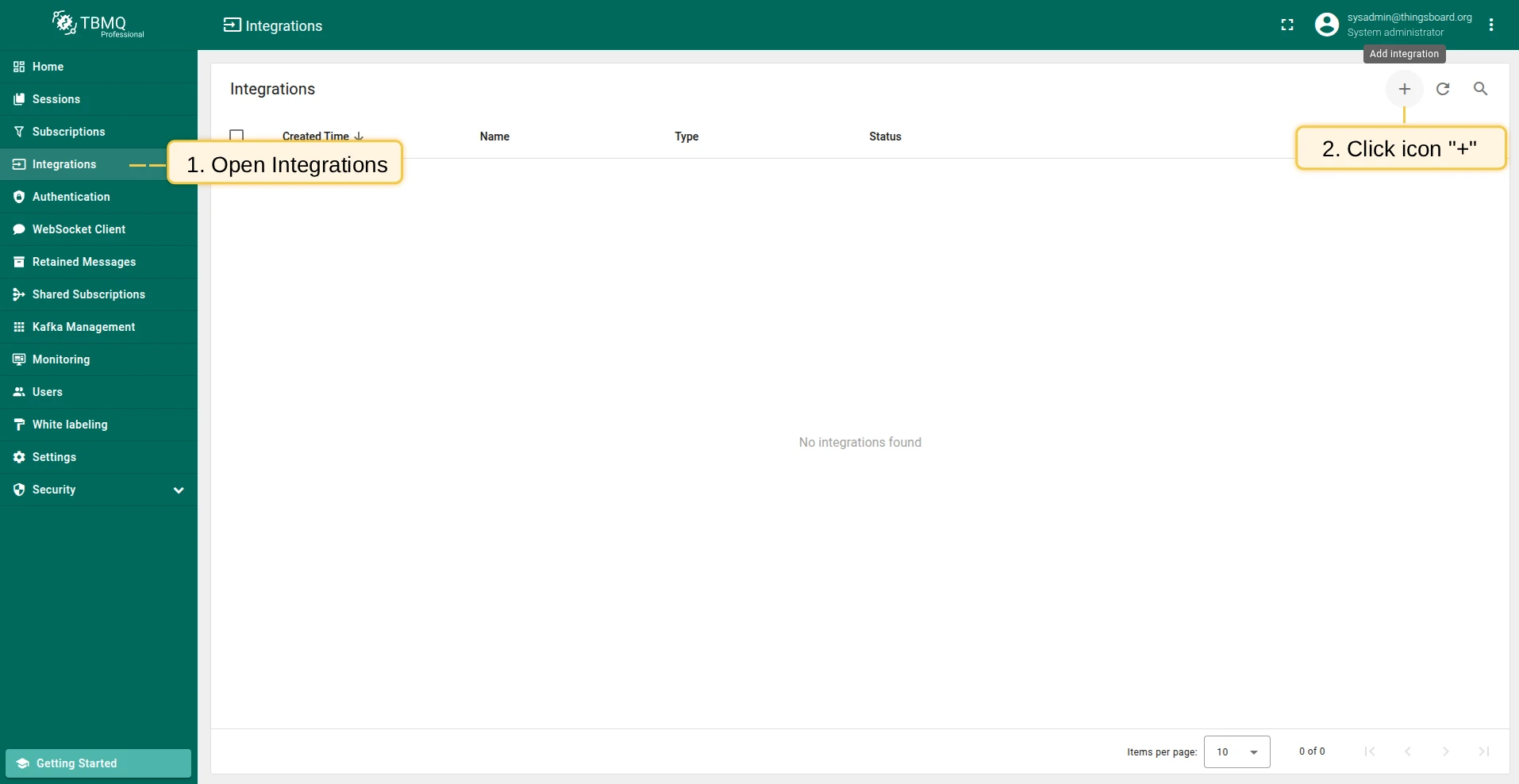
Section titled “Create TBMQ HTTP Integration”- Go to the Integrations page and click the “+” button.
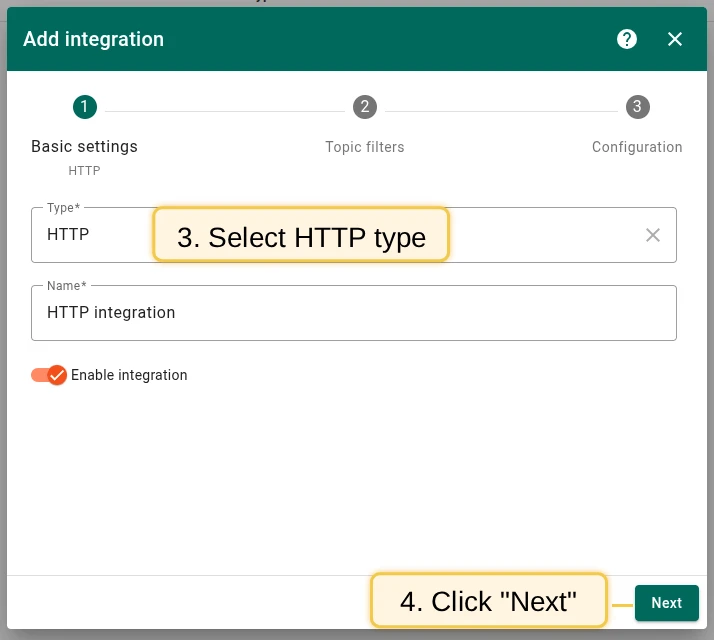
- Select HTTP as the integration type and click Next.
- On the Filters and events step, keep the default Topic filters entry
tbmq/#, leave Lifecycle events empty, and click Next. - In the Configuration step, paste the Endpoint URL you copied above.
- Open Advanced settings and set Payload content type to
JSON. - Click Add to save the integration.
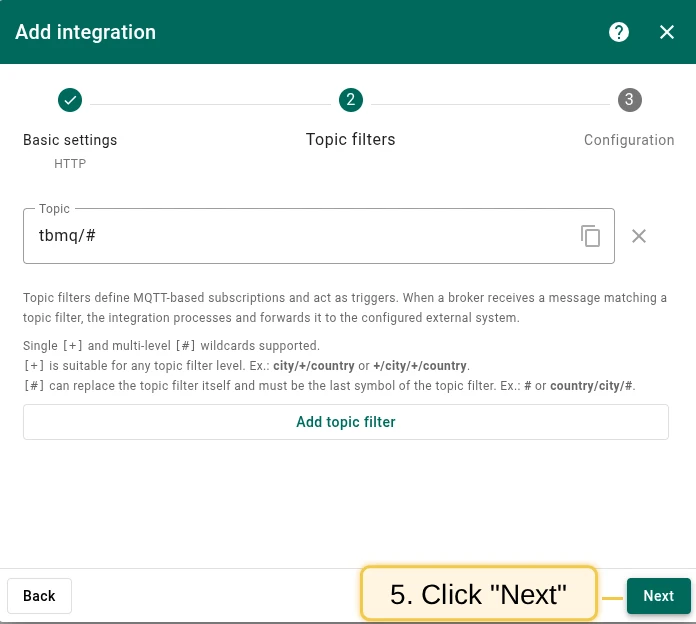
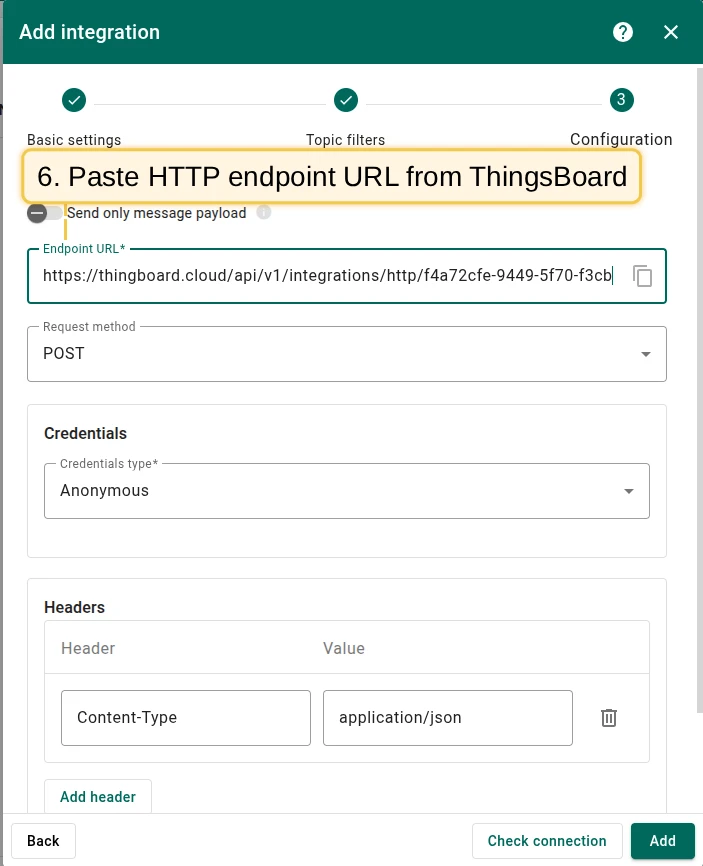
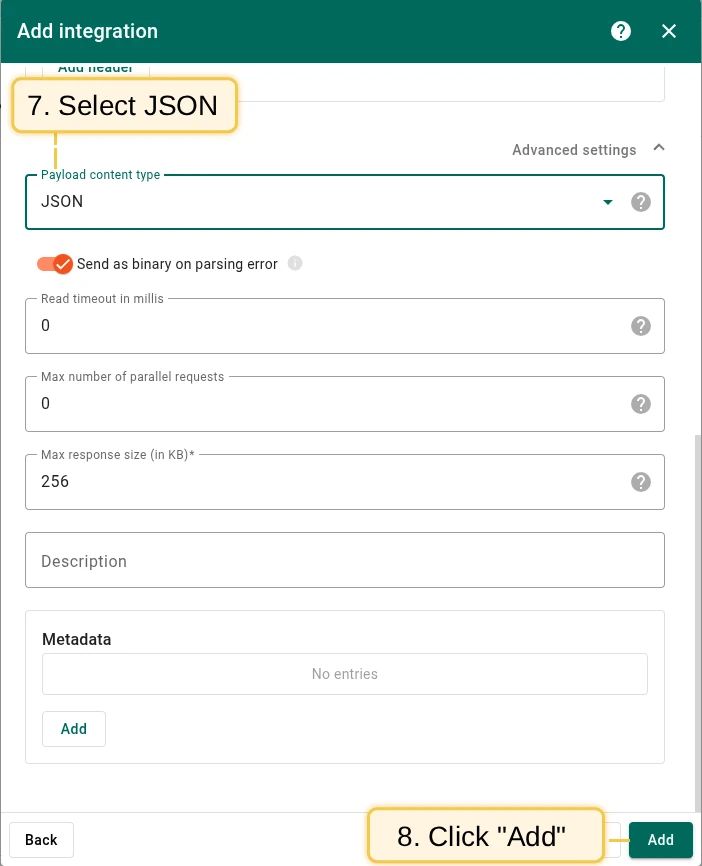
Topic filters
Section titled “Topic filters”Topic filters define MQTT-based subscriptions that trigger the integration. When TBMQ receives a message matching a configured topic filter, the integration processes it and forwards the data to the external system.
Topic filters are optional if you select at least one lifecycle event type instead — an integration only has to have one of the two.
For example, with the topic filter tbmq/devices/+/status, any of the following messages will trigger the integration:
tbmq/devices/device-01/statustbmq/devices/gateway-01/statusConfiguration
Section titled “Configuration”| Field | Default | Description |
|---|---|---|
| Send only message payload | off | If enabled, the incoming message’s payload is forwarded as is. If disabled, a JSON object with the payload and additional properties is sent. |
| Endpoint URL | — | The external service URL where HTTP requests are sent. Required. |
| Request method | POST |
One of POST, PUT, GET, DELETE. Only POST and PUT carry a request body — with GET or DELETE the request is sent without the message. |
| Credentials type | Anonymous |
Anonymous, Basic (username + password), or PEM (certificate-based). |
| Headers | Content-Type: application/json |
Key-value pairs added to the HTTP request headers. At least one header is required. |
| Payload content type | Binary |
How the message payload is formatted: JSON, Text, or Binary. Binary means the payload is Base64-encoded. |
| Send as binary on parsing error | on | If enabled, a payload that fails JSON or Text parsing is sent as binary instead. If disabled, such a message is not sent at all and is counted as a failure. |
| Read timeout in millis | 0 |
Maximum time to wait for a response. 0 means no timeout. |
| Max number of parallel requests | 0 |
Caps in-flight HTTP requests. 0 means no limit. |
| Max response size (in KB) | 256 |
Memory used to buffer the response body before it is handed to the integration. |
| Metadata | — | Custom key-value pairs attached to forwarded messages, exposed as metadata in the JSON body. |
Request body
Section titled “Request body”Send only message payload decides whether the endpoint receives the bare payload or the full envelope, and Payload content type decides how the payload itself is encoded:
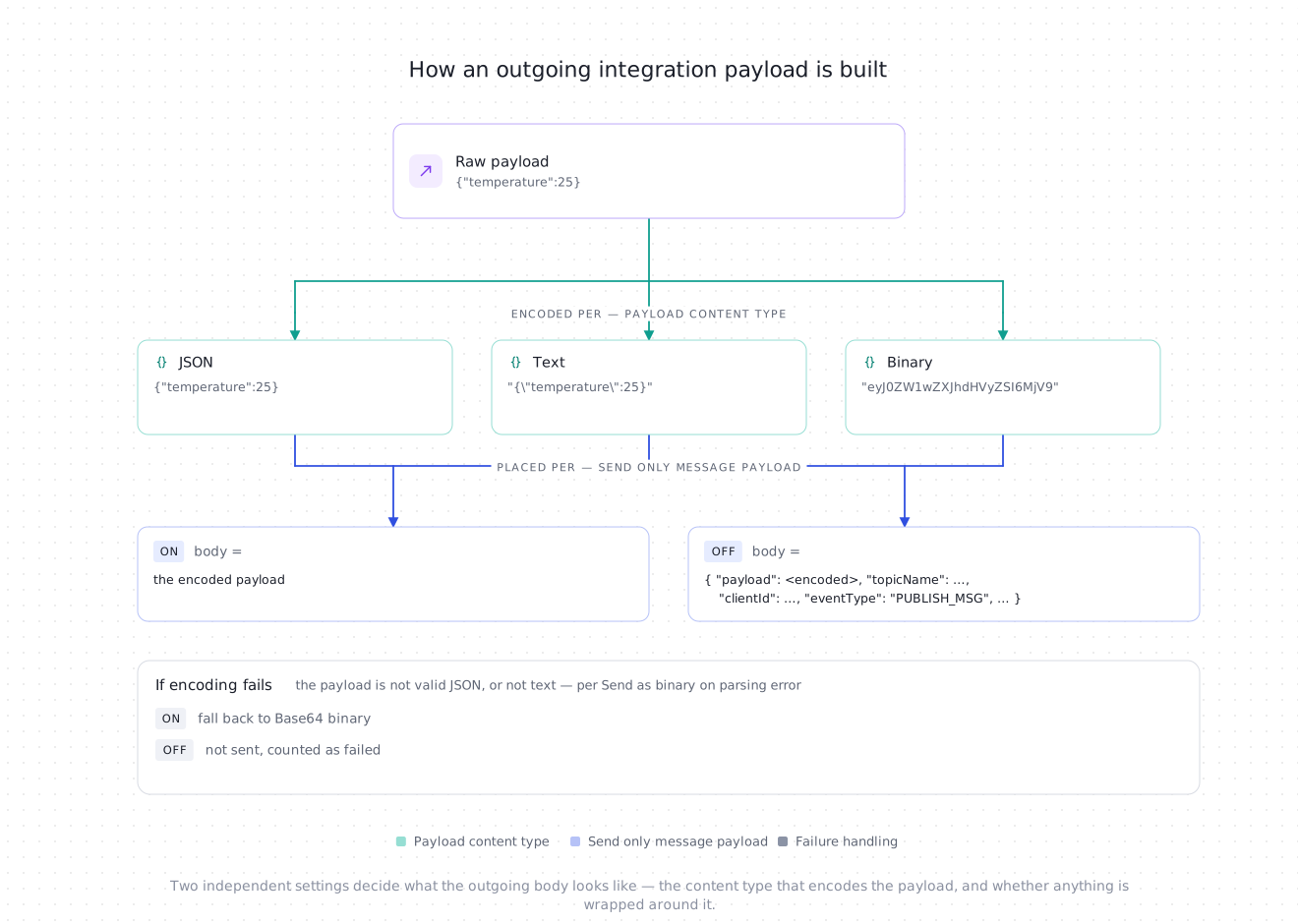
A client lifecycle event never goes through this: it has no MQTT payload to encode and is always sent as its own JSON object.
Client lifecycle events
Section titled “Client lifecycle events”Besides the messages matched by topic filters, this integration can deliver client lifecycle events — a client connecting, disconnecting, changing its subscriptions, or failing authentication or authorization.
Pick the event types on the Filters and events step while creating the integration, or add them later:
- Open the integration on the Integrations page and click the Toggle edit mode button (pencil icon).
- Click the Lifecycle events field to list the available event types, then select the ones you need: Client connected, Client disconnected, Client subscribed, Client unsubscribed, Client authentication failed, Client authorization failed, Client connection failed. Each one is added as a chip; remove it with its x.
- Click Apply changes.
Events are sent to the same Endpoint URL as messages, as a JSON request body. Send only message payload, Payload content type, and Send as binary on parsing error apply to message payloads only — an event is always delivered as JSON.
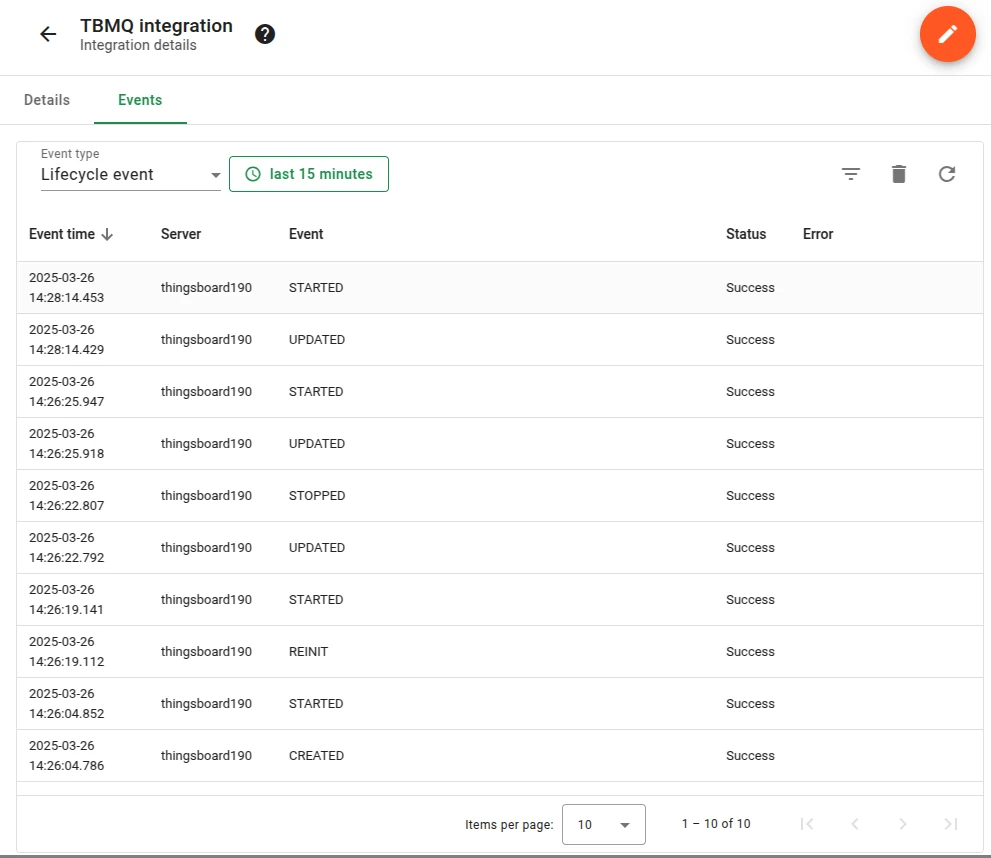
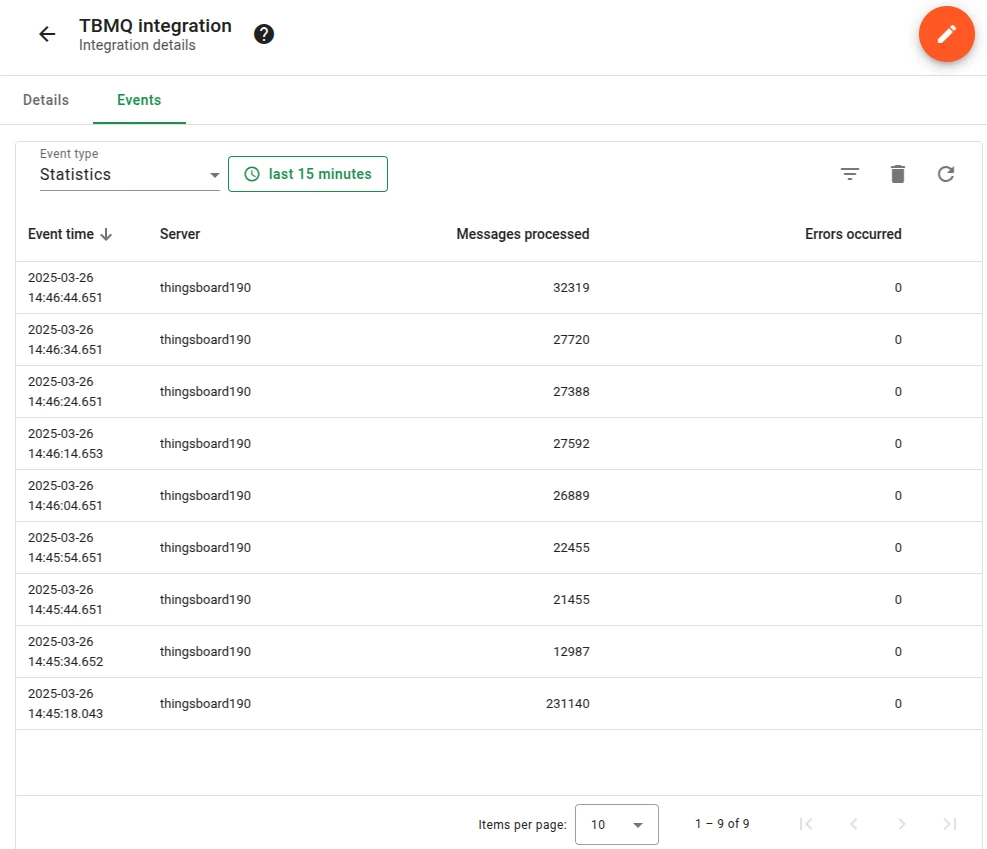
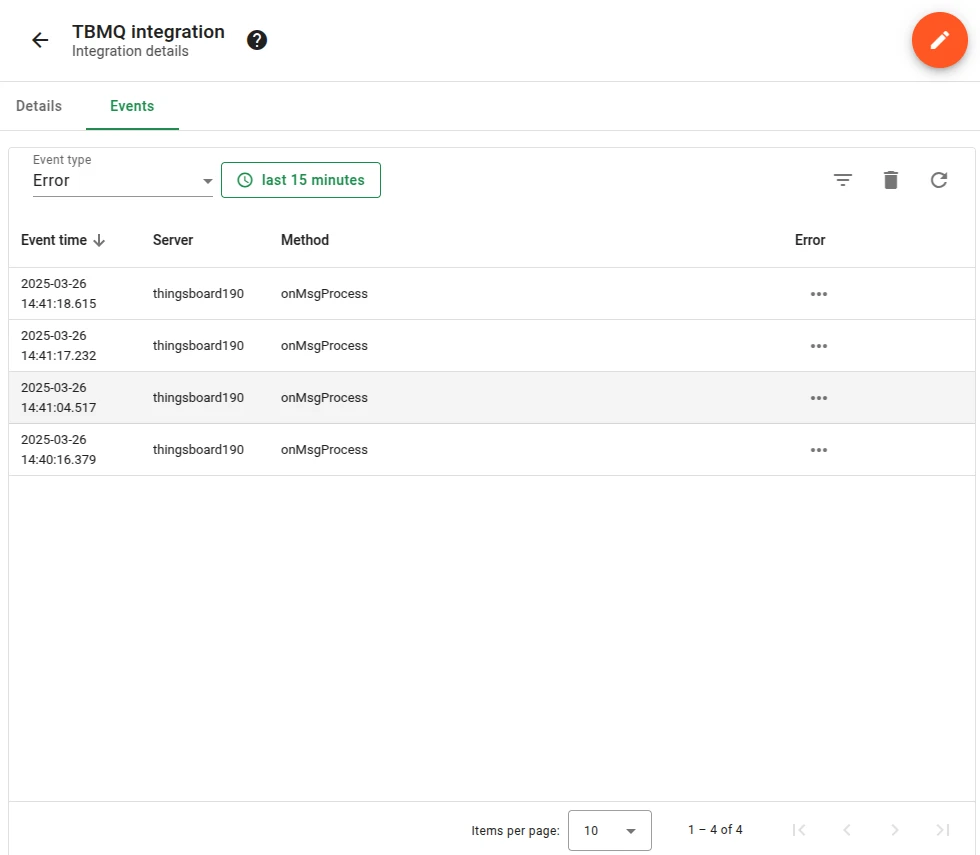
Integration events
Section titled “Integration events”These are the integration’s own events, recorded inside TBMQ for debugging and troubleshooting. They are not the client lifecycle events described above: those are about MQTT clients and are delivered to your HTTP endpoint, while these describe the integration itself and never leave TBMQ.
- Lifecycle Events — logs events such as
Started,Created,Updated,Stopped. - Statistics — insights into integration performance, including processed message counts and error rates.
- Errors — captures failures related to authentication, timeouts, payload formatting, or connectivity issues.
Send an uplink message
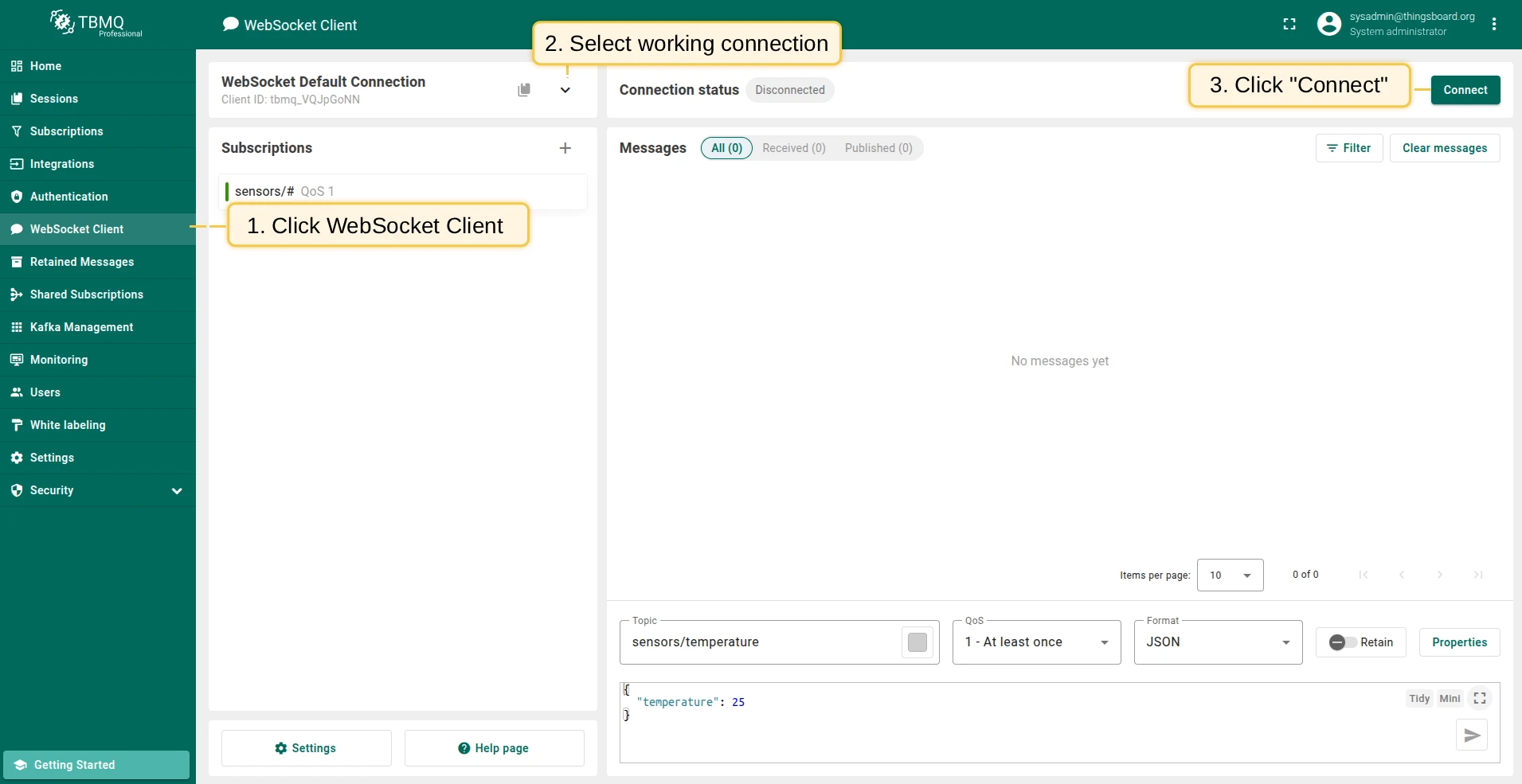
Section titled “Send an uplink message”- Navigate to the WebSocket Client page.
- Select WebSocket Default Connection (or any working connection) and click Connect. Verify the connection status shows
Connected. - Set the Topic field to
tbmq/http-integrationto match the integration’s topic filtertbmq/#. - Leave the pre-filled Payload
{"temperature": 25}as is — it is what the endpoint receives below. - Click the Send icon to publish the message.
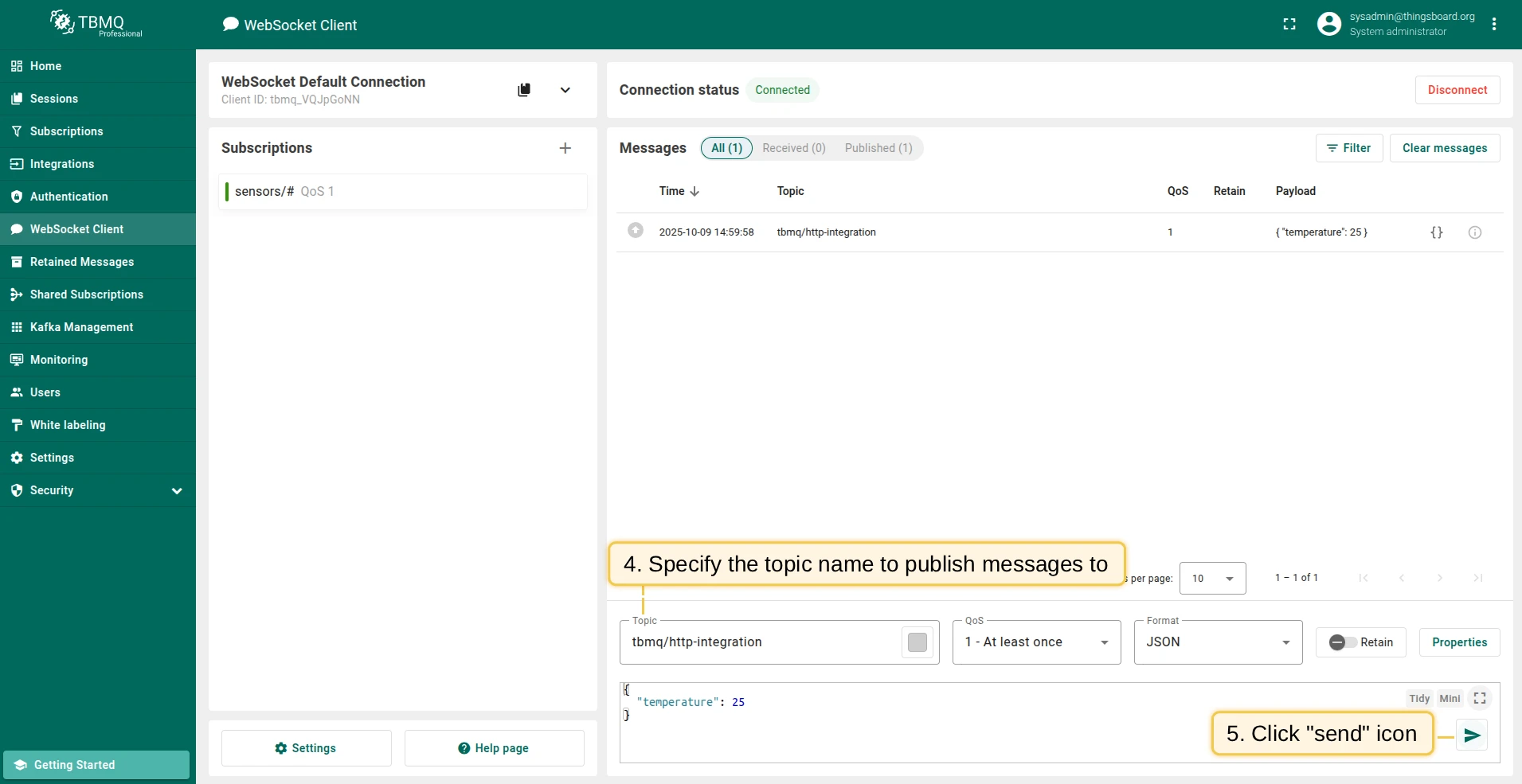
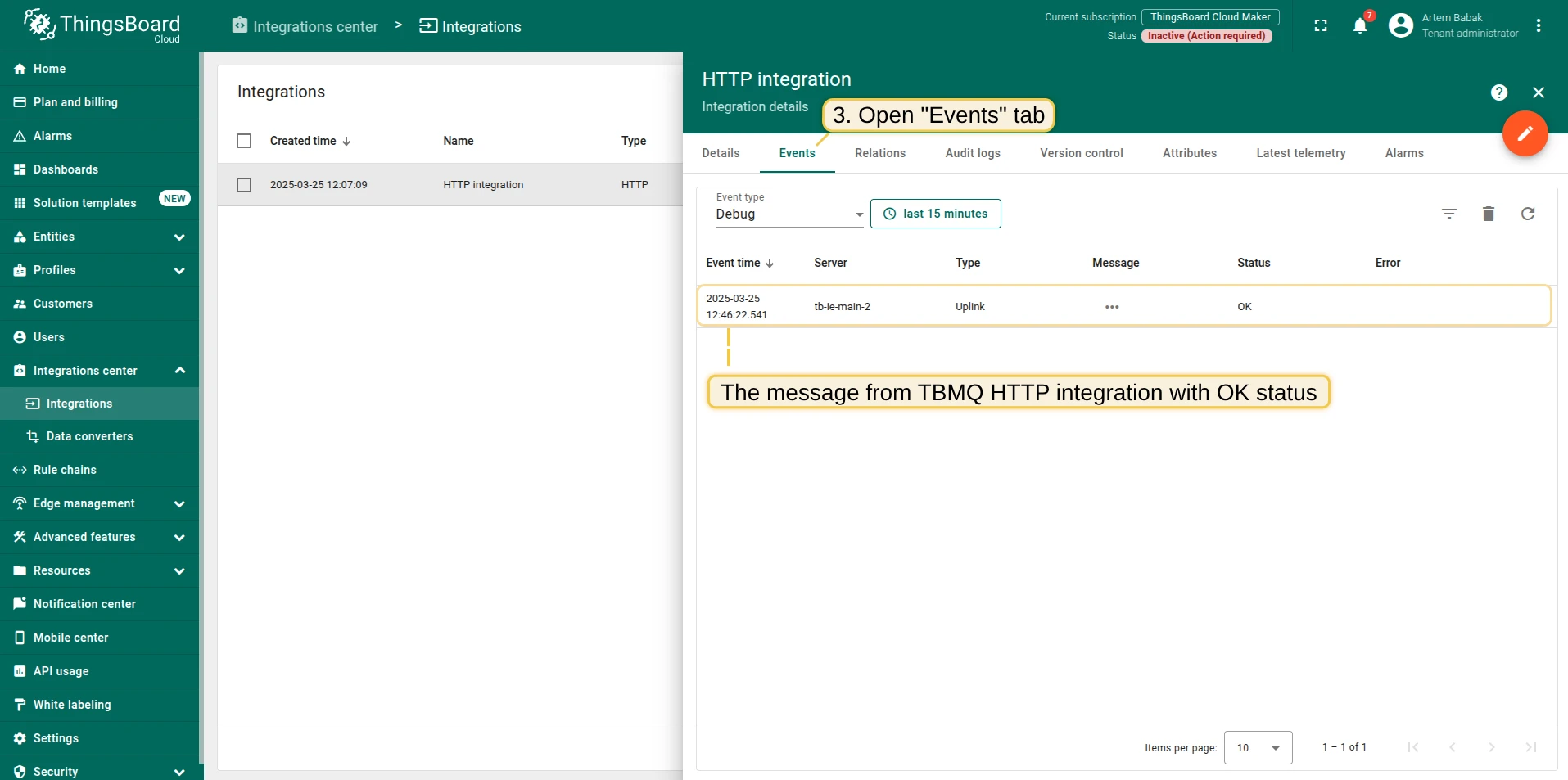
If successful, open ThingsBoard Cloud → HTTP Integration details → Events tab. You should see an event with status OK and a payload similar to:
{ "payload": { "temperature": 25 }, "topicName": "tbmq/http-integration", "clientId": "tbmq_7QUvZzow", "eventType": "PUBLISH_MSG", "qos": 1, "retain": false, "tbmqIeNode": "tbmq_ie_node", "tbmqNode": "tbmq_node", "ts": 1742553324248, "username": "tbmq_websockets_username", "props": {}, "metadata": { "integrationName": "HTTP integration" }}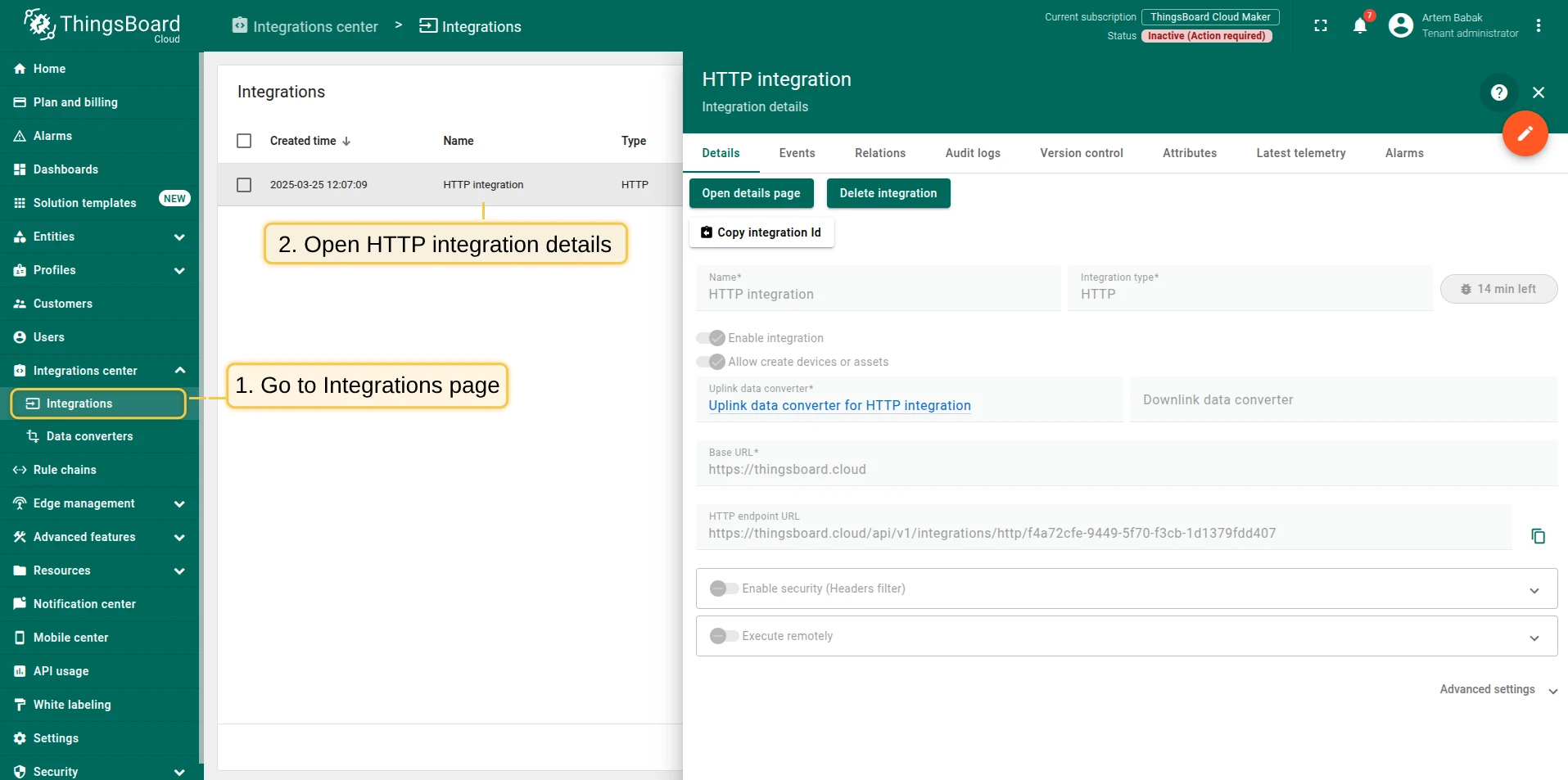
Message field descriptions:
| Field | Description |
|---|---|
payload |
Content of the MQTT message. |
topicName |
MQTT topic to which the message was published. |
clientId |
ID of the MQTT client that published the message. |
eventType |
Type of event. PUBLISH_MSG for a forwarded message; a client lifecycle event carries its own type instead. |
qos |
Quality of Service level of the incoming message. |
retain |
Whether the message has the Retain flag set. |
tbmqIeNode |
Node ID of the Integration Executor that handled the message. |
tbmqNode |
Node ID of the TBMQ broker that received the message. |
ts |
Timestamp (milliseconds) when the message was received. |
username |
Username the publishing client connected with. Omitted when the client sent none. |
props |
MQTT 5.0 user properties or other MQTT properties. |
metadata |
Additional metadata from integration configuration (e.g., integration name). |
Was this helpful?