
Sessions
The Sessions page lists every session the broker holds — clients that are connected right now and the sessions of persistent clients that are currently offline. Use it to find a client by ID or IP, inspect the state TBMQ keeps for it, change its subscriptions, disconnect it, or clear its session.
For what a session is, what makes it persistent and how long it lives, see Sessions. This page covers the UI.
Sessions table
Section titled “Sessions table”Open Sessions in the left-hand menu. Each row is one session:
- Connected at — when the client established its current (or, for an offline session, its last) connection.
- Status —
ConnectedorDisconnected. - Client ID — the identifier the client sent in its
CONNECTpacket. - Client IP — the address the client connected from.
- Client type — DEVICE or APPLICATION.
- Subscriptions — how many topic filters the session currently holds.
- Node ID — the broker node serving the session.
- Disconnected at — empty while the client is connected.
- Clean Start — the flag the client sent in its
CONNECTpacket.
The table is sorted by Connected at, newest first; click any column header to sort by it, and click a row to open the session details. Search filters by client ID using a case-insensitive substring match.
The time-range selector defaults to For all time. When you narrow it, connected sessions are matched by their Connected at timestamp and disconnected ones by Disconnected at.
Filtering the table
Section titled “Filtering the table”Click Filter to narrow the list by:
- Status —
Connected,Disconnected. - Client type —
Device,Application. - Clean Start —
true,false. - Client ID and Client IP — case-insensitive substring match.
- Subscriptions — an operation (
equal,not equal,greater than,less than,greater or equal,less or equal) applied to the session’s subscription count. - Node ID — one or more broker nodes.
Click Update to apply the filter or Reset to clear it. Selecting both values of a two-value filter (for example
both Connected and Disconnected) is the same as selecting neither — nothing is filtered out.
Acting on several sessions at once
Section titled “Acting on several sessions at once”Select rows with the checkboxes, then use Disconnect sessions or Remove sessions in the toolbar that appears. Only connected sessions are disconnected and only disconnected sessions are removed — the rest of the selection is skipped. If nothing in the selection qualifies, TBMQ shows a message explaining why instead of the confirmation dialog.
Session details
Section titled “Session details”Click a table row to open the Session details window. Every field on the Details tab is read-only: it shows the state the client negotiated when it connected. The window also offers Copy session ID and a refresh icon that reloads the session from the broker.
Connection info
- Status —
ConnectedorDisconnected. - Keep Alive (seconds) — how long the broker and the client may go without communicating before the session is
closed.
0turns the mechanism off. See Keep alive. - Connected at — timestamp of the current or last connection.
- Disconnected at — shown only for a disconnected session.
Session info
- Node — the broker node serving the session.
- Clean Start — the flag from the
CONNECTpacket. The hint below it states whether the session is persistent. - Session Expiry Interval (seconds) — shown only for a disconnected session: how long the session information is kept after the connection is lost.
- Session end — shown only for a disconnected session that actually has an end: the disconnect time plus the
session expiry interval. Sessions that by protocol rules would never expire (MQTT 3.x
cleanSession=false, or MQTT 5.0Clean Start = 0withSession Expiry Interval = 0) use the administrative TTL instead —MQTT_CLIENT_SESSION_EXPIRY_TTL, one week by default. If that TTL is disabled the field is not shown at all.
Client info
- Client ID, Client IP — each with a copy icon.
- Client type — DEVICE or APPLICATION.
- MQTT version —
MQTT 3.1,MQTT 3.1.1orMQTT 5. - Client credentials — the label depends on how the client authenticated:
| Field label | Value | Authentication |
|---|---|---|
| Basic Client credentials | name of the credentials | Basic |
| X.509 Client credentials | name of the credentials | X.509 |
| Auth provider | JWT, HTTP or SCRAM |
JWT, HTTP or SCRAM |
| Unknown Client credentials | Unknown |
could not be resolved |
For Basic and X.509 the field also offers an icon that opens the matching client credentials entry.
A warning appears above the fields when an APPLICATION client connected with Clean Start = true and
Session Expiry Interval = 0. Such a client is not persistent, so nothing is stored for it while it is offline, which
is almost never what an APPLICATION client
is for.
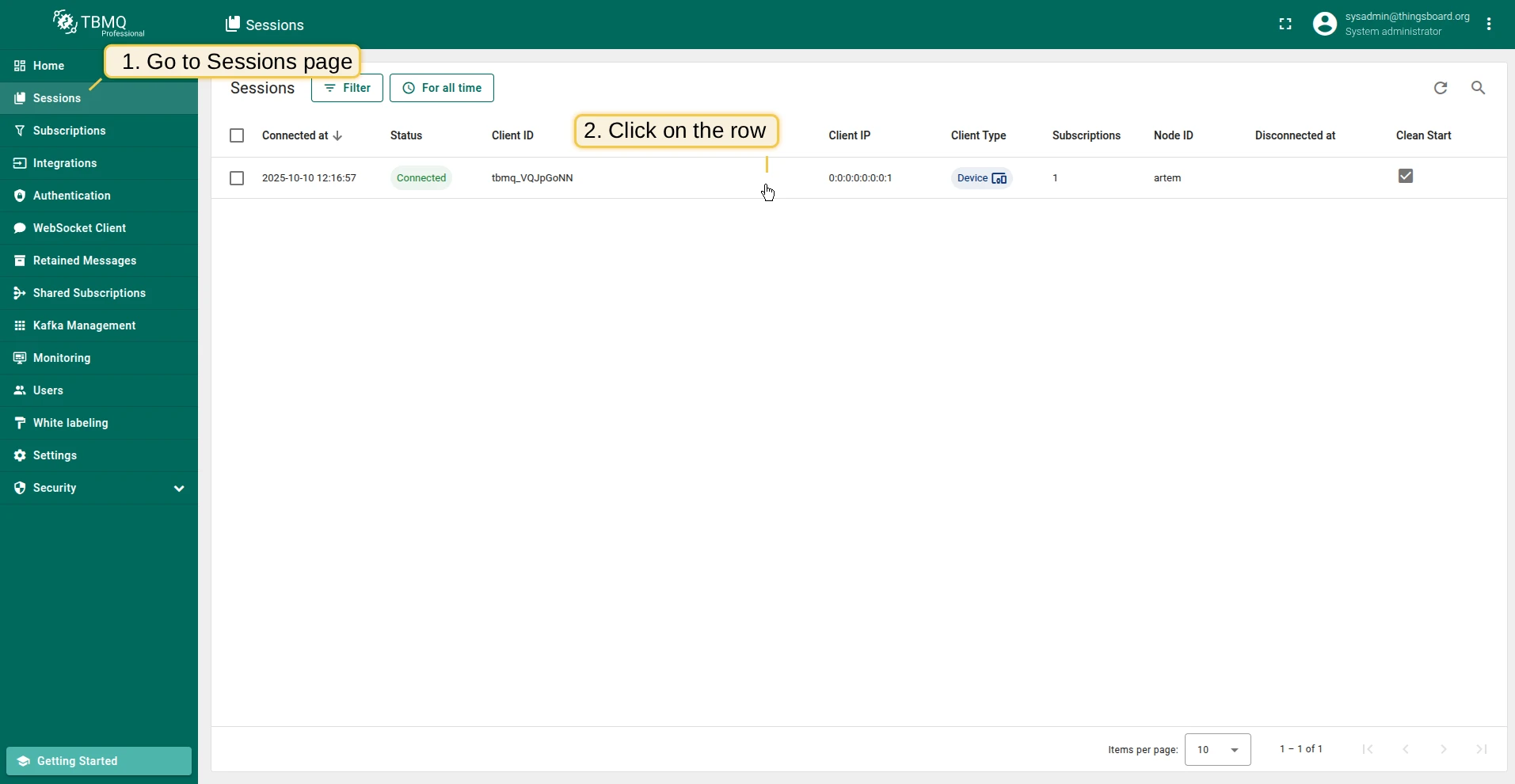
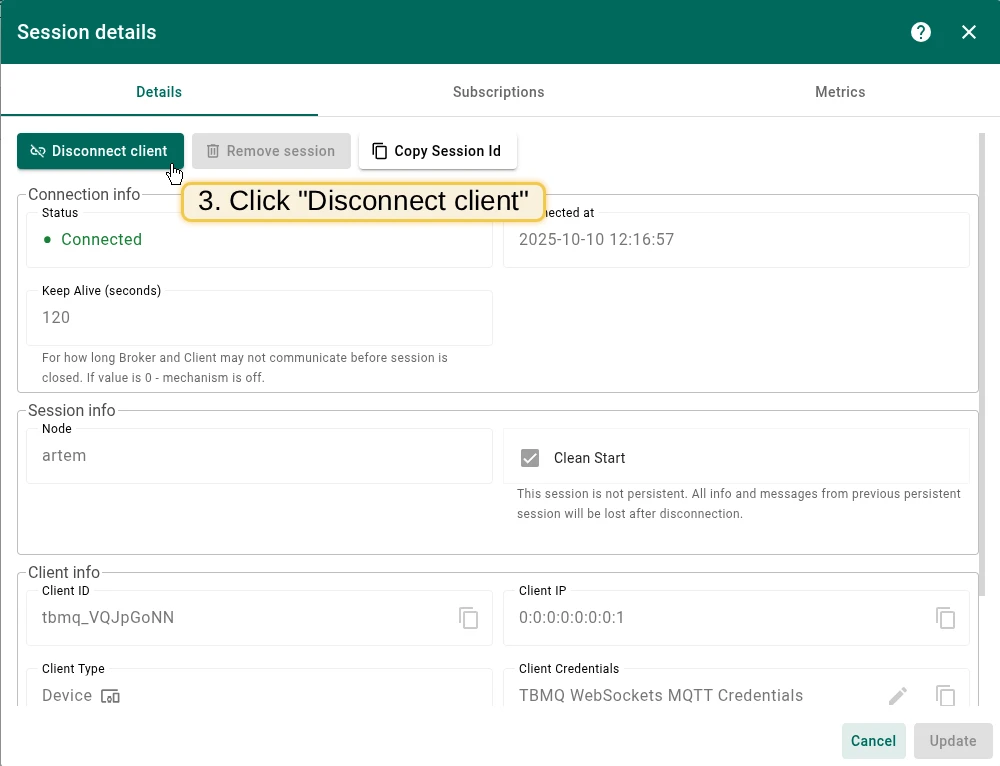
Disconnecting a client and removing a session
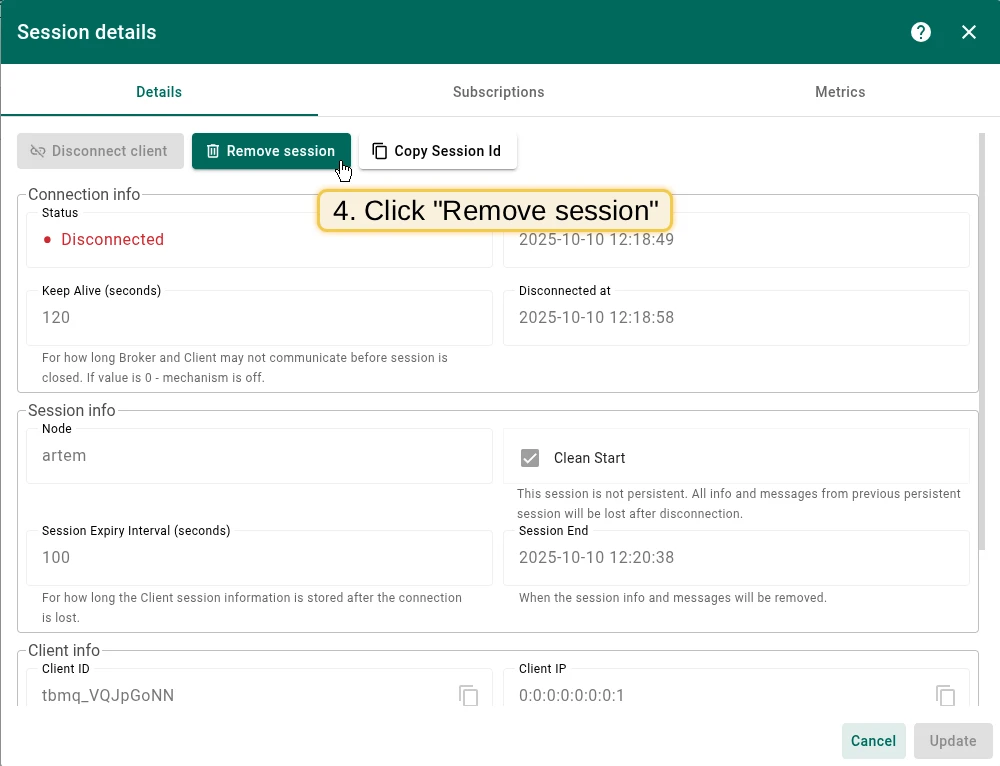
Section titled “Disconnecting a client and removing a session”Both actions are at the top of the Session details window, and each is enabled only for the matching state:
- Disconnect client — available while the session is
Connected. TBMQ closes the connection on the node that serves it. An MQTT 5.0 client is sent aDISCONNECTpacket with reason code0x98 Administrative actionfirst; MQTT 3.1.1 and 3.1 have no server-sentDISCONNECT, so the connection is simply closed. Because this is not a graceful client-initiated disconnect, the client’s Last Will is published — after its Will Delay Interval, if it set one. The session itself is kept, so a persistent client resumes its subscriptions and queued messages when it reconnects. - Remove session — available while the session is
Disconnected. It clears the session: the subscriptions and any persisted messages are dropped. The broker rejects the request if the client has reconnected in the meantime.
Subscriptions
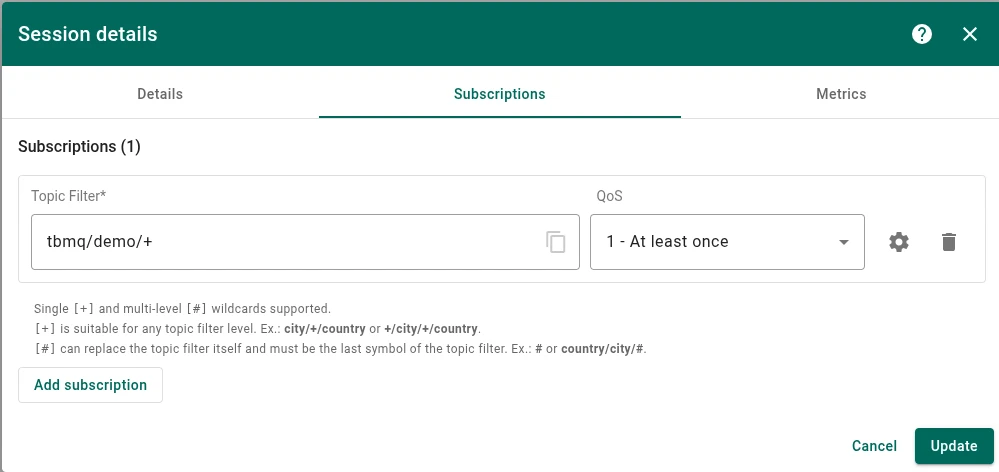
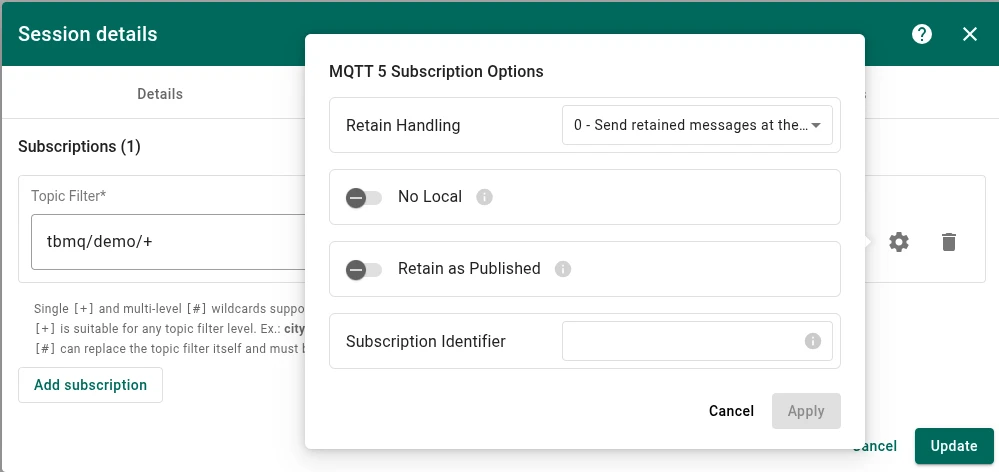
Section titled “Subscriptions”The Subscriptions tab lists the topic filters the session currently holds, with the subscription count in its header. Each row shows the Topic Filter and its QoS; the gear icon opens the MQTT 5 Subscription Options popover with the rest of the subscription:
- Retain Handling — whether retained messages are sent when the client subscribes:
0— send retained messages at the time of the subscribe.1— send retained messages at subscribe only if the subscription does not currently exist.2— do not send retained messages at the time of the subscribe.
- No Local — when on, messages published by this client are not forwarded back to it.
- Retain as Published — when on, messages forwarded through this subscription keep the RETAIN flag they were published with; when off, that flag is cleared.
- Subscription Identifier — a value between
1and268435455that the broker returns with every message matching this subscription.
Unlike the details, subscriptions are editable:
- Click Add subscription to append a row (it starts at QoS 1), edit a topic filter or QoS in place, adjust the MQTT 5 options behind the gear icon and click Apply, or use the delete icon to drop a subscription.
- Click Update at the bottom of the window to send the changes to the broker.
TBMQ compares the submitted list with what the session already has and subscribes or unsubscribes the difference, so
the list you save becomes the session’s complete set of subscriptions. Topic filters are validated — single-level +
and multi-level # wildcards are supported, and # must be the last character of the filter.
Each row also has a publish icon. It opens the Publish message dialog with the topic and QoS of the row’s subscription pre-filled, so you can publish a message to a topic this session listens on without an MQTT client.
Metrics
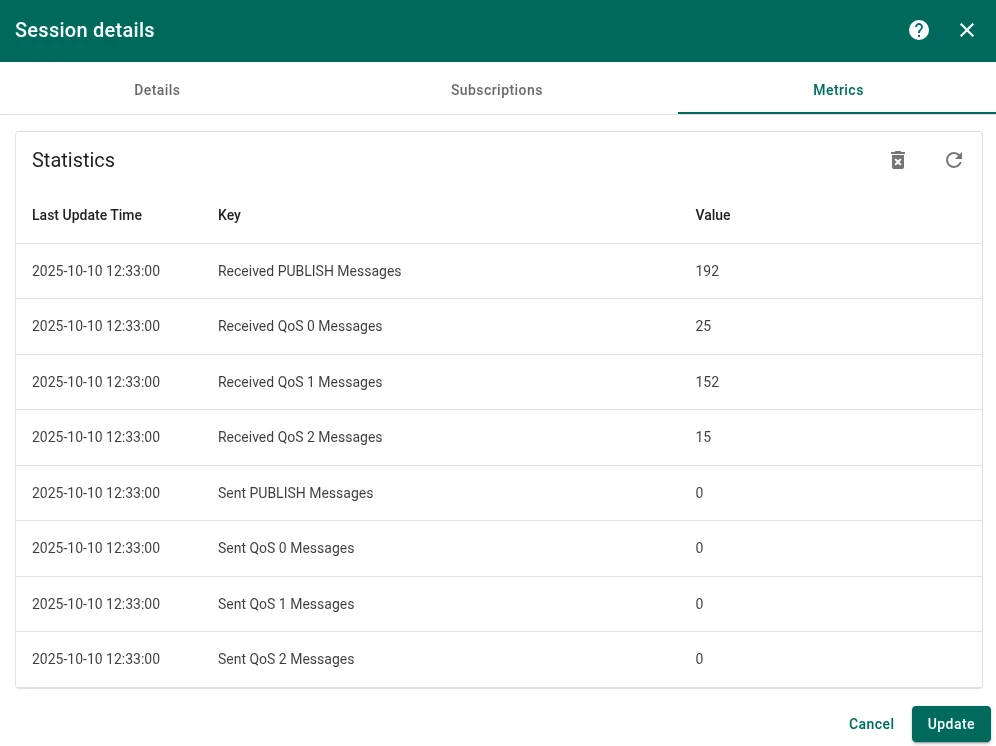
Section titled “Metrics”The Metrics tab shows the PUBLISH counters TBMQ keeps for the client, each with the time it was last updated. Directions are stated from the client’s point of view:
- Received PUBLISH Messages — PUBLISH packets the broker delivered to the client, plus a breakdown into Received QoS 0 / QoS 1 / QoS 2 Messages.
- Sent PUBLISH Messages — PUBLISH packets the client published to the broker, plus a breakdown into Sent QoS 0 / QoS 1 / QoS 2 Messages.
Packets are counted on the wire, so a redelivered message counts again. Use the refresh icon to reload the values and the Clear icon in the top right corner of the table to delete them.
Was this helpful?