
Users
TBMQ includes two predefined user roles: Administrator and Viewer. For a detailed explanation of role-based access control, see RBAC.
User management can be performed through the Web UI or REST API.
Add user
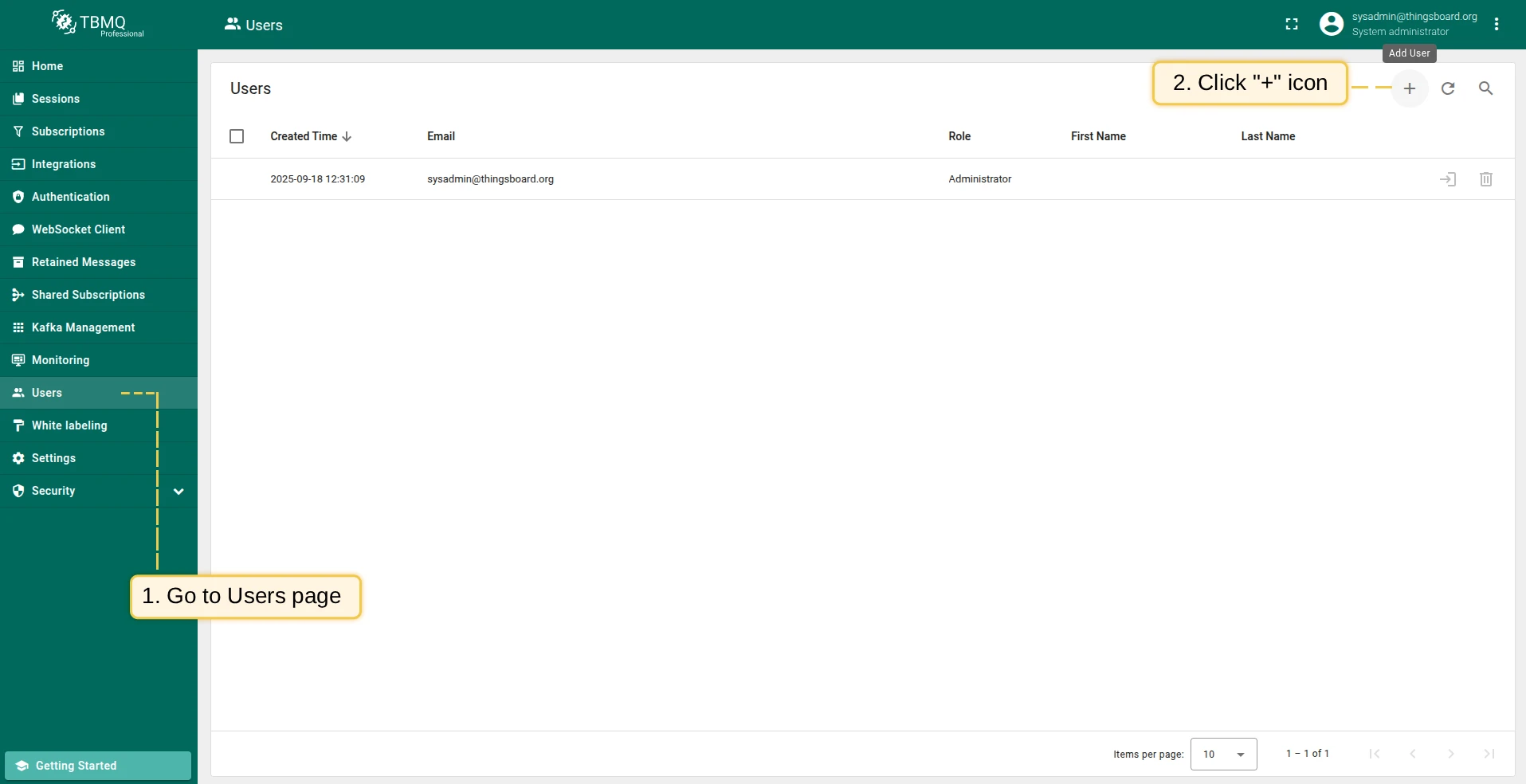
Section titled “Add user”- Click Users in the left-hand menu, then click the plus icon.
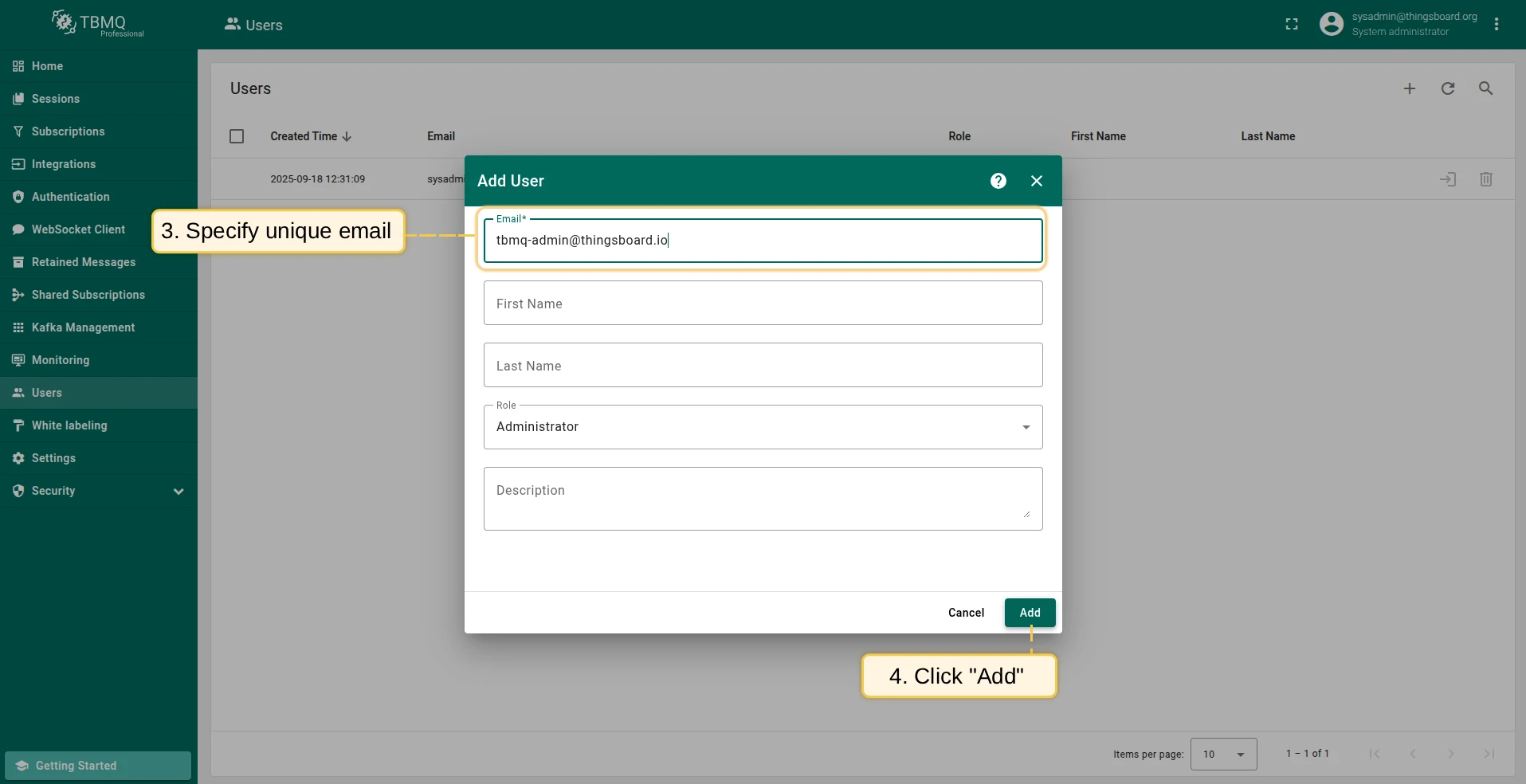
- Provide the user’s email address (must be unique). First name, last name, and description are optional. Click Add.
In TBMQ PE, the dialog also contains a Role selector — choose Administrator or Viewer for the new user.
All new users are created with the default password sysadmin. Users are prompted to change it on first login.
Edit user
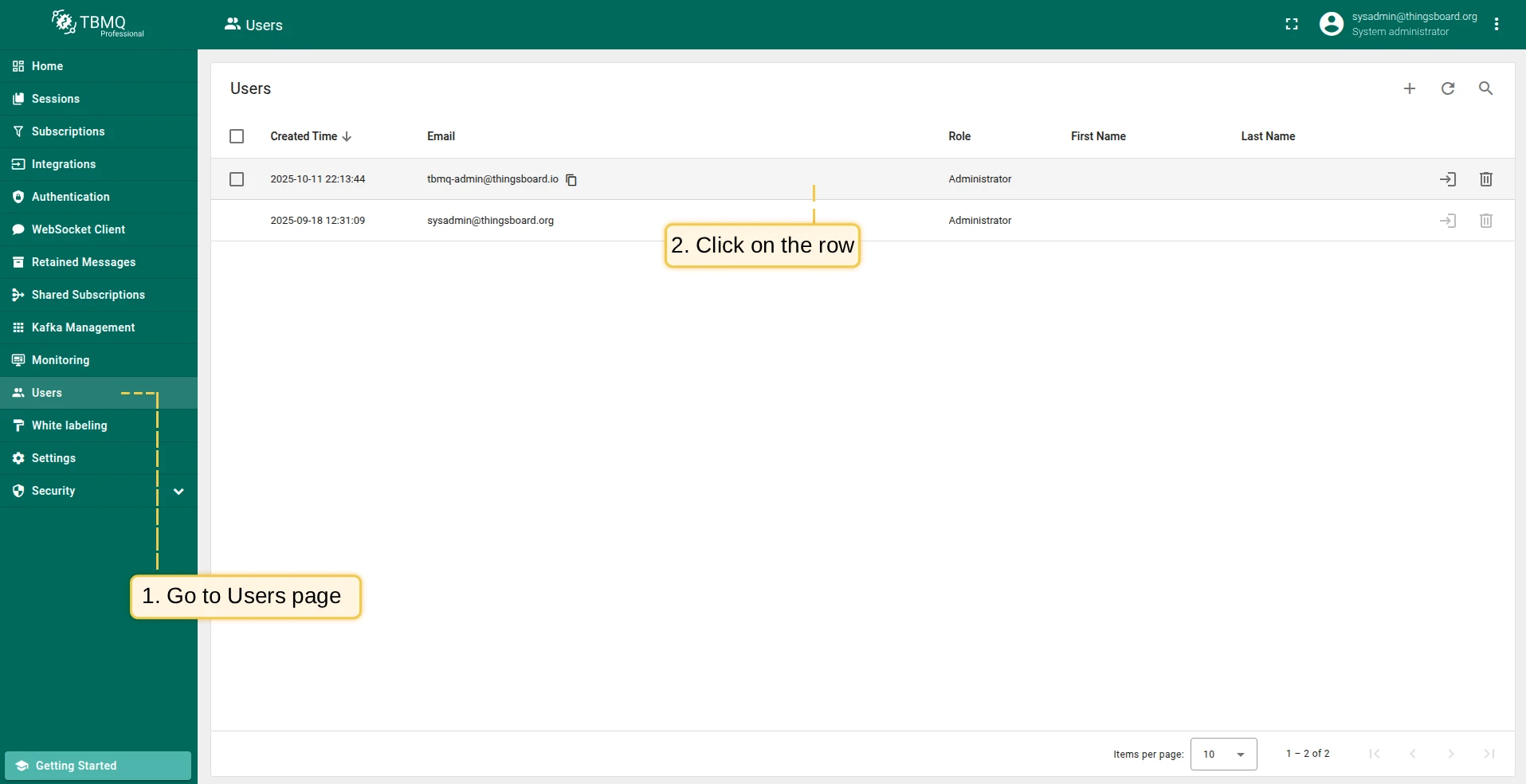
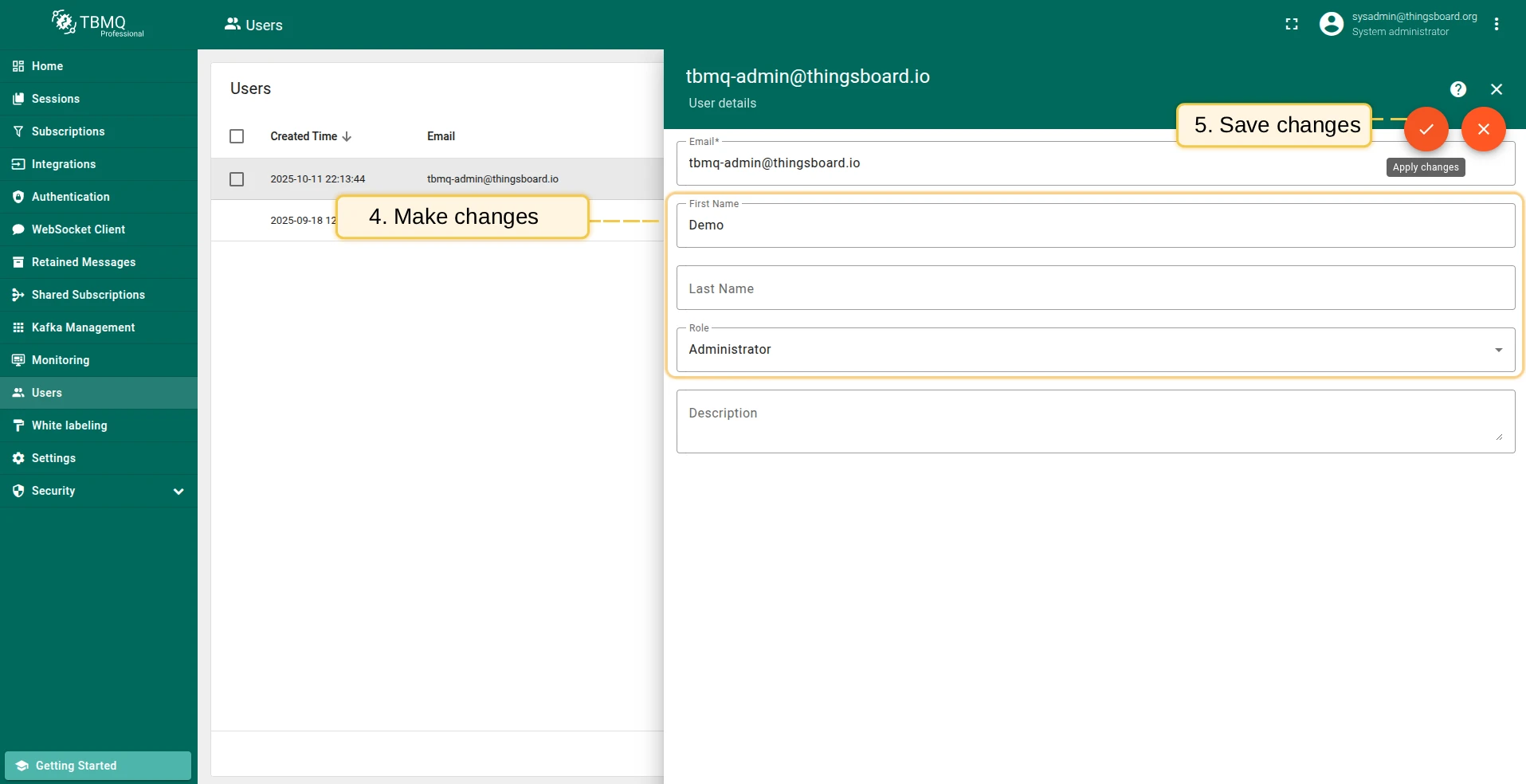
Section titled “Edit user”- Locate the user in the Users table and click on the row.
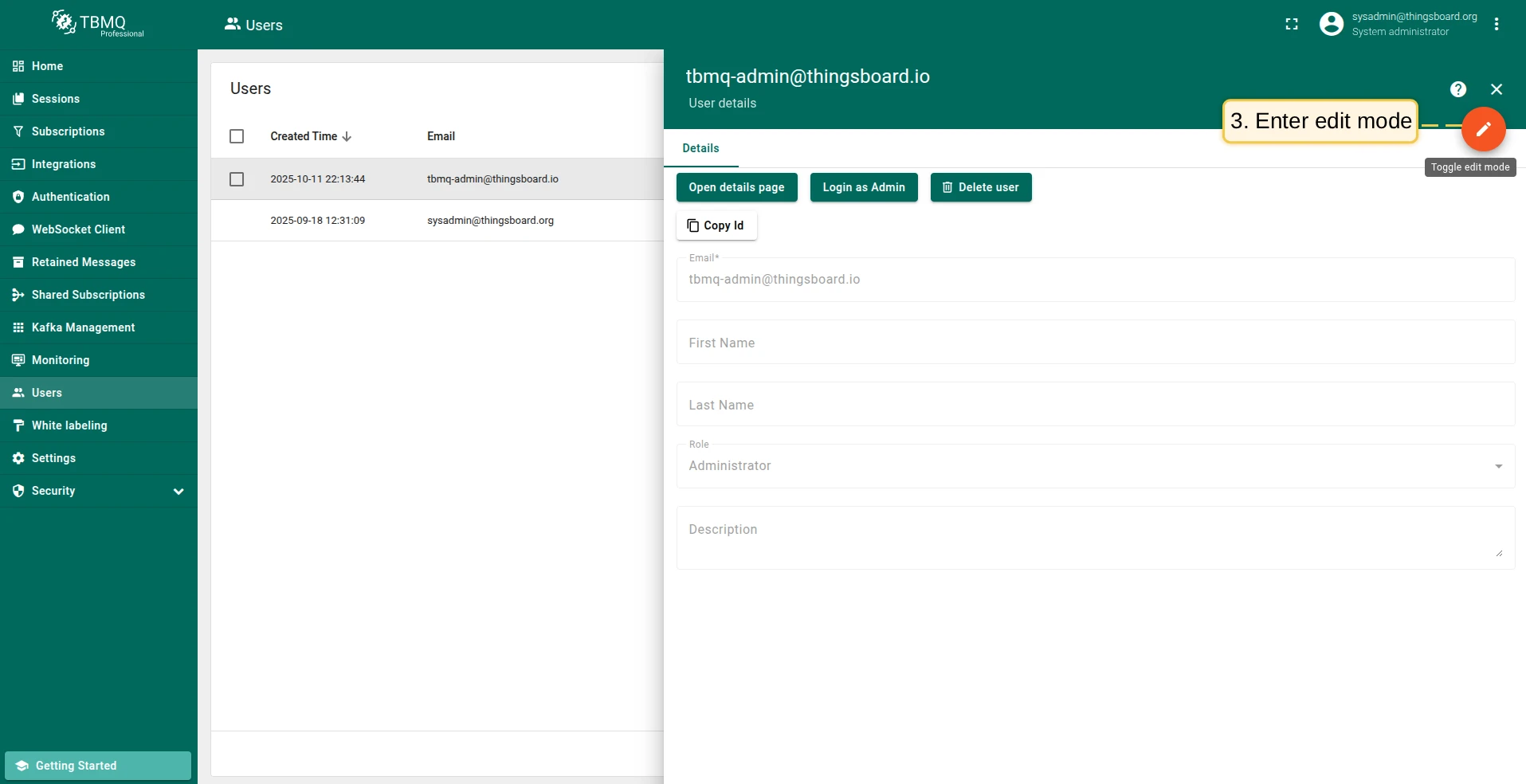
- Click the Toggle edit mode button.
- Modify the first name, last name, or description, then click Apply changes.
In TBMQ PE, the user’s Role can be changed the same way — except your own, which is always read-only.
Delete user
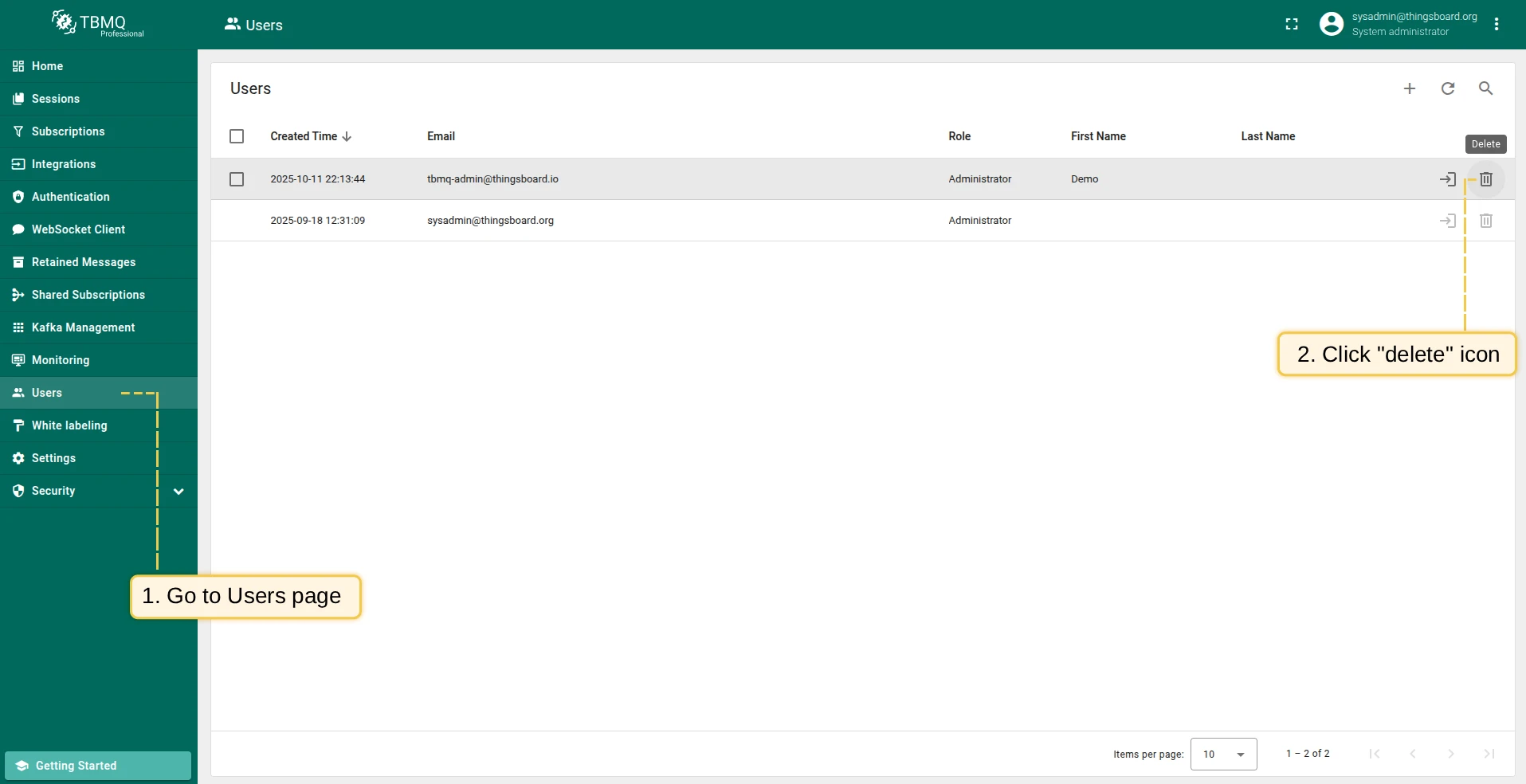
Section titled “Delete user”A logged-in user can delete other users but not themselves.
- Find the user in the Users table and click on the row.
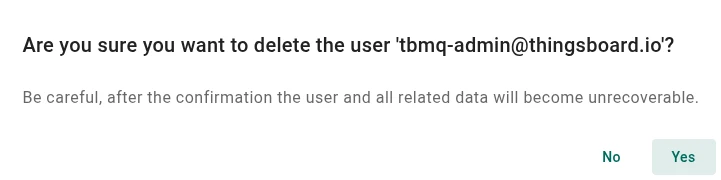
- Click the Delete user button and confirm by selecting Yes.
Login as another user
Section titled “Login as another user”Administrators can log in as other users without requiring their credentials.
The feature is controlled by the SECURITY_USER_TOKEN_ACCESS_ENABLED environment variable (default true); when disabled, the Login button is hidden.
- Find the user in the Users table.
- Click the Login button in the corresponding row.

User created via OAuth 2.0
Section titled User created via OAuth 2.0If a user signs in using OAuth 2.0 while the Allow user creation option is enabled, the user account is automatically created without a password. These users can continue using SSO to log in.
To enable username/password login, go to Account → Security and set a new password. Leave the Current password field empty when setting the password for the first time.
The user details page also includes an Audit logs tab listing the audit log entries related to the user.
Was this helpful?