
RabbitMQ integration
TBMQ RabbitMQ Integration publishes MQTT messages and client lifecycle events to an exchange on a RabbitMQ broker of your own, over AMQP 0-9-1. You choose the exchange and how each message’s routing key is formed — derived from the MQTT topic, or a fixed one — and RabbitMQ’s own bindings decide which queues the message lands in. This is useful for the following scenarios:
- Fan-out to existing consumers — handing device data to applications, workers and services that already consume from RabbitMQ, without teaching them MQTT.
- Topic-based routing — publishing to a topic exchange where each consumer binds the slice of the MQTT topic tree it cares about, e.g.
sensors.*.temp. - Work queues — feeding a durable queue that a pool of workers drains at its own pace, with the broker holding the backlog.
- Bridging to other protocols — reaching AMQP, STOMP and other RabbitMQ-side consumers through one broker instead of adding a second integration per protocol.
Data flow
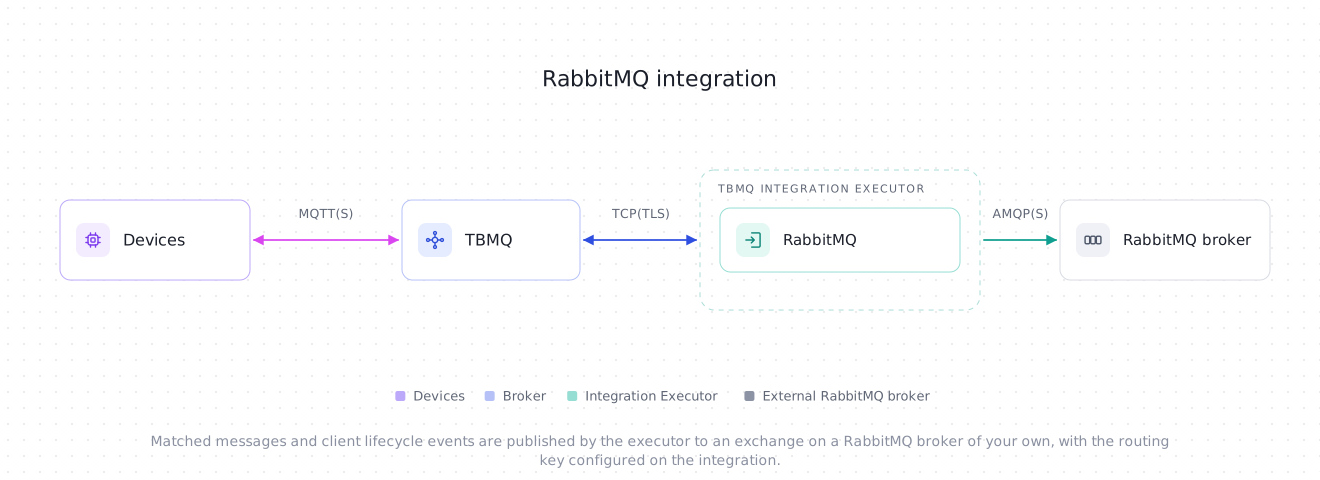
Section titled “Data flow”- A client publishes an MQTT message to a topic matching the integration’s topic filters.
- TBMQ receives the message and forwards it to the TBMQ Integration Executor over Kafka.
- The Integration Executor resolves the routing key, builds the body, and publishes one AMQP message to the configured exchange.
- RabbitMQ routes it to every queue bound to that exchange with a matching binding key, and returns a publisher confirm. The message is acknowledged only after that confirm arrives.
Prerequisites
Section titled “Prerequisites”- A running TBMQ instance with the TBMQ Integration Executor service running. Without a reachable executor, saving an integration fails with a validation timeout.
- A RabbitMQ broker reachable from the Integration Executor, speaking AMQP 0-9-1.
- The exchange must already exist, and queues must already be bound to it. The integration declares nothing — no exchange, no queue, no binding.
- A client capable of publishing MQTT messages (e.g., TBMQ WebSocket Client).
- The broker’s management plugin (
rabbitmq-plugins enable rabbitmq_management) only if you want to follow Send an uplink message — it serves the management UI on port15672, where that walkthrough declares the queue and reads the message back. The integration itself does not need it.
Create TBMQ RabbitMQ integration
Section titled “Create TBMQ RabbitMQ integration”- Go to the Integrations page and click the “+” button.
- Select RabbitMQ as the integration type and click Next.
- On the Filters and events step, keep the default Topic filters entry
tbmq/#, leave Lifecycle events empty, and click Next. - On the Configuration step, fill in Host, Port and Virtual host. If your broker requires authentication, set Credentials to Basic and enter the username and password.
- Under Routing, keep the pre-filled Exchange
amq.topicand leave Use message topic as routing key on, or switch it off and enter a static Routing key. - Click Check connection to confirm the broker is reachable and the exchange exists, then click Add to save the integration.
Topic filters
Section titled “Topic filters”Topic filters define MQTT-based subscriptions that trigger the integration. When TBMQ receives a message matching a configured topic filter, the integration resolves its routing key and publishes it to the exchange.
Topic filters are optional if you select at least one lifecycle event type instead — an integration only has to have one of the two. The form enforces that from the other side too: the last topic filter cannot be removed until an event type is selected, so to make an integration events-only, pick the event type first and then delete tbmq/#. Without topic filters the Use message topic as routing key toggle and the Routing key field disappear — there is no message to route, and lifecycle events never use them. Exchange stays, because events are published to it too, but it is no longer required: left empty, events go through the default exchange to the queue named by the Events routing key.
For example, with the topic filter tbmq/devices/+/status, any of the following messages will trigger the integration:
tbmq/devices/device-01/statustbmq/devices/gateway-01/statusConfiguration
Section titled “Configuration”Connection
Section titled “Connection”| Field | Default | Description |
|---|---|---|
| Host | localhost |
Hostname or IP address of the RabbitMQ broker. Required. |
| Port | 5672 |
AMQP port, 1–65535. A TLS listener is normally on 5671. Required. |
| Virtual host | / |
The vhost to connect to. Required. |
Credentials
Section titled “Credentials”AMQP always authenticates, so every connection presents something. Which SASL mechanism is used follows from the credentials type:
| Type | Mechanism | Description |
|---|---|---|
| Anonymous | ANONYMOUS |
No credential is sent at all — the broker decides who the connection is, through its own anonymous_login_user setting (RabbitMQ 4.0 and newer). A broker that does not offer the mechanism refuses the connection with no matching SASL mechanism. TBMQ deliberately does not fall back to the AMQP client’s built-in guest/guest, which would log in as a named user nobody configured. |
| Basic | PLAIN |
Username and password. Both are optional in the form, since a broker may be configured to accept one or neither. |
| PEM certificate | EXTERNAL |
Client-certificate authentication: the broker derives the user from the certificate the client presents, and no other credential is sent. |
PEM certificate has two requirements the form enforces on save:
- Enable SSL is forced on and its toggle is hidden — SASL EXTERNAL over a plaintext connection proves nothing.
- Both a Certificate file and a Private key file are required. A CA certificate on its own is rejected, because it would connect as no one and the broker would answer with an opaque
ACCESS_REFUSED.
On the broker side this needs the rabbitmq_auth_mechanism_ssl plugin enabled, and a user whose name matches the certificate. Which field of the certificate becomes that name is the broker’s own ssl_cert_login_from setting: distinguished_name by default, so the user to create is the full DN (CN=tbmq-ie,O=Acme), not the Common Name alone. Set it to common_name if you would rather name users after the CN.
Enable SSL connects with TLS instead of plain TCP. The server certificate chain and its hostname are always verified — there is no switch to weaken that.
The CA certificate file belongs to the PEM certificate credentials type only. With Basic or Anonymous credentials the form has no CA field, so the broker’s certificate has to validate against the executor’s default truststore. For a broker fronted by a private CA, either add that CA to the JVM truststore of the tbmq-ie deployment or use PEM certificate credentials.
Every PEM is parsed when the integration is saved, so a malformed certificate or a wrong key password is reported there rather than leaving the integration to fail on start.
Routing
Section titled “Routing”| Field | Default | Description |
|---|---|---|
| Exchange | amq.topic |
Exchange every message and event is published to. It must already exist. Required while Use message topic as routing key is on, optional for an events-only integration; leave it empty to publish through the default exchange. A whitespace-only name is always rejected. |
| Use message topic as routing key | on | Derives each message’s routing key from its own MQTT topic. Shown only while the integration has topic filters. See Routing keys. |
| Routing key | — | The routing key used for every message. Shown with the toggle above, and required while it is off. Max 255 bytes. |
| Events routing key | tbmq.events |
Routing key for client lifecycle events, on the same exchange. Shown and required while at least one lifecycle event type is selected. Max 255 bytes. |
amq.topic is a topic exchange that RabbitMQ predeclares on every vhost and refuses to delete, which makes it a working starting point. A custom exchange is the case to watch — it has to exist on the broker before the integration can publish to it, and Check connection is what surfaces a missing or misspelled one.
Advanced settings
Section titled “Advanced settings”| Field | Default | Range | Description |
|---|---|---|---|
| Send only message payload | off | — | On, the AMQP body is the raw MQTT payload; off, it is the full message envelope as JSON. See Message body. This toggle sits at the top of the form, not in the advanced panel. |
| Persistent delivery | off | — | AMQP delivery mode 2 instead of 1: the broker writes the message to disk. On a classic queue, only a durable one keeps it across a broker restart; quorum queues and streams persist every message whatever the delivery mode. |
| Automatic connection recovery | on | — | Reconnect after a lost connection. Turned off, a lost connection fails every message until the integration is restarted. |
| Connection timeout (sec) | 5 |
1–60 |
Budget for the TCP connect, the AMQP handshake and every channel RPC. |
| Content type | — | — | AMQP content-type property. Left empty it is derived from the body: application/json for the envelope and for events, unset when only the raw payload is sent. |
| Channel pool size | 4 |
1–16 |
Number of publisher threads, each owning one AMQP channel. See Threads and connections. |
| Confirm timeout (sec) | 10 |
1–25 |
How long to wait for the broker’s publisher confirm before the message is reported as failed. The channel stays open. |
| AMQP headers | — | — | Static key-value pairs added as headers to every message and event. A blank key is rejected. |
| Metadata | integrationName |
— | Custom key-value pairs, exposed as metadata in the message envelope. integrationName is added for you and holds the integration’s name. |
The confirm timeout is capped at 25 seconds so that no message can outlive the executor’s message pack timeout (TB_IE_MSG_PACK_PROCESSING_TIMEOUT, 30 000 ms by default) without a callback. If you lower that timeout below 25 000 ms, lower this value with it — the cap alone no longer holds the guarantee.
Routing keys
Section titled “Routing keys”Derived from the MQTT topic
Section titled “Derived from the MQTT topic”With Use message topic as routing key on, each message’s routing key is its MQTT topic with / replaced by .:
sensors/room1/temp → sensors.room1.tempThat is the whole transformation. Dots already in the topic are kept, so a/b.c and a/b/c both map to a.b.c — two MQTT topics that collapse onto one routing key.
This mode requires a named exchange, normally a topic exchange, where consumers bind the slices they want (sensors.#, sensors.*.temp). The default exchange is rejected for it on save, because it routes by queue name and a topic-derived key cannot be relied on to name one.
A key is limited to 255 bytes — the AMQP 0-9-1 short-string limit. A static routing key is checked against it when the integration is saved; a topic-derived one can only be checked when the message arrives, so an over-long topic fails that message and the acknowledgment strategy decides what happens next.
Static
Section titled “Static”With the toggle off, every message carries the same Routing key. Where that message ends up is entirely RabbitMQ’s call: a direct exchange matches the key exactly, a fanout exchange ignores it, a topic exchange matches it against the binding patterns.
The default exchange
Section titled “The default exchange”Leaving Exchange empty selects the AMQP default exchange. It ignores bindings and delivers to the queue whose name equals the routing key, which makes it the shortest path to a single known queue — set a static routing key to the queue’s name.
Because there are no bindings to get wrong, this is also the one mode where Check connection can verify the destination itself: it passively declares the queue instead of the exchange.
Message body
Section titled “Message body”Messages
Section titled “Messages”With Send only message payload off (the default), the body is the message envelope as JSON:
{ "payload": "eyJ0ZW1wZXJhdHVyZSI6MjV9", "topicName": "tbmq/rabbitmq-integration", "clientId": "tbmq_df52bNUQ", "eventType": "PUBLISH_MSG", "qos": 1, "retain": false, "tbmqIeNode": "tbmq-ie-0", "tbmqNode": "tbmq-node-0", "ts": 1742554969254, "props": {}, "metadata": { "integrationName": "RabbitMQ integration" }}payload holds the MQTT payload Base64-encoded — the envelope carries it as raw bytes, whatever it contains, so text and binary payloads are encoded alike. eyJ0ZW1wZXJhdHVyZSI6MjV9 above decodes to {"temperature":25}. clientCertCn is present only for a client that authenticated with mTLS.
With Send only message payload on, the body is the raw payload bytes, published byte for byte — binary safe, never re-encoded and never Base64. Nothing else about the message reaches RabbitMQ, so anything a consumer needs to tell messages apart has to come from the routing key or from a static header.
AMQP properties
Section titled “AMQP properties”Every published message carries the same fixed set of properties, built once from the configuration:
| Property | Source |
|---|---|
delivery-mode |
2 with Persistent delivery on, 1 otherwise. |
content-type |
Content type when set; otherwise application/json for a JSON body and unset for a raw payload. |
headers |
The AMQP headers map, identical on every message and event. |
Nothing is derived per message — there is no expiration, priority, correlation-id or message-id, and no MQTT property is mapped onto an AMQP one. Everything about a message that a consumer may need is in the body or in the routing key.
Client lifecycle events
Section titled “Client lifecycle events”Besides the messages matched by topic filters, this integration can deliver client lifecycle events — a client connecting, disconnecting, changing its subscriptions, or failing authentication or authorization.
Pick the event types on the Filters and events step while creating the integration, or add them later:
- Open the integration on the Integrations page and click the Toggle edit mode button (pencil icon).
- In the Lifecycle events section, click the Event types field to list the available event types, then select the ones you need: Client connected, Client disconnected, Client subscribed, Client unsubscribed, Client authentication failed, Client authorization failed, Client connection failed. Each one is added as a chip; remove it with its x.
- Fill in the Events routing key that appears below.
- Click Apply changes.
Events go to the same Exchange with the same AMQP properties as messages, but always under the static Events routing key — an event has no MQTT topic to derive one from, which is why the key is required as soon as any event type is selected, and why Use message topic as routing key has no bearing on events.
The body is always the whole event envelope as JSON — its common fields plus the ones the event type adds, as Event payload describes them. Send only message payload is a message-only switch: an event carries no MQTT payload to send on its own.
Check connection
Section titled “Check connection”Check connection does more than open a socket:
- Connects with the configured virtual host, credentials and TLS settings, and opens a channel.
- Passively declares the exchange, when a named exchange is configured. A passive declare asks the broker whether the exchange exists and creates nothing; an exchange that is missing closes the channel, and the failure is reported with the broker’s own reason.
- Passively declares the queues instead, when the default exchange is used: the queue named by the Routing key while topic filters are configured, and the one named by the Events routing key while lifecycle events are selected.
Nothing is declared, published or consumed — every step above is a read.
The probe’s budget is the Connection timeout, clamped by INTEGRATIONS_INIT_CONNECTION_TIMEOUT_SEC (15 seconds by default) when that is lower, so it cannot run past the API request deadline.
Delivery semantics
Section titled “Delivery semantics”Publisher confirms are always on, and the confirm is the only signal the integration reports success from: a message is acknowledged to the broker-side pack only once RabbitMQ has confirmed it.
Delivery is not exactly-once:
- A publish that fails is logged, counted, saved as an error event, and reported as a failure. It is never acknowledged as a success. What happens next is decided by the executor’s acknowledgment strategy —
SKIP_ALL(the default) drops the message;RETRY_ALLredelivers it up to the configured retry limit. - A retried message is published a second time. RabbitMQ has no deduplication, so a consumer sees both copies.
These are the failure modes, and each one fails only the messages it actually affects:
| Failure | What happens |
|---|---|
| The broker nacks the message | Failed immediately with Message nacked by RabbitMQ broker. |
| No confirm within Confirm timeout | Failed with No publisher confirm from RabbitMQ within <n>s. The channel stays open — a late confirm is simply ignored. |
The broker closes the channel — publishing to an exchange that was deleted (404), or a permission error |
Every message still awaiting a confirm on that channel is failed with the broker’s reason. The channel is marked dead and replaced on that thread’s next publish. |
| The connection is blocked by a broker resource alarm (memory or disk) | Publishes fail immediately rather than piling up behind a broker that has stopped reading. Cleared when the broker lifts the alarm, or when the connection dies. |
| The integration is stopping | Queued publishes and in-flight confirms get up to Confirm timeout seconds to drain; whatever is left is failed. |
Client lifecycle events are weaker still — they are best-effort hints, and can be dropped before they ever reach the integration. See Delivery guarantees.
Threads and connections
Section titled “Threads and connections”A RabbitMQ integration holds one AMQP connection, opened when it starts and closed when it stops. The broker sees it under the name tbmq-ie-rabbitmq-<integrationId>-<serviceId> and with the client property product = TBMQ, so it can be identified in the RabbitMQ management UI.
On that connection sit Channel pool size publisher threads, each owning one channel for the life of the integration. Publishing is a single non-blocking frame write and confirms arrive asynchronously on the client’s own connection thread, so a slow broker costs latency, not threads.
Recovery is handled by the AMQP client: with Automatic connection recovery on, a lost connection is re-established in the background. Topology recovery is deliberately off, since the integration declares no exchanges, queues or bindings to restore; channels are simply reopened on demand.
Which executor pays all of this depends on partition ownership — each integration is owned by exactly one executor instance at a time.
Integration events
Section titled “Integration events”These are the integration’s own events, recorded inside TBMQ for debugging and troubleshooting. They are not the client lifecycle events described above: those are about MQTT clients and are published to RabbitMQ, while these describe the integration itself and never leave TBMQ.
- Lifecycle Events — logs events such as
Created,Updated,Started,Stopped,Failed. A connection lost to the broker is reported asStopped, and its automatic recovery asStarted, so an outage is visible here as a pair. - Statistics — the integration’s own counters: messages processed and errors occurred.
- Errors — captures failures such as an unreachable broker, a nacked or unconfirmed message, a channel the broker closed, or a blocked connection. Each entry carries the reason as the broker or the client reported it.
Send an uplink message
Section titled “Send an uplink message”The integration publishes to an exchange, and RabbitMQ silently drops a message no queue is bound for — so bind one first. With the defaults, the amq.topic exchange and the MQTT topic as the routing key, open the management UI at http://<broker-host>:15672 and:
- On the Queues and Streams tab, expand Add a new queue. Set Type to
Classicand Name totbmq-demo, leave Durability atDurable, and click Add queue. - On the Exchanges tab, click
amq.topic. - Expand Bindings. Under Add binding from this exchange keep To queue selected, enter
tbmq-demoas the destination andtbmq.#as the Routing key, and click Bind.
Then publish a message:
- Navigate to the WebSocket Client page.
- Select WebSocket Default Connection (or any working connection) and click Connect. Verify the connection status shows
Connected. - Set the Topic field to
tbmq/rabbitmq-integrationto match the integration’s topic filtertbmq/#. - Leave the pre-filled Payload
{"temperature": 25}as is. - Click the Send icon to publish the message.
The message should now be in the queue, published under the routing key tbmq.rabbitmq-integration. Back in the management UI, open Queues and Streams, click tbmq-demo, expand Get messages and click Get Message(s) — the default Ack Mode, Nack message requeue true, leaves the message in the queue:
{"payload":"eyJ0ZW1wZXJhdHVyZSI6IDI1fQ==","topicName":"tbmq/rabbitmq-integration","clientId":"tbmq_df52bNUQ","eventType":"PUBLISH_MSG","qos":1,"retain":false,"tbmqIeNode":"tbmq-ie-0","tbmqNode":"tbmq-node-0","ts":1742554969254,"props":{},"metadata":{"integrationName":"RabbitMQ integration"}}Note that payload is Base64-encoded: inside the envelope the MQTT payload always travels as bytes, so eyJ0ZW1wZXJhdHVyZSI6IDI1fQ== is the {"temperature": 25} that was published, and a consumer has to decode it. Turning Send only message payload on would have published {"temperature": 25} alone — byte for byte, with no envelope and no encoding.
Was this helpful?